
Any number of jobs can be configured on the Automaton. The next image shows three jobs – the first job has been configured to be run manually and is executing. The second below is configured to run daily at 3:30 pm and the Status is shown as Ready. The third job shown below is set to run every 5 min and the Status shows that it is Ready to execute the upload. To run a manual job, select it and click Run Now.
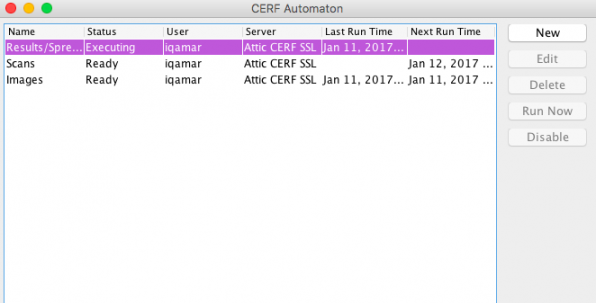
Note that the actions shown on the buttons are also found in the Job menu. However, the Job menu also includes Edit Job Info and Exit (explained below).
| Buttons | Actions |
| New | Requires complete login (server address and user authentication). Launches the Edit Job dialog to configure a new job |
| Edit | Select an existing job to enable this button. Requires user authentication for the specified server. Launches the Edit Job dialog. Enter your username and password. |
| Delete | Deletes selected job |
| Run Now | Select a job that is configured to run manually and click Run Now to start the job execution |
| Disable/Enable | Click on Disable to stop a selected job; click Enable to reactivate a selected job |
Any jobs that are scheduled will run as long as you remain logged into the computer.
< Configure a Job up Errors >