
Only users who are Workgroup Admins (i.e., Controlled Documents Managers) can create, edit, replace, or renew Controlled Documents.
Edit: Select an active Controlled Document in the Controlled Documents pane and click on the Edit button in the icon pane.

This launches a dialog where you can change the info such as expiration date, the activity status of the Controlled Document, and the comment.
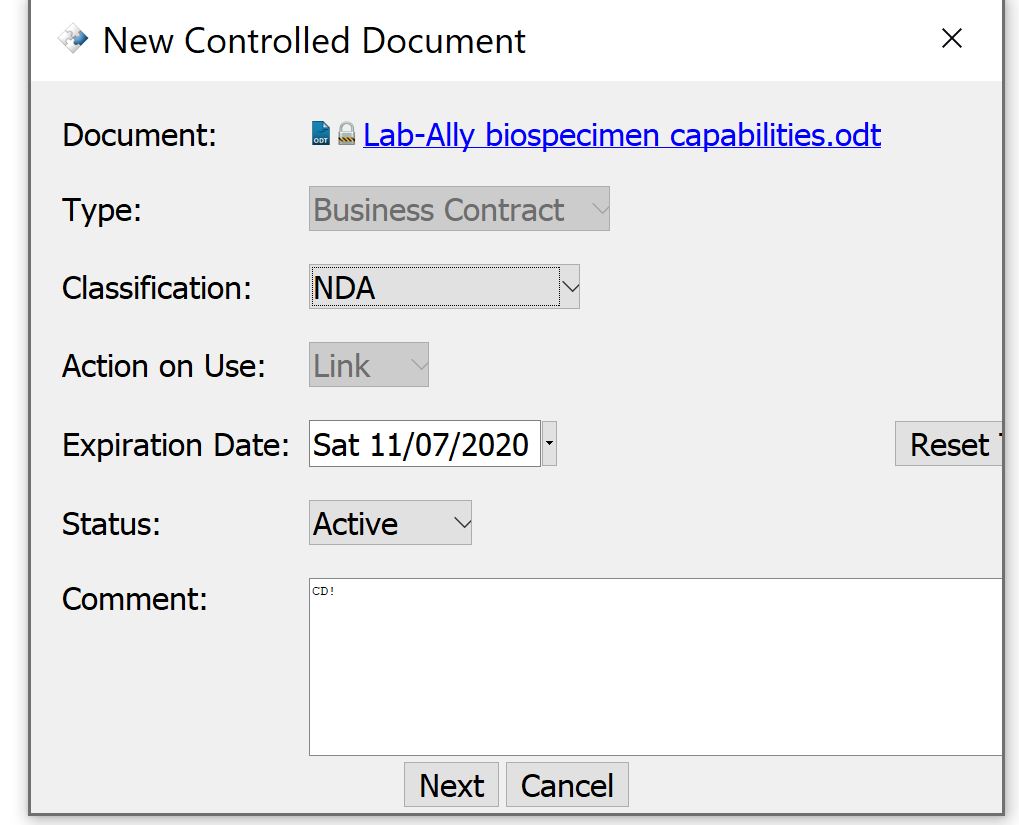
Click Next to open the Users and Workgroups dialog to edit the required signers. Note that you will not be able to change the Type of Controlled Document or the Action on Use.
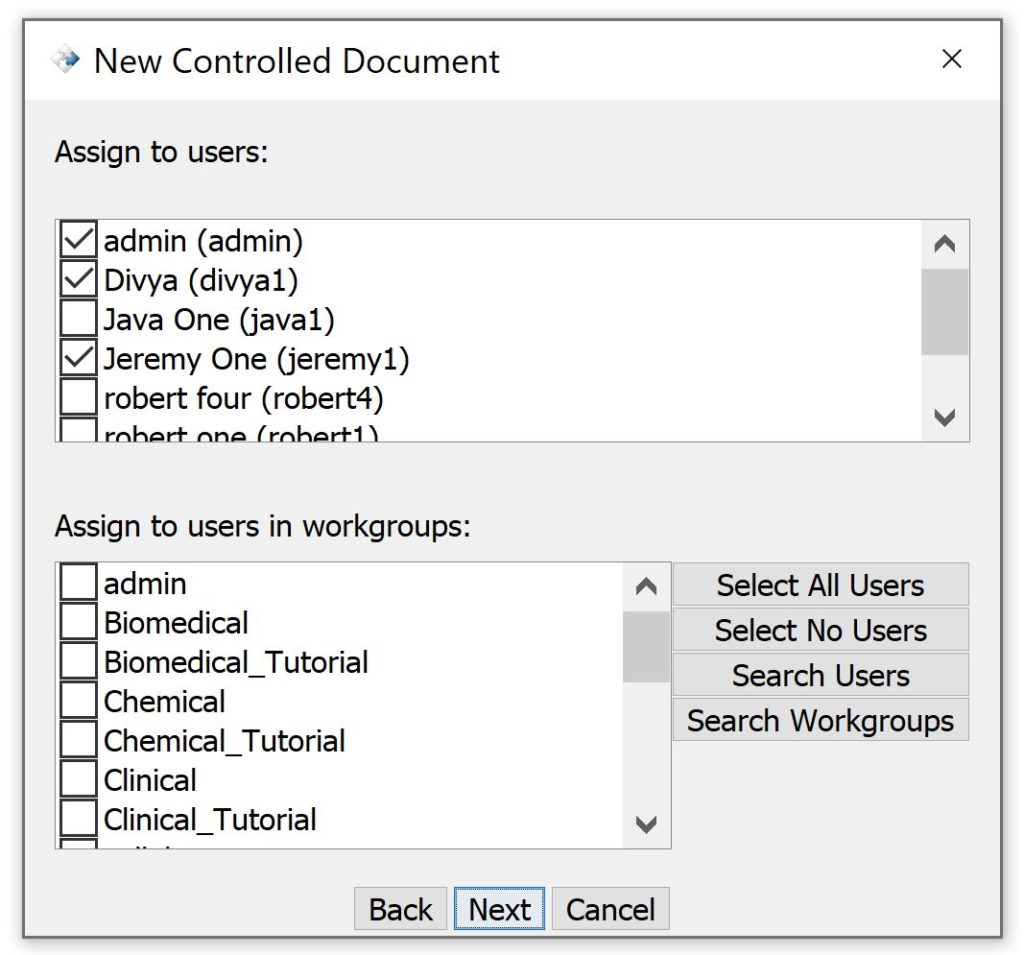
Renew: Note that by default Controlled Documents renew automatically upon expiration. Controlled Document managers can manually renew a Controlled Document that is still active, but first it must be manually expired. Select an active Controlled Document by using the Filter capability, and then click on Edit. Change the status from Active to Expired, then click the Next buttons until click Finish button. Then select the Expired Controlled Document (use the filter to find Controlled Documents whose status is Expired), select the controlled document of interest, and click on the Renew button. CERF creates a new Controlled Document and links the expired and new controlled document in the Version History.
Replace: The Controlled Documents manager may replace a Controlled Document by dragging another document (which must be in finalized status) from the Document Tree and dropping it on top of the Controlled Document in the Controlled Documents Pane. Note that the new Controlled Document will have the same attributes, and the Controlled Document it replaces will be made Inactive (and it will be shown when you filter by “Inactive”).
< Using up Digital Signatures >