
Resources in CERF are either Public (everyone in the organization has access) or they are owned by workgroups that are created by the CERF System Administrator. You will not be able to access resources unless they are Public or are owned by a workgroup to which you belong and the level of access (your permissions) will be determined by your Public Access Role and your Workgroup Access Roles. These are determined by your System Administrator or by your Workgroup Administrator.
CERF ontologies are files written in Web Ontology language that are stored on the CERF server. These ontologies act behind the scenes to determine what actions a user may perform on particular Resource types (when you submit a Resource to CERF, you may indicate the Resource type or accept the default) and what actions are permitted for different access roles. Your Workgroup and public access roles are set by the system administrator. The information in the ontologies, the Resource type, Resource edit state and activity state, your access role for the selected Resource, and your business policy settings tell the system what kinds of actions should be made available to you on menus and buttons for that Resource. Thus, when you right-click on a selected Resource in the Document Tree (or in Search Results, Notifications, Version History, etc.), the menu is configured to show only the actions that are appropriate to the Resource and are permitted for your access role. Likewise, specific toolbar buttons will only be enabled under the right conditions (resource type, status, and role) when you select a Resource in the Document Tree. If you can not perform an action on a selected Resource, check its Status in the Info panel (or select View Resource Info from the right-click menu or click the Info button).
For more information, see the section on Access Control.
Setting Resource Access
When you first create a File Cabinet or Notebook, you set the ownership by selecting a Workgroup, or for File Cabinets you can select Public instead. Any files you add to the File Cabinet or Notebook will follow this ownership rule. You can change the Resource Access for a File Cabinet, Folder, or any of the Resources contained in them if your Access Role allows this action (File Cabinet Manager or Notebook Creator). Note that you cannot change the access for Notebook resources (only the System Administrator can change the Notebook ownership).
To change the access for File Cabinet resources:
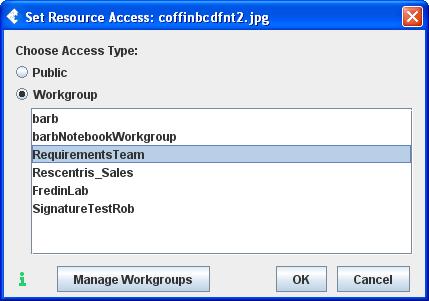
- Right-click on the Resource in the Document Tree and choose Edit > Set Resource Access from the right-click menu. This launches the Set Resource Access dialog. The access settings for this Resource are displayed in the Status pane.
- Select Public or Workgroup from the drop-down list. For Workgroup, choose a Workgroup from the list. Click OK to set the access. Only a Workgroup administrator can manage the selected Workgroup.
When you change the Resource access on a File Cabinet, this File Cabinet will be displayed in the Show Collections dialog for all the Workgroup members. However, if you change the access on a single Resource only (such as a document), the Workgroup members with access to this document will have to access it by performing a Search.
The Business Policy ACCESS_AUTOMATIC_PROPAGATE_ACCESS_CHANGE determines whether or not a change in access will be inherited to the existing children of the parent collection. For example, when you change the resource access on a File Cabinet, it will depend on the setting of this business policy whether or not the Folders and Resources currently in the File Cabinet will take on the new resource access. Regardless of the business policy setting, any new resources added after resource access has been changed will take on the resource access of the parent collection. Note that the System Administrator configures business policies.
Setting Resource Visibility
If the business policy RESOURCE_CHANGE_VISIBILITY_ALLOWED allows changes in Resource Visibility (default is true), you will see the option to set Resource Visibility when you first create a Notebook or File Cabinet. This is true for both Rigid and Flexible Notebooks. By default, Notebooks and File Cabinets are set to Shared Visibility, which means that everyone in the owner workgroup will be able to access the Notebook or File Cabinet according to their access role privileges. Note that when Visibility is changed from Shared to Private, the Resource can still be accessed by any members of the workgroup whose access role is Notebook Creator, Notebook Editor, File Cabinet Manager, or File Cabinet Editor. However, the actions for these roles will change when a resource is made private so that only the Notebook Creator will be able to make changes (the members of the workgroup who can access the Resource will have access privileges that are determined by their Access Role). The purpose of making a resource (or group of resources) private is to block other changes while the Notebook Creator is still working on a resource (or group of resources). When the Notebook Creator is ready to share the resource again and the visibility is changed back to shared, all members of the workgroup will have access according to the privileges associated with their roles.
Right-click on a Notebook Page and select Set Resource Visibility (note that this menu option is only enabled if your business policy allows changes in visibility). Set the Visibility to Shared or Private. Click OK when finished. A Private Page will be hidden from any workgroup members with roles of Resource Identifier, Guest, Digital Cosigner, Annotator, and Metadata Editor.
Some of the Visibility rules that you should be aware of:
- A Shared collection (Notebook, Section, Page, File Cabinet, Folder) that has content contributed by more than one member can never be set to Private.
- If you add a new resource to a Private collection, it will also be Private.
- As soon as you initiate signatures on a Private collection, it becomes Shared.
- If any part of a Collection is Private, its printed copy will automatically be set to Private.
< Domains up Controlled Documents >