
You will have access to only those resources that are owned by a Workgroup to which you belong or that are Public. To see all the Collections to which you have access, select Collections > Show Collections or use Ctrl+Shift+C.
Personal Workgroup. When the system administrator creates your user account, a Personal Workgroup is automatically created for you (initially you are the only member) as well as a personal File Cabinet (owned by your Personal Workgroup). By default you are the workgroup administrator in your Personal Workgroup unless the Admin adjusts your role otherwise.
The system administrator can decide to change your role in your Personal Workgroup to a less privileged role and remove your personal File Cabinet. This can be useful for Organizations that wish to limit users to working solely in shared Workgroup File Cabinets and Notebooks and not in a user personal Workgroup. A personal File Cabinet is not required for users in order to work with shared File Cabinets.
NOTE: A user must belong to their Personal Workgroup with a minimum role of Resource Identifier to enable login to CERF
A workgroup administrator may manage the workgroup; i.e., add/remove members to/from the workgroup and edit their access roles (Sessions > Manage Workgroup). In addition, the workgroup administrator may edit signature groups associated with the workgroup (Sessions > Manage Account and then Access > My Signature Groups). We recommend that you keep your personal workgroup for yourself as the only member.
Workgroups for Collaborating. In addition to the personal Workgroup, the System Administrator may create Workgroups that include several users (who may have different Access Roles). When a Workgroup owns a File Cabinet or Notebook, the members of that Workgroup will be able to access the File Cabinet or Notebook from their available collections in CERF (Collections > Show Collections). Members of the workgroup can collaborate on the Resources associated with the File Cabinet or Notebook to the extent that their access roles permit. When you are added to a Workgroup, the administrator assigns you a Workgroup Access Role and determines if you will be a Workgroup Administrator.
Public Ownership. While some resources are owned by Workgroups, other Resources may be Public. When the administrator creates a new user account, the user is given a Public Access Role. Your public access role determines the permissions you will have for Resources that are set to Public Access.
To find out who owns a resource, select it and look in the right panel (Info) or click on the Info button  in the Document Tree toolbar. The status pane shows the name of the Workgroup and your role in the Workgroup.
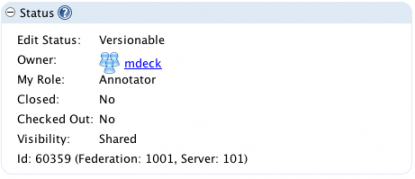
Click on the Workgroup name to show all members of the Workgroup, their access roles, and their cosigning roles:
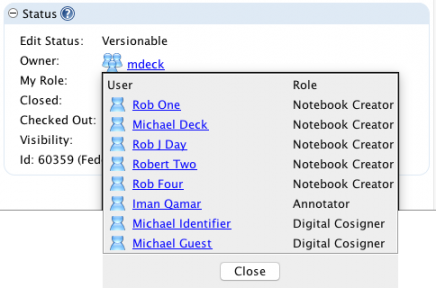
Users must have a role of at least Digital Cosigner in order to be able to sign (and have a Cosigning Role).
Sections in this Topic
< Access Roles up Creating a Workgroup >