
If you attempt to log out while resources are checked out, CERF launches a dialog that asks you what you want to do.
In the following image, the user has just attempted to log out while there are two checked out documents. The documents have a red checkmark shown in the Document Tree and they are also shown in the Checked Out Documents pane. The document shown in red has been edited and saved. The other document has been checked out from the CERF server, but it has not been edited.
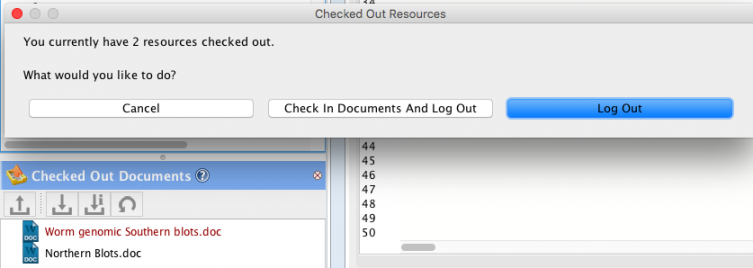
If you wish to continue your work later (i.e., work offline), click on Log Out on the Checked Out Resources dialog. Keep in mind that CERF stores checked out documents in a temporary, local file, thus if you want to access the checked out documents, you will need to be logged in on the same computer where the files are being stored. If you want CERF to check in the documents for you, select Check In Documents and Log out. Select Cancel to continue working in CERF without logging out.
Sections in this Topic
< Check Out & Edit up Working Offline >