
If you have logged out from CERF while you had checked out documents, you can continue your work offline on the same computer where you checked out the documents. When you log back in to the CERF server, you can then check in the documents you worked on while offline. You must be on the same computer where you originally checked out the documents in order to check the changes into CERF.
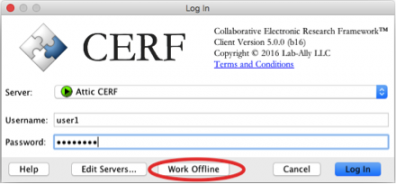
- To work offline on documents that you previously checked out, launch CERF and log in with your usual login credentials (although to work offline, you do not have to enter your password). Instead of clicking on Log In, click on the Work Offline button:
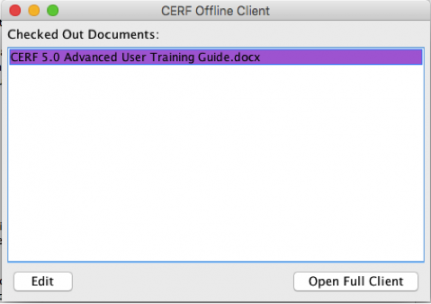
The CERF Offline Client dialog lists all of your currently checked out documents that are on the local machine. Any that are shown in red have already been edited and saved. Other documents have been checked out, but not yet edited. - Select the document you want to work on and click on the Edit button. This will open the document in its native application for editing.
- When you have finished editing, click on the Save button (or File|Save) in the application in which you are editing and close the document. (Note: do NOT use the “Save As” function).
- When you are ready to check in the file to CERF, click on the Open Full Client button on the CERF Offline Client dialog.
- Launch CERF.
- Enter your CERF login credentials and click on Log In.
- Find the documents in the Checked Out Documents pane in CERF:
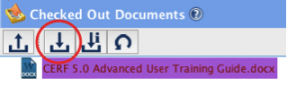
- Select the edited document and click on Check In:
< Log Out While Resource is Checked Out up Check In Resource >