
Metadata are information about a Resource. Metadata are a permanent part of the Resource record and they may be either embedded within files and read by CERF, or stored entirely outside of the Resource in the CERF database. Metadata can be used to add comprehensible meaning to verbose or non-text data (such as images), track the history and intended purpose of Resources, add comments to specific versions of resources to make it clear what has been changed, and facilitate precise semantic, boolean searches for very specific Resources or sets of Resources in CERF.
Some types of metadata are embedded within files even before the file is added to CERF. This type of metadata is sometimes referred to as “file properties” (e.g. by third party applications outside of CERF such as MS office). Embedded file properties can often be extracted or inferred automatically by CERF when the file is submitted. Extracted metadata categories include title, Resource type, contributor, date (creation and update dates), and file size and others. CERF will also attempt to extract embedded metadata from within MS Office documents, PDF documents, and images and other types of files if it can.
For MS Office documents, metadata will be extracted from fields where there are values for Title, Author, Subject, Keywords, Comments, Creation Date (“instantiation”), and Company.
For Images, metadata are extracted from fields where there are values for Image Length, Image Width, Resolution Horizontal, Resolution Vertical, Resolution Unit, Equipment Make, Equipment Model, Application Name, Latitude, Longitude, Altitude, Location, Focal Length, Exposure Time, Shutter Speed, and Bits Per Sample.
All of these extracted metadata fields are searchable.
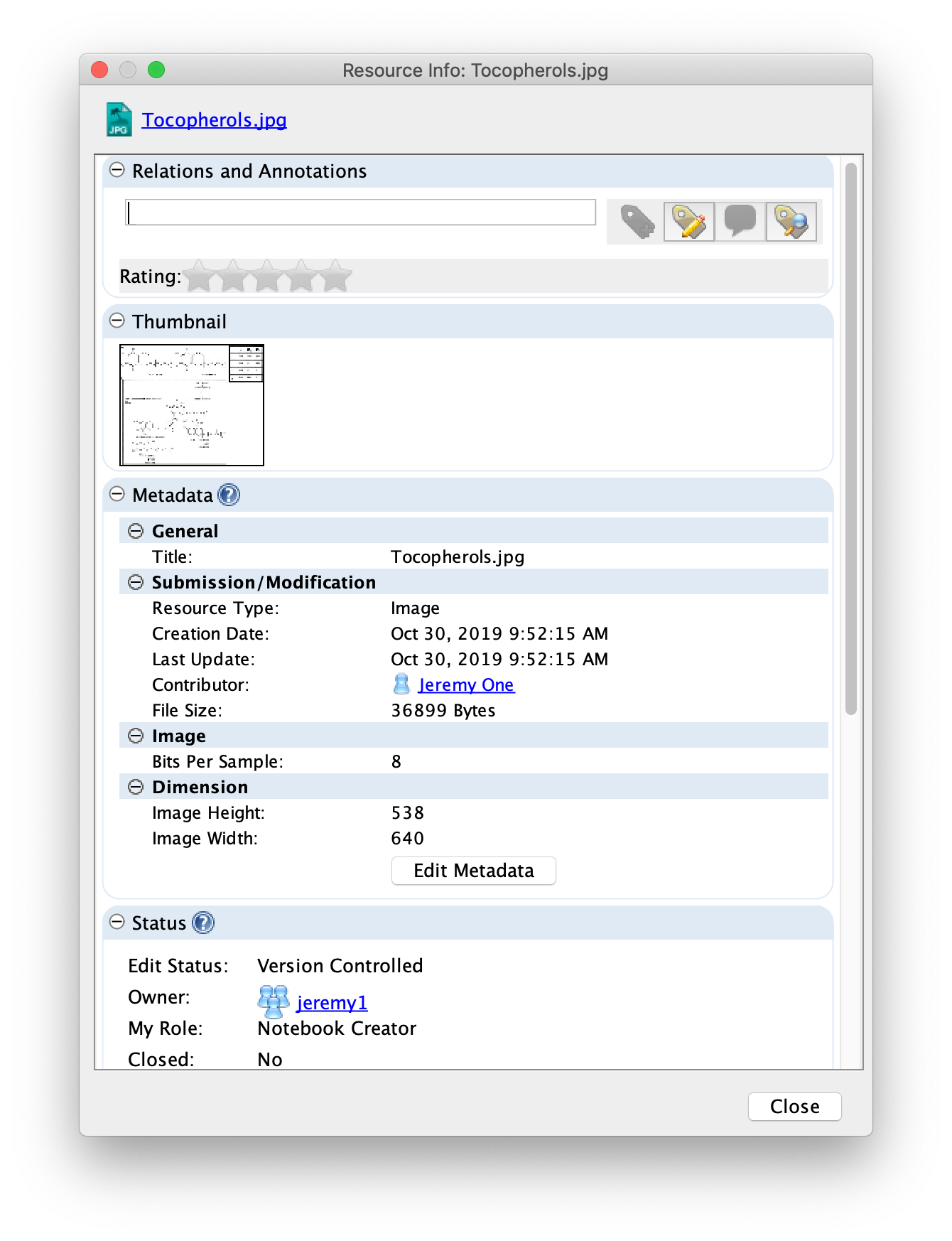
Viewing the Metadata
You can view metadata for any Resource that is in a File Cabinet or Notebook resource displayed in the Document Tree or any resource displayed in the Notebook Viewer or File Viewer. You can also view metadata for a search result. For resources in the Document tree, simply select the resource, open the Info panel (right-hand panel in CERF), and expand the Metadata pane by clicking on the expander.
You can also view metadata for a Resource listed in a Search Result, Version History, Notification, or Annotation pane by right-clicking on it and selecting View Resource Info (or clicking the View Info button for a selected Search Result).
An easy way to view metadata for resources that are Entries on a Notebook Page, click the Show Metadata button  on the Page Toolbar (first image and enclosed in a square in image 2). This button toggles from the Hide Metadata button (indicated on the Page toolbar below). The following image illustrates a Notebook page with metadata shown (circled).

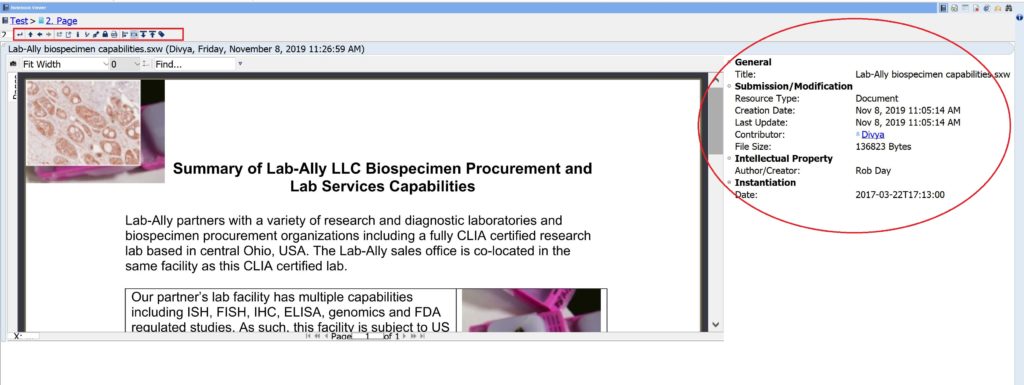
To view Resource Info for the Notebook Entry or Entry Content, select the Notebook Entry in the Notebook Viewer (click on the blue selection bar) and click on the Info button  on the Entry toolbar. This launches the Resource Info dialog. Select the Entry Content Tab to see all info about the embedded file and select the Entry Tab to see info about the Entry (container).
Editing and Adding Metadata
You have an option to edit metadata at the time of resource submission and you can also edit metadata for any existing CERF resource by clicking the Edit Metadata  button or click on the Edit button in the metadata pane in the Info Panel.
You must have an access role of Metadata Editor or higher in order to edit metadata. You will not be able to edit metadata if the Resource is already checked out or has pending signatures, or if the edit state of the resource is Final. When you edit the metadata, you will see a red check mark  next to the resource because the resource is checked out from the server during the edit.
The main part of the Edit Metadata dialog has options to change or add metadata such as Title, Description, Keywords, Comment, and Category. The Submission/Modification Metadata and some types of embedded Metadata (file properties) cannot be changed, but users can associate as much additional metadata with their resources as they like using the default list of categories in the Edit Metadata window. For more metadata options, click on the Add More Metadata button.
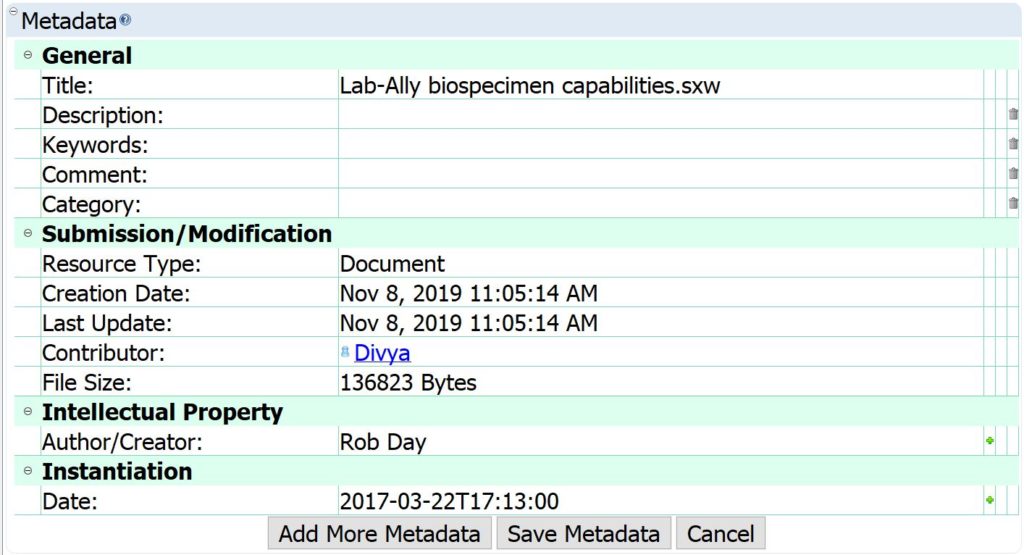
The following are the types of additional metadata:
- Semantic Type – a standard controlled vocabulary, associated with all Resource Types in CERF.
- Attribute – allows you to create your own metadata type for precise retrieval of information.
- User Supplied Basic CERF Metadata – the option is to add an author field. The author is another CERF user in your organization (this launches a search dialog to find the user).
- Dublin Core – depending on what you select, this will add a new text field to the metadata.
- Other Metadata options may appear depending on what type of resource you are working with, and the types of resource you have access to are in turn controlled by which CERF Domains the owning workgroup belongs to.
After you’ve selected the metadata type, fill in any requested information and click OK. The new metadata are displayed in the Edit Metadata dialog. When you are finished, click Save Metadata on the dialog.
The Version Resource dialog is launched next.
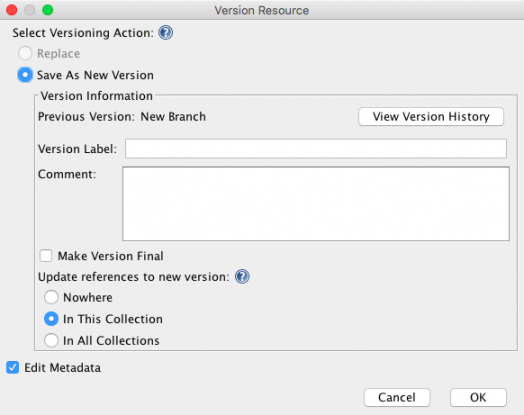
The update references action allows you to choose where to display the updated copy. Usually, you will want to update in All Collections (the default selection). Click OK to save these changes.
Sections in this Topic
< Replace with New Version up Edit Metadata Inline >