
A CERF Administrator or a user with sufficient capabilities can grant other users the capability to manage and / or edit vocabularies. If you have been granted this capability you will see the “Manage Vocabularies” option under the Tools menu and from there you will be able to create controlled vocabularies in CERF and / or edit existing vocabularies. Other users can see and use these vocabularies for tagging resources with Advanced Tags.
To Manage Controlled Vocabularies:
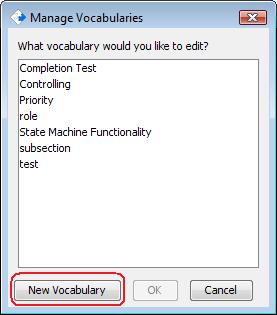
- Select Tools > Manage Vocabularies. If there are existing vocabularies, you will see them listed.
- To create a new vocabulary, click the New Vocabulary button (circled):
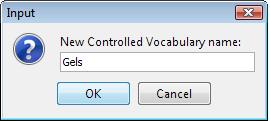
- Enter a new Vocabulary name
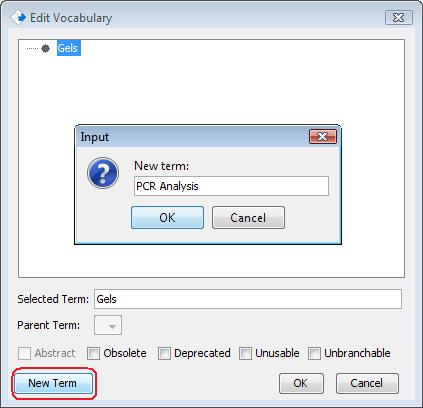
- Select the new vocabulary name, click on New Term (circled), enter the new term and click OK on the Input dialog:
- When you are finished, click oK on the Edit Vocabulary dialog:
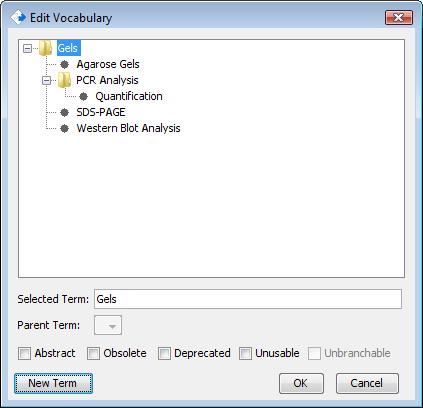
Note that you can select a term and then select a checkbox below to make it unbranchable, unusable, deprecated, etc. (this is true as long as the checkbox is selected). If a term is abstract, obsolete, or unusable, it will not be displayed to users when they use vocabulary terms for advanced tags. A term that is marked as deprecated is not recommended and an unbranchable term cannot be branched.
To edit an existing vocabulary, select it from the list on the Manage Vocabularies dialog and click OK. Note that vocabularies cannot be deleted.
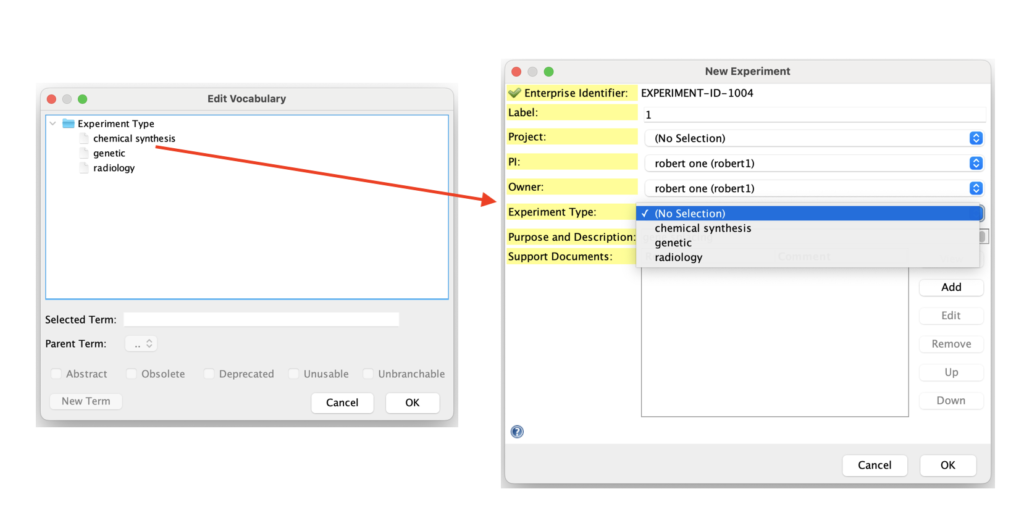
Some ontology terms may appear in other places in CERF and can be used to create editable dropdown lists of options. For example the “Experiment Type” and “Project” categories can be used to modify available options in the “Experiment” card within the CERF SDIMS area:
< Controlled Vocabulary up Relations Annotations >