
CERF 6.0 Documentation
Go to CERF 5.3 Documentation
Annotations are a type of informal metadata that can provide useful additional information about CERF resources. Annotations are not under version control and can be added and deleted as a user sees fit. Any user with an access role of Annotator or higher can add or remove Annotations. More formal metadata that needs to be under version control should be added using the Edit Metadata feature.
There are several types of Annotations that can be associated with various CERF resources:
• Relations
• Tags and Advanced Tags
• Notes
• Ratings
Most of these annotation types have corresponding search parameters in the CERF search engine.
A Relation is a link or pointer to:
• Another CERF Resource (referred to as a “CERF Link”).
• An external, third party database (referred to as a “cross reference”)
• An external URL on the internet
• An external file stored in a separate SMB file store that you have access to (referred to as a network file link).
A resource that is copied and then pasted to a new location as a new resource adds a Relation annotation to show the relationship to the source document. If you drag and drop resources onto some other resource to create a CERF Link, that link is also considered to be a Relation annotation.
A Note is plain text that describes or clarifies some point of interest relating to a resource. A Note is considered a CERF Resource has its own time/date stamp and contributor.
Annotations are associated with the Resource but do not change it, and since they can be completely deleted even after digital signing, they should not be considered part of your official record. Annotations may be added to a CERF Resource after it has been signed, finalized, or struck out, and DO appear in the metadata table for records that are printed as PDF unless they are deleted before printing.
Tags, Notes, and star ratings are also Annotations and are searchable. The Tag and Advanced Tag Annotation tool can be especially useful for adding specific terms and identifiers to resources that follow conventions or use language or ontologies that may be unique to your organization. This functionality is described on a separate page.
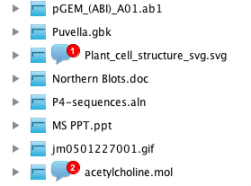
When a Relation or Annotation is added to a CERF Resource, an annotation icon  will be displayed in the CERF Tree next to the Resource. The icon will include a badge icon with a number on it to show how many annotations a resource has.
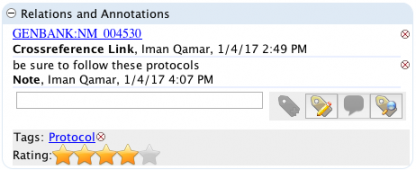
To view the Relation or Annotation, select the Resource, click on the Info button (or open the Info panel), and expand the Relations and Annotations pane. Right-click on the annotation link to see actions such as View (available actions depend on your role).
Any members of the workgroup that owns the annotated Resource will receive a CERF Notification to inform them of the annotation if the business policy is set to send notifications on annotation.
To delete an annotation, click on the small X icon  to the right of the annotation. Note that only the annotator, the contributor of the resource being annotated, or an admin can delete an annotation. This image shows a resource with annotations by members of the workgroup.
Note: any member of your workgroup whose role is Annotator or higher may add an annotation to a shared resource. If the annotation is a link to a CERF resource that you cannot access, then you will see a message informing you that you do not have permission to view the resource
In a Notebook
Annotations (notes)
The easiest way to add note-type annotation in the Notebook Viewer is to select an entry on the page (click on the selection bar) and then click on the Add Note button  . This launches the Notes Editor. Type a note and click on the Save button in the Notes Editor. This saves and closes the editor. You will see the annotation icon on the Entry Header. If headers are hidden, click on the Show Headers button
  on the Page toolbar (the annotation icon will also be displayed on this Entry when you view it from the CERF Tree).
Relations
The same methods for creating relations in File Cabinets apply to Notebooks (right-click menu option or use drag and drop in the Document Tree and press the Ctrl/option key if using drag-and-drop within same collection). When you drag a Resource from a File Cabinet to a Notebook, the Paste Resource dialog choices depend on the destination. Relations created on Notebook Entries are displayed with the Annotation icon on the Entry headers in the Notebook Viewer.
Viewing Annotations and Relations in the Notebook Viewer
When you are displaying a Notebook Page in the Notebook Viewer, and when Headers are shown, you will see an annotation icon on the Entry headers for any entries that have annotations or relations. Simply click on the annotation icon to see these relations and annotations.
Sections in this Topic
< Managing Vocabularies up Resource Links >