
Notes
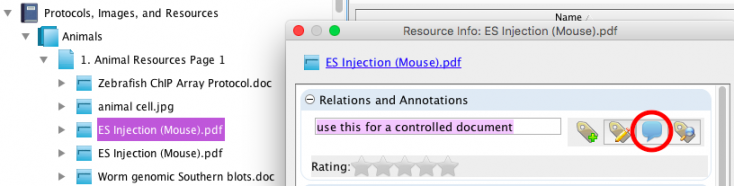
You can write a descriptive comment (called a note) by typing directly into the text box shown in the Relations and Annotations pane. This note is displayed inline and all the members of the owning workgroup will be able to see them. To create a note, select the resource in the Document Tree and click on the Info button or open Info pane. Type the note into the text box and click on the Note button (circled):
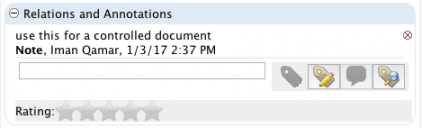
The resource is now shown as annotated and the note shows the name of the person who added the note and the date/time stamp. The person who added the note can delete it by clicking the small ‘X’ icon  to the right of the annotation.
You can also add a note by right-clicking on a file and selecting Edit > Add Relation. From the Choose Relation dialog, select Note. This launches the Edit Note dialog. Enter your note and click OK.
Tags
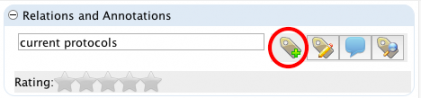
You can easily add a tag to any resource to make it easier to find a batch of related resources in a search. And, in a sense, you are creating your own Controlled Vocabulary by creating tags to help you search. Select the resource in the Document Tree and click on the Info button or open the Info Pane. Type in a tag that you can use to retrieve the resource and then click on the Add Tag button  :
:
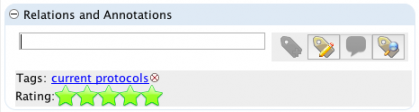
The Tag now appears in the Relations and Annotations pane:
The next time you want to add this Tag to a different Resource, click on the Browse Tags button  . This displays a list of all existing Tags that have been previously created by other users. Try to use existing tags whenever possible so as to avoid unnecessary proliferation of synonymous tags.
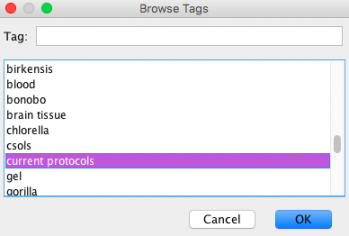
Select the Tag and click OK to add the Tag.
To retrieve all like-tagged resources, either click on the tag link displayed in the Relations and Annotations pane or enter the tag as a Search term:
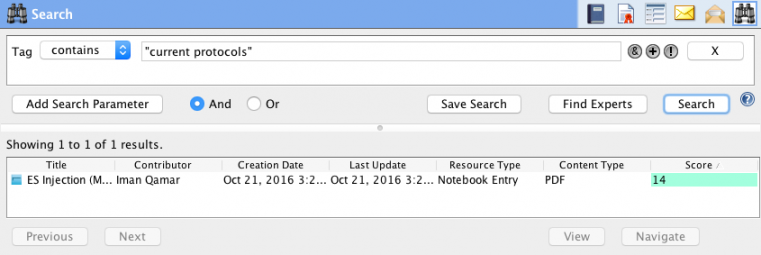
There are also Advanced Tags that include controlled vocabularies.
Create Note and Tag annotations for a Notebook Page
Open a Notebook Page in the Notebook Viewer and click on the Show Tags button  on the Notebook Page toolbar. (This button toggles to the Hide Tags button).
This displays the Note and Tag entry pane. It works the same way as explained above.
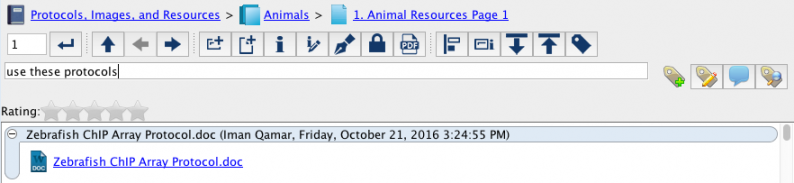
Note that the above image also displays a 4-star rating for this Notebook Page. Ratings are another type of searchable tag.
Sections in this Topic
< Network File Links up Advanced Tagging >