
Any Resource in CERF can be tagged. Here’s how to use the Advanced Tagging feature:
- Select a resource you wish to tag in the Document Tree and click on the Info button in the Document Tree toolbar (or click on the Info icon to open the Info pane in the right panel).
- Click on the Add Advanced Tag button
 and select one of the types of tags: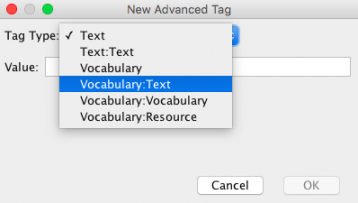
Note: Tags can be created from free text or can be selected from previously created lists called controlled vocabularies. Controlled vocabularies can be created and edited by users who have been granted the “manage controlled vocabulary” capability.
Note: Tags can be used singly or combined together to create “semantic pairs” also called “key-value pairs” consisting of a hypernym and a subordinate hyponym, usually denoting a recursive “category-member” or “label-value” relationship. Tags can also be combined with a CERF resources to facilitate rich associations between hierarchic concepts, ideas, words and related data already in CERF. You can add as many tags as you like to a resource.
- Text – enter any term
- Text:Text – usually used to enter a label (hypernym) and its associated value (hyponym) (e.g, unit:centimeters).
- Vocabulary – click on the button and search for an existing user-created vocabulary term that is relevant to the current resource.
- Vocabulary:Text – click on the button and search for an existing user-created vocabulary term and then enter an associated text value in the text box.
- Vocabulary: Vocabulary – click on the button and search for an existing user-created vocabulary term and repeat for a second vocabulary term. Usually used to enter a label or category (hypernym) and its associated value (hyponym) (e.g, fish:pearch).
- Vocabulary: Resource – click on the button and search for an existing user-created vocabulary term and then click on the button to search for an existing CERF resource.
- This example shows Vocabulary:Text. Click on the Browse button to select a vocabulary.
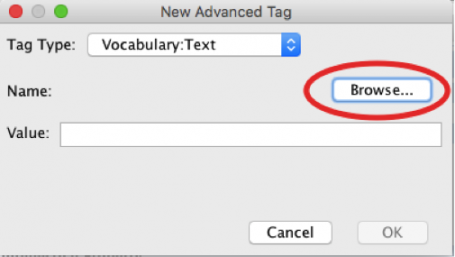
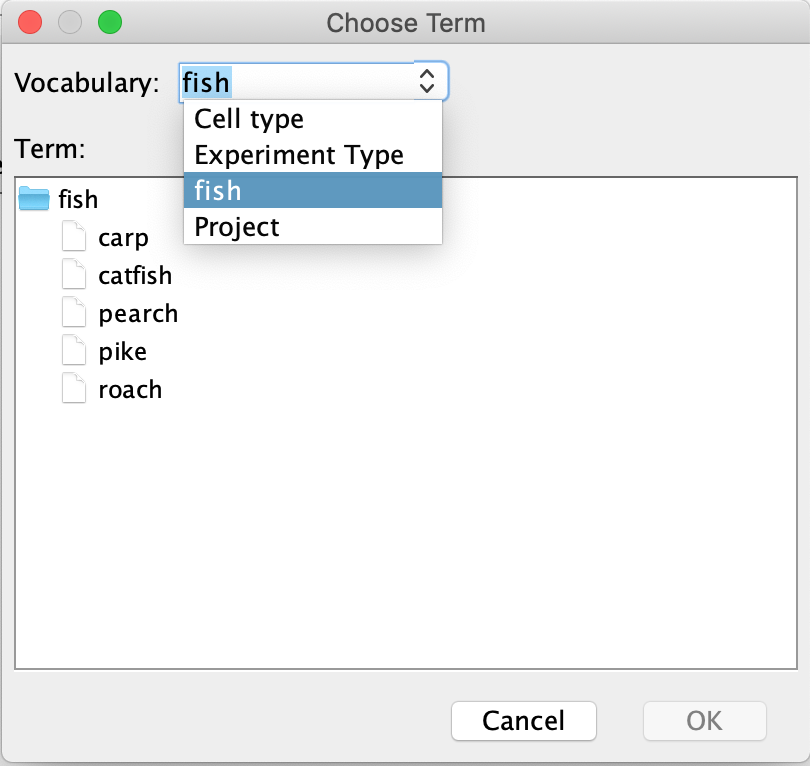
- Choose a “top level” vocabulary from the drop-down menu and select any vocabulary term from the hierarchic list to be the hypernym in your semantic pair.
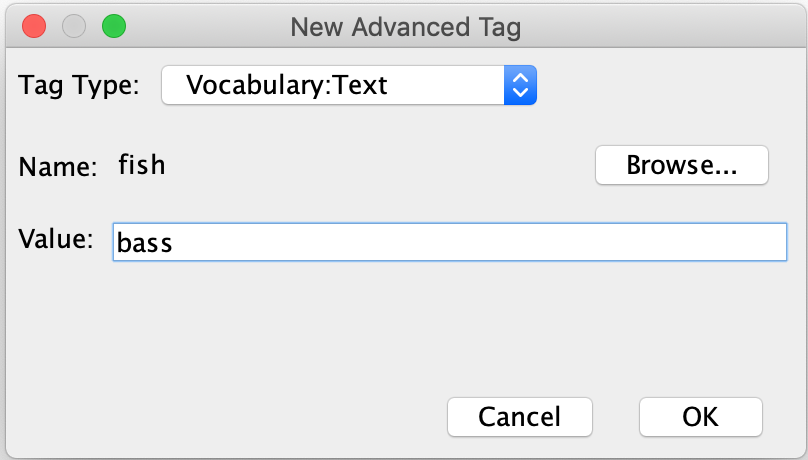
- Now type in a suitable free text term (value or hyponym) for this semantic pair and click OK:
The new tag will be shown as a link in the Relations and Annotations pane (circled below):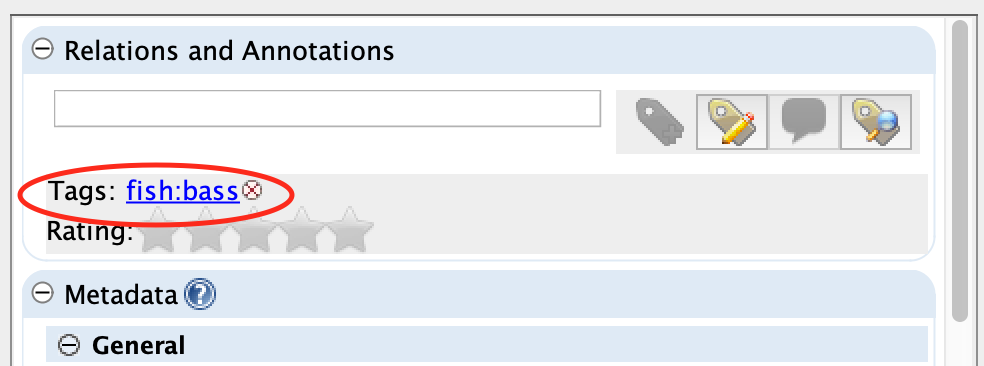
- You can click the small X
 next to the tag to remove it permanently.
 - Click on the (blue) advanced tag text to open a new CERF search window that will show all resources associated with this tag. Alternatively, use the CERF search panel and the “Tag” parameter to search manually for the tag:
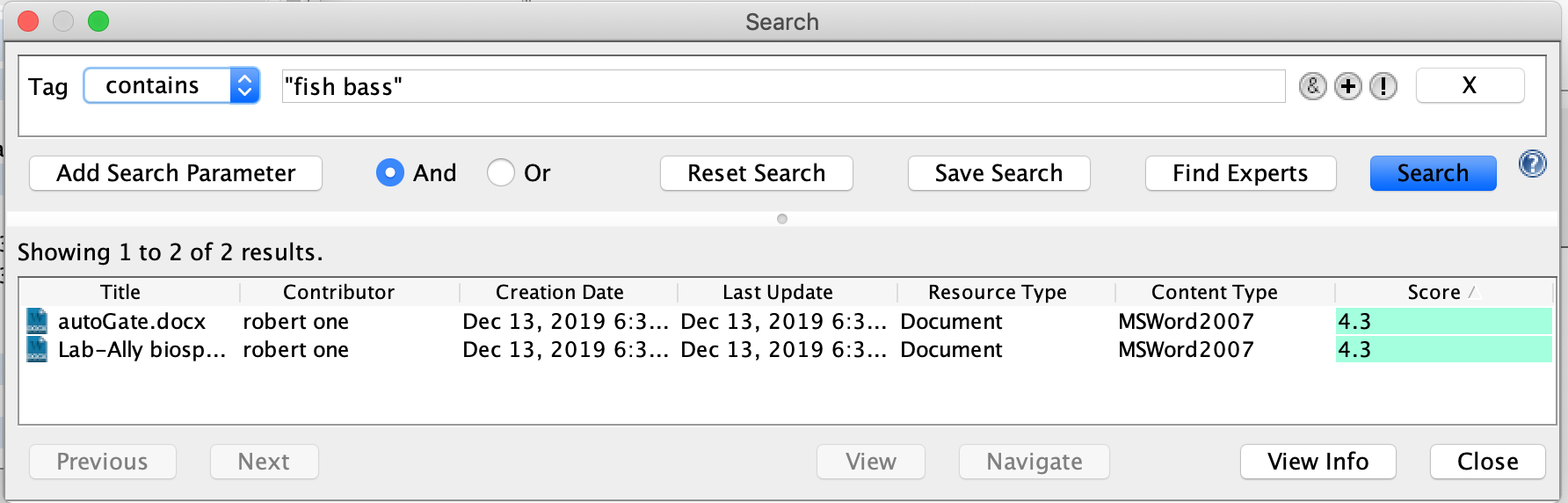
Note: You can edit the search by removing one of the two pairs of terms comprising the semantic pair tag to make the search broader, possibly returning additional related results.
< Notes & Tags up Star Ratings >