
Another way to tag your work to make it easier to categorize and find is to use the “star rating” system. If you’ve completed work that you thought was some of your best, you might give it a 4- or 5-star rating and when you want to find it again, you can search by the rating.
The first example shows how to add stars to a Notebook Page that is displayed in the Notebook Viewer. Click on the Tags button (circled below) to expose the comments, tags, and ratings. Mouse over the number of stars to select (they will turn from gray to green).
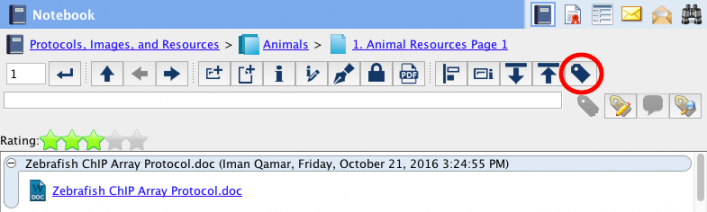
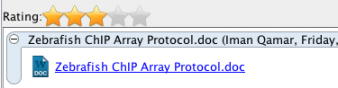
Click on the stars when you have decided on the rating, and they will turn gold when saved:
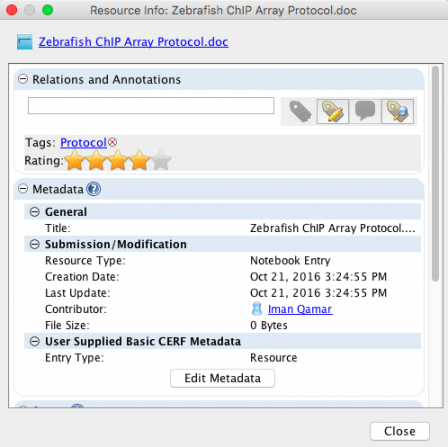
Select the File that you rated and open the Info Panel to see the star rating in the Relations and Annotations pane. Note that you can also add a star rating by clicking on the stars shown here:
It’s easy to find all the resources that you’ve rated. Click on Search and in the Search dialog select Rating from the Add Search Parameter list (circled below):
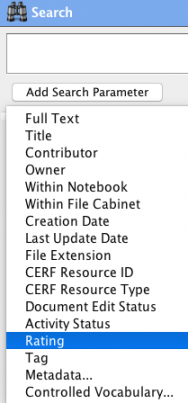
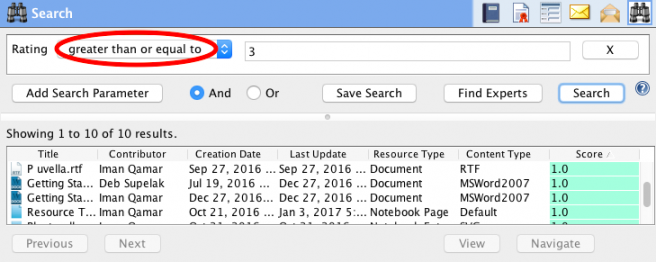
Select the label (greater than, less than, etc.) and enter the number of stars. Click Search to see a list of all resources you have rated that match your search criteria:
< Advanced Tagging up Notes >