
CERF 6.0 Documentation
Go to CERF 5.3 Documentation
A Relation is a link to either another CERF Resource, or a registered database crossreference, an external URL, or a network file link (ie a file in an external SMB file store)
Using Right-click Menu Options
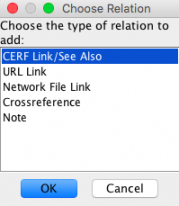
- Select Edit > Add Relation from the right-click menu. This launches the Choose Relation dialog.
- Select CERF Link/See Also (for this example).
This launches the Search dialog. - Either Browse a collection or use the Search tab to type in the search term, and click Search.
- Select a Resource in the Browse tab or a Search Result to use as the relation and click OK.
Copy/Paste Relation
Another way to add a CERF link is to use copy and paste (or drag and drop).
- Right-click on a Resource in the Document tree and select Edit > Copy.
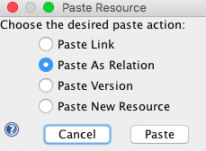
- Next right-click on the Resource you wish to associate and select Edit > Paste. You can also use drag and drop, but if it is within the same collection, press the Ctrl/option key (or else this action will cut and paste). This launches the Paste Resource dialog, and the choices depend on the destination: If the destination is a File Cabinet or Folder, the paste options include Paste as New Resource, New Version, Link, and Relation. Choose Relation. If the only option is Paste as Relation, the Paste Resource dialog will not be launched.
View Relation
To see the new relation, select the Resource you have just annotated (in the Document Tree), then open the Info panel or pop-up window and expand the Relations and Annotations pane. Right-click on the annotation for available actions. Click on the small ‘X’ icon  to delete it.
Relations are reciprocal (this is the default business policy setting of EDIT_ADD_INVERSE_RELATIONS, which may be changed by the System Administrator). In other words, if resource A is annotated by resource B, then resource B will have the reciprocal relationship with resource A.
If you check out a resource for editing and then choose Full Check In, you see a dialog box that (among other things) allows you to choose whether or not you want to update any CERF Links so that they continue to point at the latest version of the resource. If you use the Quick Check In option, the decision to update CERF links or leave them pointing at the older version is determined by your business policies.
Sections in this Topic
< Relations Annotations up URL Links >