
CERF 6.0 Documentation
Go to CERF 5.3 Documentation
1. Right-click on the Resource to which you will add a database crossreference link and select Edit > Add Relation.
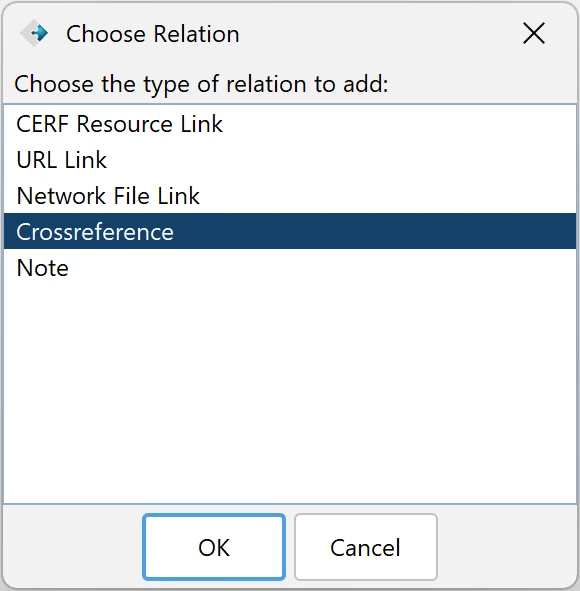
2. Select Crossreference from the Choose Relation dialog and click OK.
3. This launches the Edit Crossreference Link dialog.
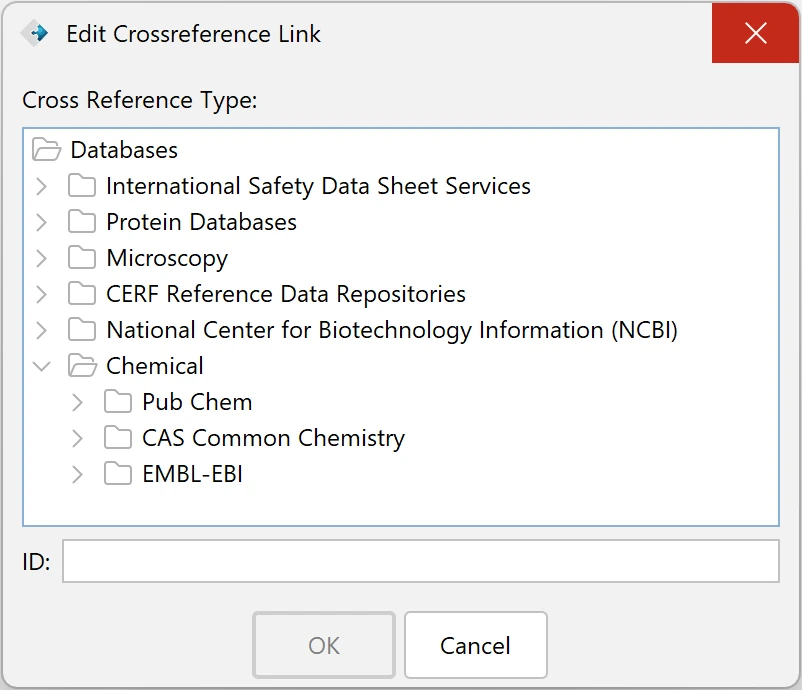
4. Select the database of interest and enter a parameter that corresponds to an access ID for the selected database. Click OK.
Note: This is a customizable feature that allows you to select registered databases, organized by repository. Contact Lab-Ally for more information.
To access this link, select the Resource you annotated (it will have an annotation icon  next to it
Next open the Resource Info tab and expand the Relations and Annotations pane to access the crossreference link (shown below). Click on the link to launch the crossreference in your browser. Click on the small ‘X’ icon  to delete this annotation.

Database Crossreference Descriptions
Lab-Ally provides a set of crossreference databases by default. These databases, as well as new databases, can be configured to your organization’s requirements.
CERF Reference Data Repositories
CERF Help Website
This database demonstrates the ability to link to a website and perform a search on a specified search term. Lab-Ally can add new websites for your organization.
- Website URL structure:
https://cerfsupport.lab-notebook.org/?s=$search-term - Reference ID:
$search-term - Sample ID: database+crossreferences
- ID Requirements:
- Spaces and special characters must be URL encoded
- A plus symbol (+) between words without spaces will return results with both words. In WordPress search, the plus symbol is converted to a space character.
This example database is a WordPress website with basic search capabilities that does not process boolean operators. Let Lab-Ally know if your prospective database website you desire to have added allows boolean operators in search.
CERF ELN Glossary
This database demonstrates the ability to link to website URLs using ID tags from HTML links. Lab-Ally can add new websites for your organization.
- Website URL structure:
https://cerf-notebook.com/articles/eln-glossary/#$glossary-id - Reference ID:
$glossary-id - Sample ID: controlled-vocabulary
- ID Requirements:
- Spaces and special characters must be URL encoded
- User will need to know the HTML ID on the page to be linked.
In this example, Lab-Ally added a visual representation of each crossreference ID that can be chosen from our ELN Glossary web page. Normally, a user would need to look at the source code of a web page to find out available IDs. Thankfully, many popular web browsers let you “Inspect” a webpage by right-clicking on the text of a webpage and choosing an inspect or developer tools option to view the HTML node. An example could look similar to the following: <div id="controlled-vocabulary">
Note that all URL based ID links cannot have spaces, and words are typically separated by a minus symbol (-)
Lab-Ally can advise your team on using a similar website for your organization
Chemical
Pub Chem
PubChem is an open chemistry database at the National Institutes of Health (NIH). CERF users can link a CERF resource to specific chemical compound pages. To locate a Compound ID, visit the main PubChem page and enter your chemical compound name in the search bar. Selecting a compound should take you to the compound’s page and look for the PubChem CID. Use this CID for the ID parameter in the CERF Crossreference dialog.
- Website URL structure:
https://pubchem.ncbi.nlm.nih.gov/compound/$CID - Reference ID:
$CID - Sample ID: 5234
- ID Requirements:
- User will need to know the Compound ID to be linked.
- Compound IDs are typically in numeric format
CAS Common Chemistry
The CAS Common Chemistry database uses unique CAS Registry Numbers to identify a specific chemical compound and related research. CERF users can link a CERF resource to specific chemical compound pages. To locate a CAS RN, visit the main CAS Registry and enter your chemical compound name in the search query box. Selecting a compound should take you to the compound’s page and look for the CAS Registry Number. Use this dashed number for the ID parameter in the CERF crossreference dialog.
- Website URL structure:
https://commonchemistry.cas.org/detail?cas_rn=$cas_rn - Reference ID:
$cas_rn - Sample ID: 7647-14-5
- ID Requirements:
- User will need to know the Compound ID to be linked.
- Compound IDs are typically in dashed numeric format
EMBL-EBI
The EMBL-EBI is a world-leading provider of biological data resources and tools. This crossreference database is linked to the Chemical Entities of Biological Interest (CHEBI) database. CERF users can link a CERF resource to specific chemical entity pages. To locate a CHEBI, visit the main CHEBI webpage and enter your chemical compound search term, either by name or InChi. Selecting a compound should take you to the compound’s page and look for the CHEBI ID after the colon (:). Use this ID for the ID parameter in the CERF crossreference dialog.
- Website URL structure:
https://www.ebi.ac.uk/chebi/CHEBI:$chebi - Reference ID:
$chebi - Sample ID: 26710, or CHEBI:26710
- ID Requirements:
- User will need to know the Compound ID to be linked.
- Compound IDs are typically in numeric format
- It is OK to add “CHEBI:” before the number in ID dialog box, or use only the ID number
Microscopy
Helmholtz EM Glossary
The Helmholtz electron microscopy glossary is a curated database of some common terms in microscopy. CERF users can link a CERF resource to a specific microscopy term web page. To locate a term, visit the glossary exploration page and either enter a term in the search box, or scroll down the page and select a term of interest. Use the portion of the URL after https://emglossary.helmholtz-metadaten.de/term/ as the ID parameter in the CERF crossreference dialog.
- Website URL structure:
https://emglossary.helmholtz-metadaten.de/term/$term - Reference ID:
$term - Sample ID: em-electron-diffraction
- ID Requirements:
- User will need to know the em-term-url, found as the ending portion of the webpage URL.
- Term IDs normally start with em-
- The em-term-url will already be in the url encoded format and must not contain spaces
< URL Links up Network File Links >