
You can link to external files that are located on an SMB (samba) storage drive that you have access to on your network by creating a Network File Link. This assumes that the network and your CERF server have been configured properly. The target SMB file store must be registered with your CERF server to be recognized. For assistance with configuring your server so that it can link to external files in suitable SMB stores, contact Lab-Ally support. If you are a CERF admin you can learn more about configuring the connection to SMB volumes.
- Right-click on a CERF Resource in the Document Tree and select “Edit > Add Relation” then select “Network File Link” from the Choose Relation dialog.
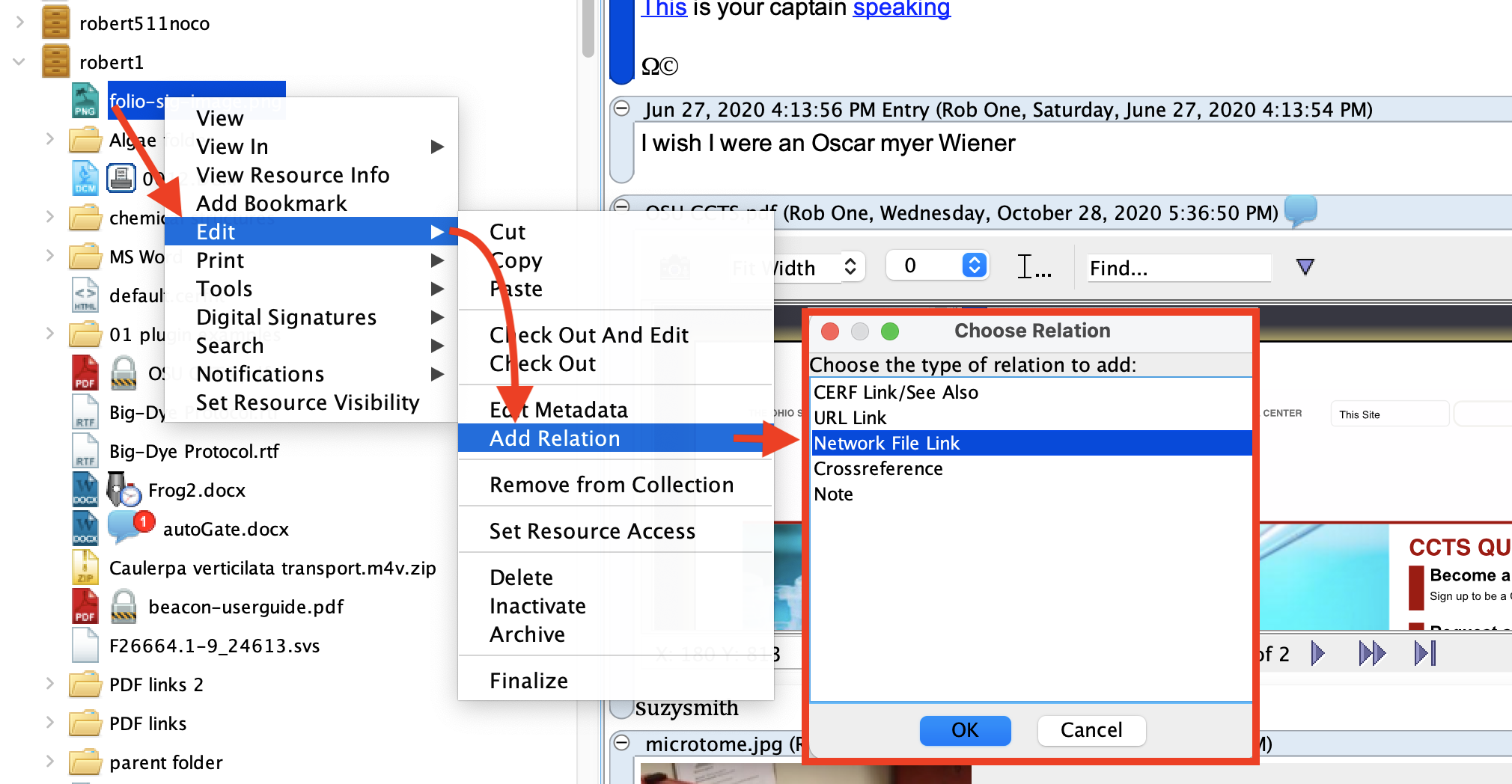
- Select a configured network from the drop-down list of network names.
- Click on the “Browse” button (circled) on the Edit Network File Link dialog.
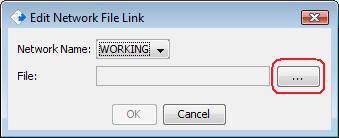
- Enter your network credentials in the next dialog:
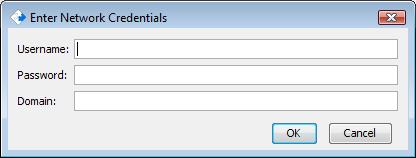
When your credentials are validated, the network file system will be displayed.
Note: Not all SMB shares will need the “Domain” information included. check with your internal IT Support. - Navigate to find the file of interest in the Choose Network File dialog.
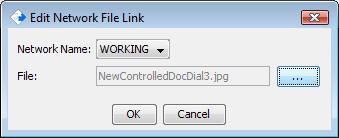
- Select the file and click OK. The file name will be displayed in the first dialog.
Note: only one file can be selected at a time. - Click OK in the Edit Network File Link dialog.
- The resource in the Document Tree will have an annotation badge. Select the resource and click on the Info button to see the network file link.
- Click on the link (circled below) to download the file from the SMB drive and open it.
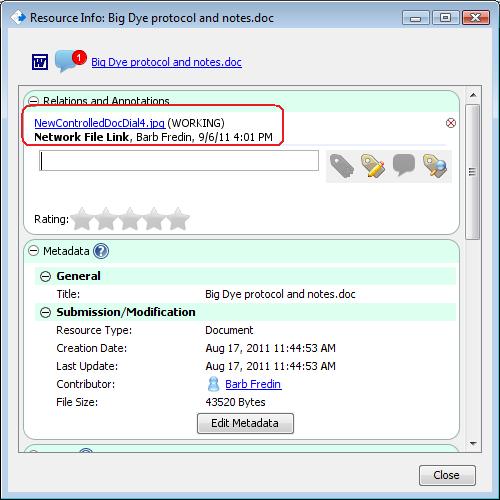
Note: When you click the link and enter the correct authentication information, a copy of the file is downloaded from the SMB server and temporarily stored on the local workstation in the OS user’s .cerf folder. These temporary files will be removed the next time the CERF application is restarted. If the files are large, there will be a delay before the file is opened on the local workstation, please be patient
Note: Your SMB credentials will be temporarily retained in session memory so that you do not need to re-authenticate for multiple requests. The credentials will be cleared from memory when you close the CERF application.
Note: If you want to view a network file link added by another user in your workgroup, you will be asked for your credentials for the SMB share (not the same as your CERF login). Access to linked files is controlled by local IT Support team that manages your SMB file store.
Note: This feature can be especially useful for linking to very large files that you do not necessarily want to keep in CERF. For example you can keep a small preview version of an image file in CERF but use the network file link to connect that file to a very large, high resolution version kept in a SMB drive.
< Database Crossreferences up Notes & Tags >