
It’s easy to link a resource to background information on the Internet by creating a URL link.
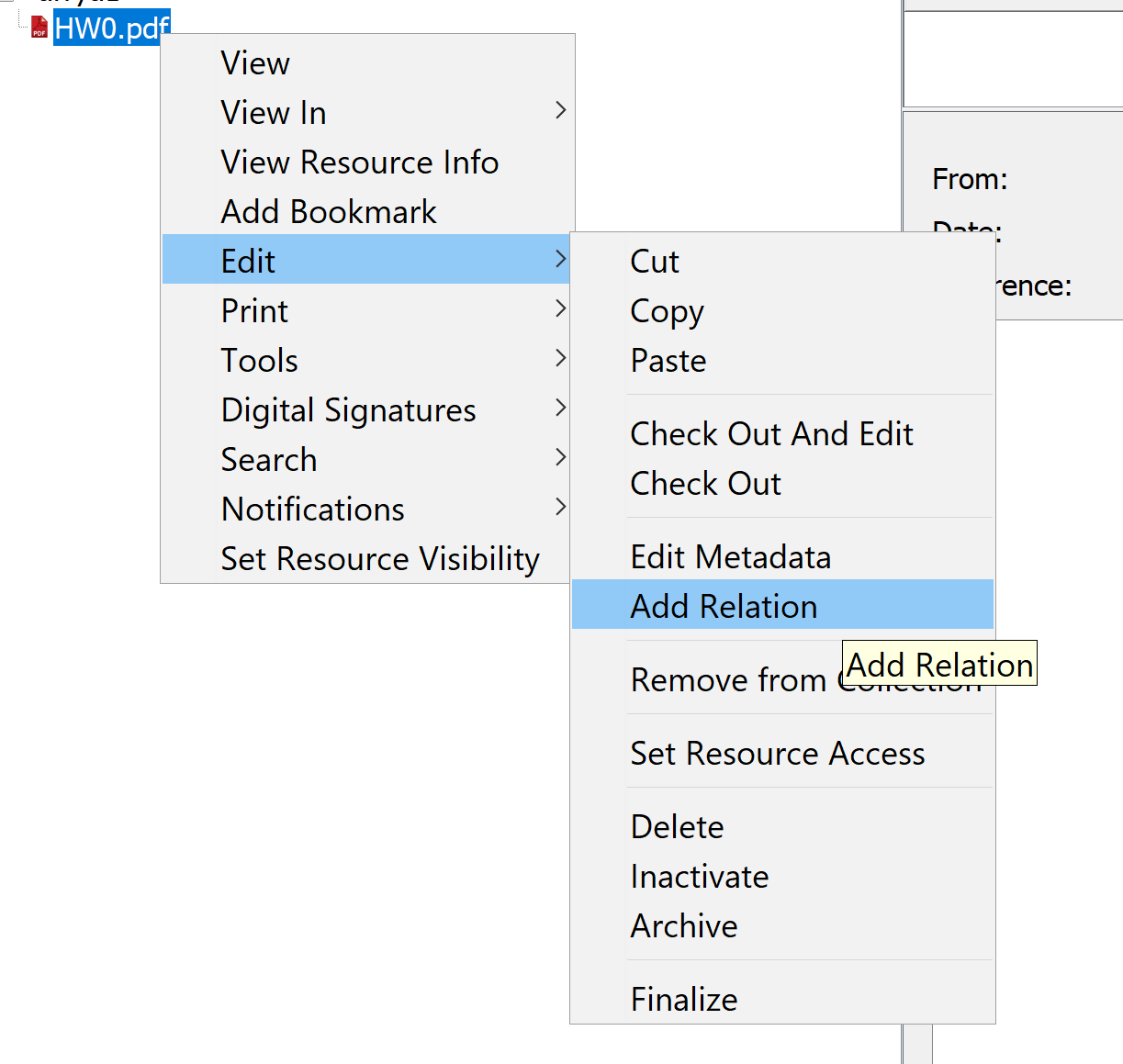
- Right-click on the Resource to which you will add a URL link and select Edit > Add Relation.
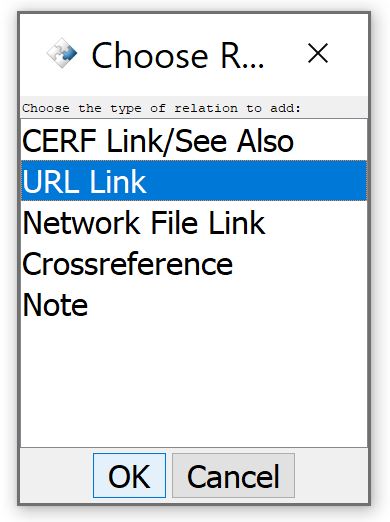
- Select URL Link from the list of relation types shown in the Choose Relation dialog. Click OK.
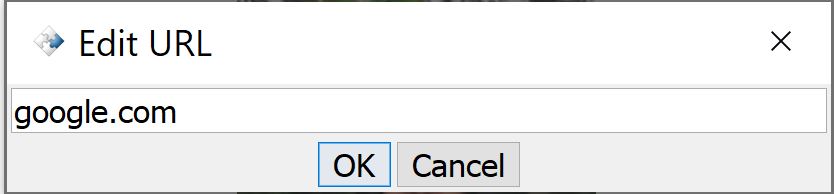
- This launches the Edit URL Link dialog. Type in a web address and click on OK.
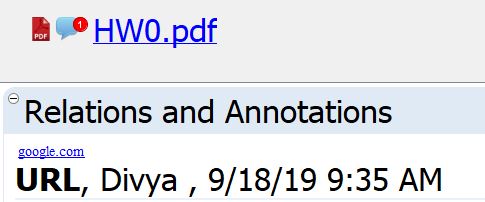
- The resource will be displayed in the Document Tree with an annotation icon.

- To see the new URL link, select the annotated Resource in the Document Tree, then open the Resource Info panel (or Resource Info dialog) and expand the Relations and Annotations pane.
- Click on the link to launch the web page in your browser. Click on the small ‘X’ icon
 to delete this annotation.
< Resource Links up Database Crossreferences >