
To do your work in CERF, whether adding an image to a Notebook Page or working on a spreadsheet, you must first display (mount) the relevant Notebook or File Cabinet in the CERF Tree. To do this:
- Select Collections > Show Collections from the main menu (or use Ctrl+Shift+C).
- In the Show Collections dialog, Select Notebook, File Cabinet, Notebook Collection, or All Types from the drop-down list in the right panel. This displays all the Notebooks or File Cabinets you can access (either because you created them or because you are a member of the owner workgroup).
- Next select a Notebook (or File Cabinet) from the list in the right panel. Use Ctrl-click to make multiple selections. Note that if you are looking for a particular Collection, you can speed up the process by entering matching text for the title into the Matching Text box or click on the Search for Collection button at the bottom of the dialog.
- Click to select a collection in the list of available collections (right panel) and you will see information about it in the the lower part of the Show Collections dialog. The title, name of the workgroup that owns it, your role in the workgroup, and a brief description of the selected collection are shown. Click on the workgroup name to see a list of all the workgroup members.
- Click on Show to mount the selected collection(s) in the CERF Tree.
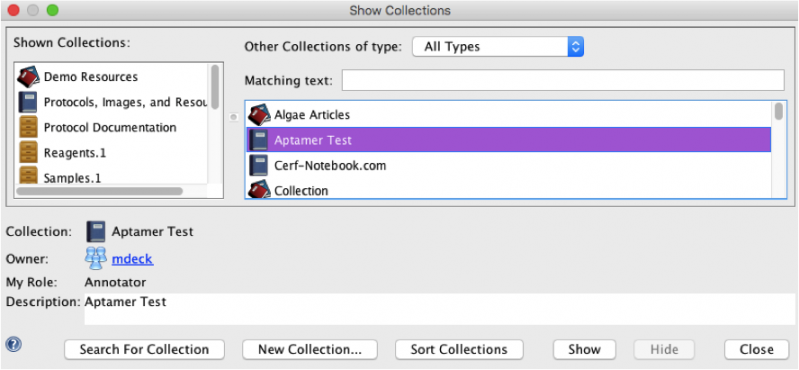
To hide collections, select them from the left pane of the Show Collections dialog and click on the Hide button. You can also hide a collection from the main CERF application window by selecting a collection in the CERF Tree and then click on the Hide button  in the main toolbar.
The Show Collections dialog also allows you to Sort Collections that are mounted (click on the Sort Collections button at the bottom of the dialog).
< Collections up Sorting Collections >