
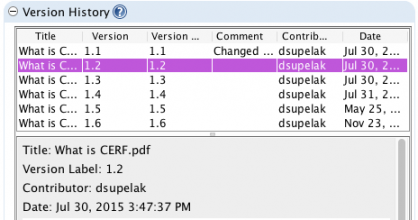
When a Resource is under Version Control, a new copy is made each time the resource is checked in. A Version History is displayed as a new pane in the Resource Info panel (or Info dialog). Select the Resource in the Document Tree and examine the Version History pane in the right-hand panel of CERF (Info). Right-click on any of the Versions in the Version History to carry out actions such as View. If you edit one of the Versions, a new branch is created. Similarly, if you copy and paste a resource as a version in CERF, this will start a new branch. In addition to Version Numbers and Labels, the Version History shows comments, Contributor (whoever made the changes to the resource is the contributor), and Date. The default for new resources will be Version Controlled
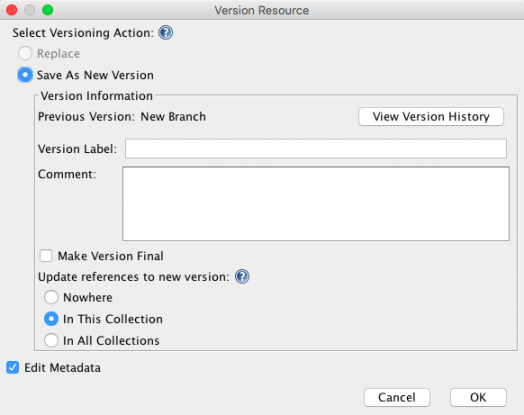
When editing Metadata, the Version Resource dialog is launched when you click on OK on the Edit Metadata dialog. When checking in (using Full Check In) the Version Resource dialog is launched first. To create a new version, select the radio button for Save as New Version. You may enter a version label and comment (optional) and select where the updated version will be displayed (generally you will want it to be shown in All Collections). Click OK.
Sections in this Topic
< Quick Paste up Edit Status >