
You can replace a document in CERF with a document that is on your local computer. This creates a new version in CERF, so that the two documents are connected via the version history and no information is overwritten. This is very handy if you’ve been working offline. Here’s how it works:
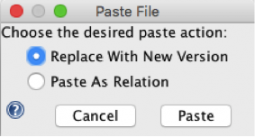
From your local filesystem, drag a document onto the file itself in the CERF tree on the left. A dialog will be launched asking if you want to Replace with a New Version or Paste as a Relation. Select Replace With New Version and click on the Paste button:
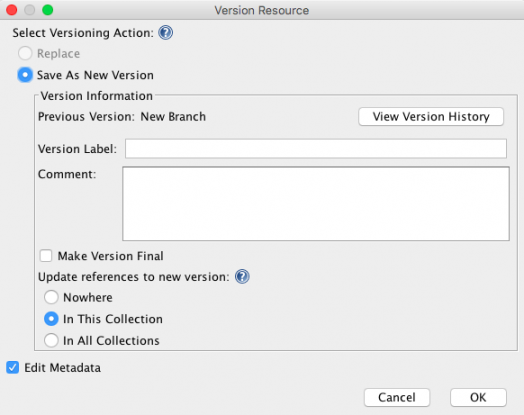
This launches the Version Resource dialog. You can add a label and comment (optional). You may want to add a comment stating that you replaced with a new version. If you want to edit metadata (e.g., to change the title or add a description), leave the checkbox selected next to Edit Metadata. Click on OK.
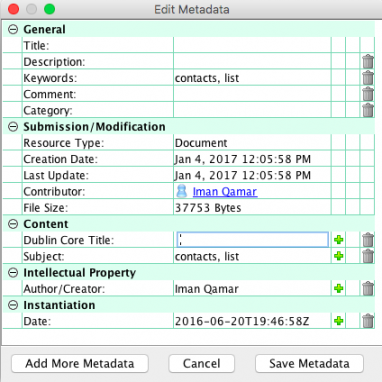
If you chose to edit metadata, the Edit Metadata dialog will be launched. If you want to change the title or add info as a description or comment, do so and click on OK.
The new document is shown in the Document Tree. In the Resource Info panel, the version history pane shows that the selected document is the latest version. You can right-click on Resources in the Version History pane to view the resource or carry out other actions on previous versions.
< Edit Status up Metadata >