
There are two visibility settings that you can access if your business policies allow for these to be changed. Collections or resources in File Cabinets can be set to “Shared” or “Private”. The default setting is “Shared”, which allows all users in the Workgroup ability to access the resource per their Access Role within the Workgroup. Setting to “Private” will only allow the specified Workgroup Role per the Access Role Chart and the Business Policy setting for VIEW_PRIVATE_RESOURCE_ACTION_TYPE
To access visibility settings, right click on a collection.
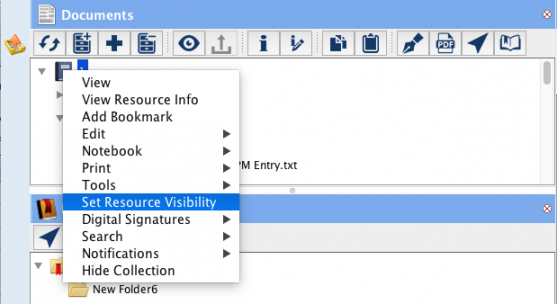
Next, select “Set Resource Visibility” which will open the following dialog:
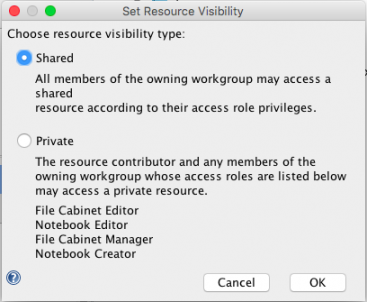
Select the visibility appropriate for your collection. Shared is the default and is generally recommended.
Note: The above image depicting the members who have access to the private resource will depend on the Business Policy setting for VIEW_PRIVATE_RESOURCE_ACTION_TYPE
Note: A private resource will automatically become shared when the contributor initiates a digital signature. The visibility of a resource cannot be changed while signatures are pending or completed. Signed resources cannot be set to private.
< Tips for Printing Spreadsheets up Access Control >