
The person who initiated signing or a cosigner may cancel signatures after signing has been initiated. However, once signing is complete, the signatures cannot be cancelled. See section below, “Correcting signed pages” as an alternative workflow for correcting fully signed pages.
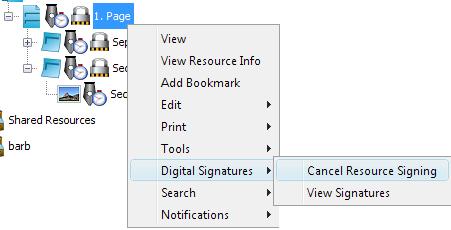
To cancel, right-click on the resource you signed and select Digital Signatures > Cancel Resource Signing (this signing workflow must have pending signatures):
After signatures have been cancelled, the Signature Block on the Signatures pane displays a Cancellation Tab in a different color.
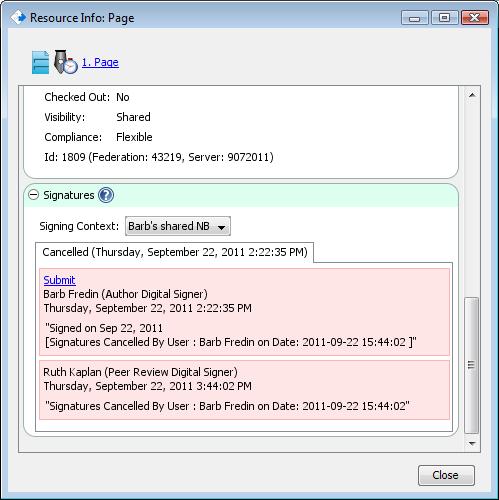
If you cancel resource signing, the resource returns to an unsigned state and may be signed again, and it stays under version control. The signature block retains the record of the signing initiation. This Cancelled tab will remain on the Signature Block even after a new Signature has been initiated and completed. If the resource is signed later, a new tab will be created on this signature block for Completed Signatures.
The System Administrator also has the option to cancel pending signatures if he or she changes the Workgroup ownership for a collection that has resources with pending signatures.
Correcting signed pages
Once a page has been fully signed (all signatures completed), they are finalized and cannot be adjusted. Suppose you found a mistake on the page that you would like to correct. An alternative would be to generate a new Page possibly titled “Addendum”, and then copy/paste the incorrect data and note the corrections.
You can then add a relation from the page with errors to the Addendum page. Right-click on the error page, then choose “Edit” > “Add Relation”. In the following dialog, choose “CERF Link/See Also”. In the Browse dialog, select the new Addendum page and click “OK”. You will now have an information bubble for both pages to remind reviewers to see the Addendum.
The Addendum page can be signed by the same co-signers, and then when the Notebook is printed the Addendum Page will be present the updated facts to reviewers. Note, the See Also bubble does not print when the Notebook is printed, they are used only for visual queues when viewing the Notebook in CERF.
< Signing in Multiple Contexts up Reporting >