
An image of a user’s physical signature can be uploaded to CERF to be placed in the printed PDF of signed resources or collections. The signature image will also be displayed in the Signatures section of the Resource Info Panel for signed resources.
Only an Admin can add a signature image to a user’s profile via the Web Client. This is also an excellent opportunity for an Admin to verify the physical signature of the user before adding the image to their account.
Uploading a Digital Signature Image
1) navigate to Access > Users, and select the user in the list and click the “Edit” button at the bottom of the screen. Note: a digital signature image can also be added when creating a new user account.
2) Select “Choose File” for the “Digital Signature Image” option, and choose a the scanned image of the user’s signature to be added.
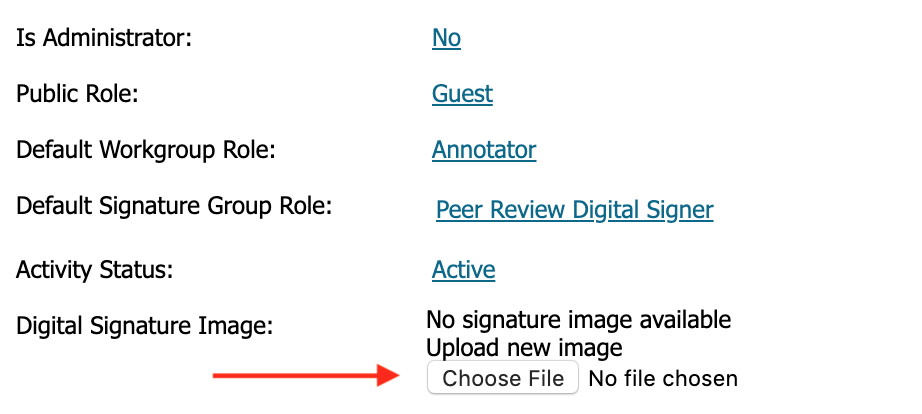
TIP: Use a .png, .jpg, or .jpeg image for best results. Some .tif files are known to cause issues.
When you print to PDF a signed resource or collection, the digital signature name, image (if applicable – notice how divya1 has that space blank because they have no image), date/time, role in Workgroup and role in signing will appear at the bottom of the page.

< Signature Notifications up Notifications >