
Pending and Overdue Signatures
If your business policy has been set to send notifications for pending or overdue signatures, CERF will check daily to see if any users have initiated digital signature workflows that require one or more cosigners. Cosigners receive the usual CERF Notification as soon as they are asked to cosign a resource. After a set period of time, another type of CERF Notification is sent to warn the first cosigner that signature completion time is near. The content of the notification text shows the date the signature was initiated and the number of days remaining for signature completion. As soon as the cosigner signs the resource, the Warning Notification is deleted. If there is another cosigner in the workflow, that cosigner will then receive a Warning Notification.
Each day – until cosigning is completed – a new Warning Notification is sent to the cosigner(s) and the previous Warning Notification is deleted. If the signature completion time passes and the digital signature has not been completed, CERF sends a Final Notification to both the cosigner(s) and initial signer informing them that the signature completion time has expired. Signing may still be completed, however, and once the cosigner has completed the process, the notifications are deleted.
Unsigned Pages
In CERF’s Signatures Business Policies, SIGNATURES_UNSIGNED_PAGES_SEND_NOTIFICATION will cause Notifications to be sent to you if you’ve created any Notebook Pages and they have not been signed within a period of time (specified by UNSIGNED_PAGES_WARN_DAYS and UNSIGNED_PAGES_EXPIRY_DAYS policies). This is called the “nag” feature, and it reminds you that you have created pages but haven’t signed them within the required time period. Your System Administrator configures the business policies for your organization. If this policy is set to True, 1) notifications will be sent to you after a set period of time (determined by business policy) and 2) the Signature Report (Tools menu) will show that you have Pages to sign. However, you can decide on a Notebook-by-Notebook basis whether or not to track unsigned pages. To do this:
- Select the Notebook and click on the Edit Metadata button
 .
. - Note that there is a metadata property called “Track Unsigned Pages.” If the business policy for sending notifications on unsigned pages is set to False, this field will be “no” by default. If the business policy is set to True, the default for Track Unsigned Pages will be set to “yes.” You can change it to “no” if you do not want to track your unsigned pages.
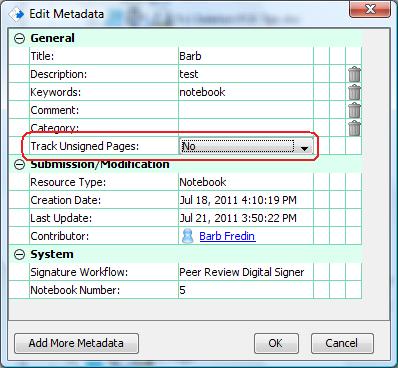
- If you change the value for the “Track Unsigned Pages” property, click OK.
See also: Signature Policies
Note that when unsigned pages are tracked, you can view a unsigned pages report.
Why would you want to Track or not Track unsigned pages
This feature is a way to have the CERF server notify the Contributor of a Notebook Page on a daily basis via Notifications (and possibly email) that a page is awaiting signatures.
You can also check for pending signatures using the Tools > Report feature. Note, that the default is to filter by your personal workgroup but you can change the filters to see all workgroups or a specific group. The benefit of the Tracking Unsigned pages is dependent on the preference of your organization as to whether the original contributors of a page would like these daily notifications or not. This should have no effect on the Indexing or Searching of CERF data.
Another method to search for unsigned pages is to use the Search feature. Add the parameter CERF Resource Type of Notebook Page, and add the parameter Signature Status of Unsigned
< Reporting up Digital Signature Image >