
Before you Sign
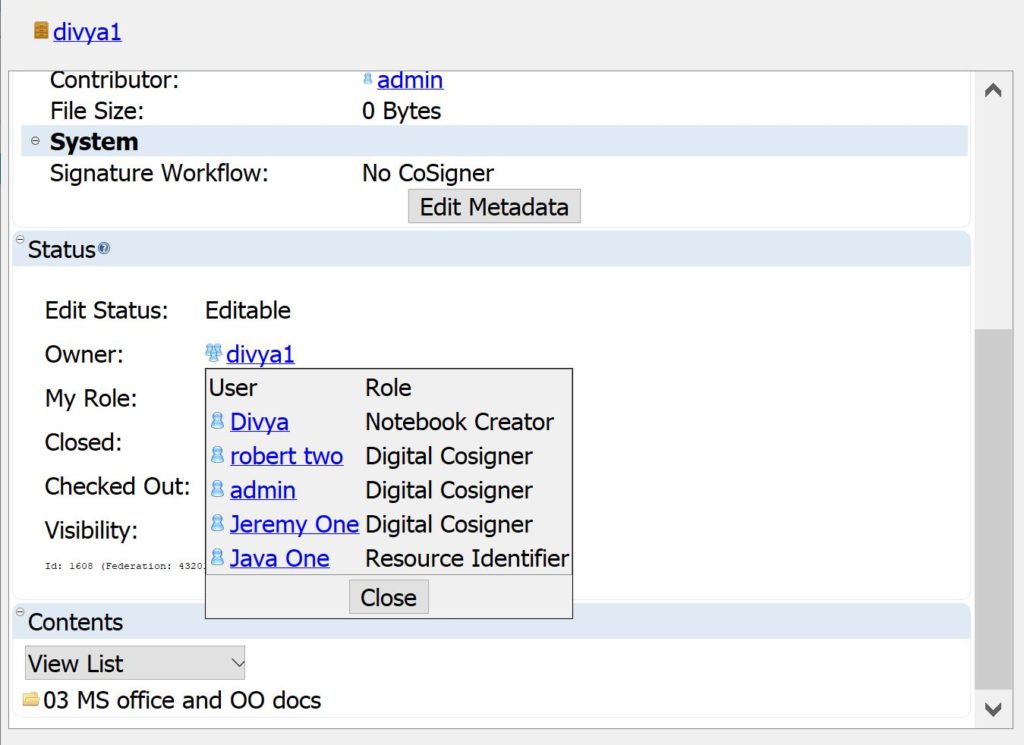
If you are going to sign a Notebook, or a Section, Page, or Entry, check to see what the required digital signature workflow is for the Notebook and whether you have workgroup members with appropriate cosigning roles. To do this, simply select the Notebook in the Document Tree and click on the Info button. Click on the owner workgroup shown in the Status pane to see the cosigning roles in your workgroup and see if this matches up with the Notebook Signature Workflow shown in the Metadata pane.
Sign a Notebook page
When you select the Notebook Page to sign, check the Metadata pane to see that you are the person who contributed this Page (this is a requirement for initiating signing). If you did not contribute the Page to CERF, signing will not be enabled. If you contributed the Page, but other users have contributed some of the Entries on the Page, the other contributors will need to sign or finalize their Entries first.
To initiate signing
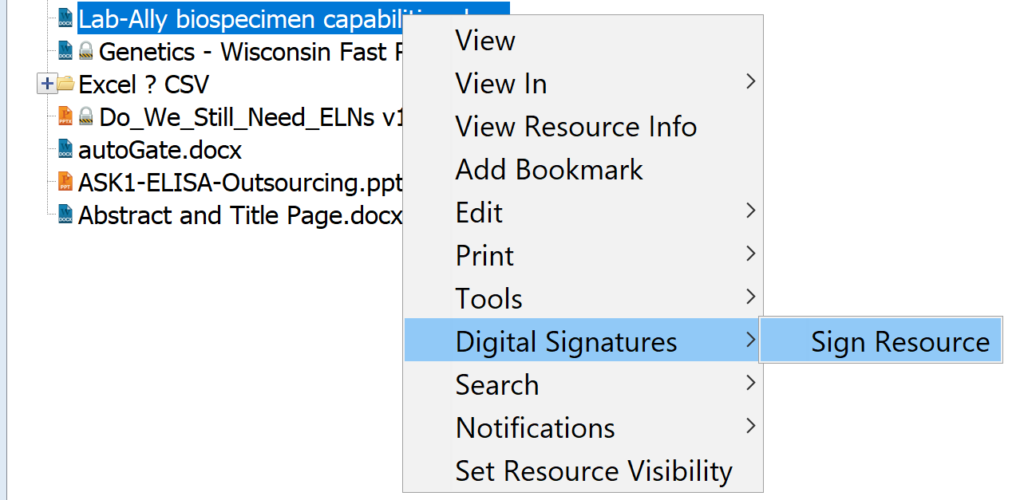
1. right-click on the Notebook page in the Document Tree and select Digital Signatures > Sign Resource OR select the Page and click on the Sign  button (highlighted below):

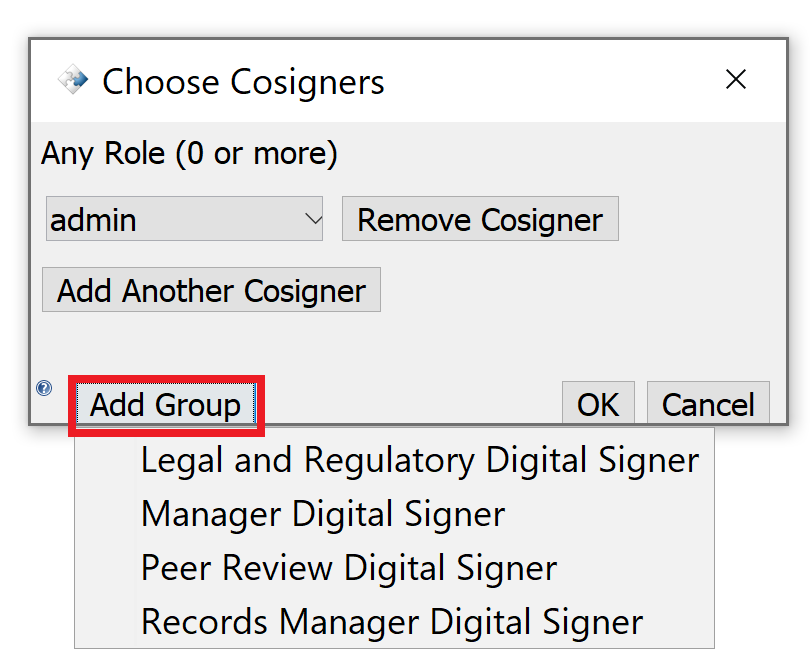
If there is no requirement to Print before signing, and if you have the correct component of cosigners (or if no cosigner is required), you will see the Choose Cosigners dialog.
Note: If you do not have the correct number or role of cosigners (this must match the signature workflow), CERF will display a message to the effect. See your CERF Admin or the Workgroup Admin if you don’t have the correct configuration of cosigners. If you are required to Print before signing, you will also see a message.
Important: Do not add contributors of entries on the page as a Co-Signer. CERF automatically adds all other contributors on a page to the signature workflow as co-signers on the back end. Only non contributors of a page should be added as a Peer Review or other Group cosigners (see Signer Adds New Signature Groups, Multiple Contributors)
If there is more than one cosigner available for each required role, select a cosigner from the drop-down list. Note that members of a signature group can have multiple signing roles. Note that you can also add a Group (circled below). This is optional. Click OK.
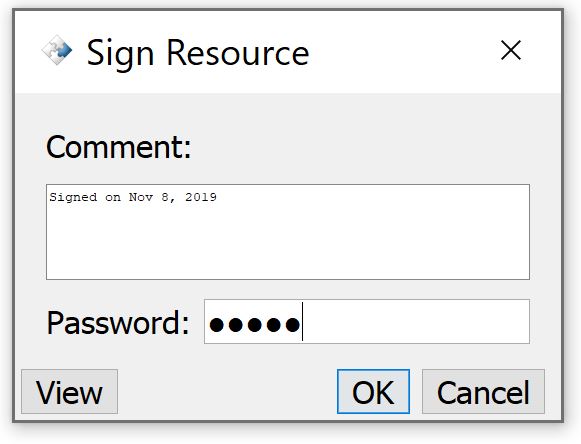
This opens the Sign Resource dialog. Type in a comment (optional) and your digital signature password. Click OK.
Note: If your organization requires you to View the printout before you can sign, you will need to do this now (the OK button will not be enabled). The Sign Resource dialog will display View PDF and View in CERF buttons. Further, there may be a requirement to view the resource for a set length of time before signing is enabled (lag time). The Sign Resource dialog will display a counter. These requirements must be met before you can click the button to sign. (Note that if you were required to Print before signing you must view the PDF; if you were NOT required to Print before signing but are required to View before signing, you must view in CERF)
The Sign Resource dialog allows you to view a printed copy (if one exists) and to view the resource in CERF. This is not required, however, if the OK button is enabled (as shown here):
Once the signatures have been initiated, the Notebook Page will be closed (entries are finalized). The first cosigner in the selected signature workflow will receive a CERF Notification requesting cosigning.
View Signatures
As soon as signatures have been initiated, the Signatures pane is dynamically created in the Info panel or Info dialog. Select the signed resource in the Document Tree and click the Info button to see the Signature Block. It shows the completed signature and pending signatures and will be updated as Cosigners complete, reject, or cancel the signature workflow. Note that scanned signatures may be added by the System Admin, but these are not necessary as the signature block shows the Signer’s name, role, and time and date (this information cannot be altered).
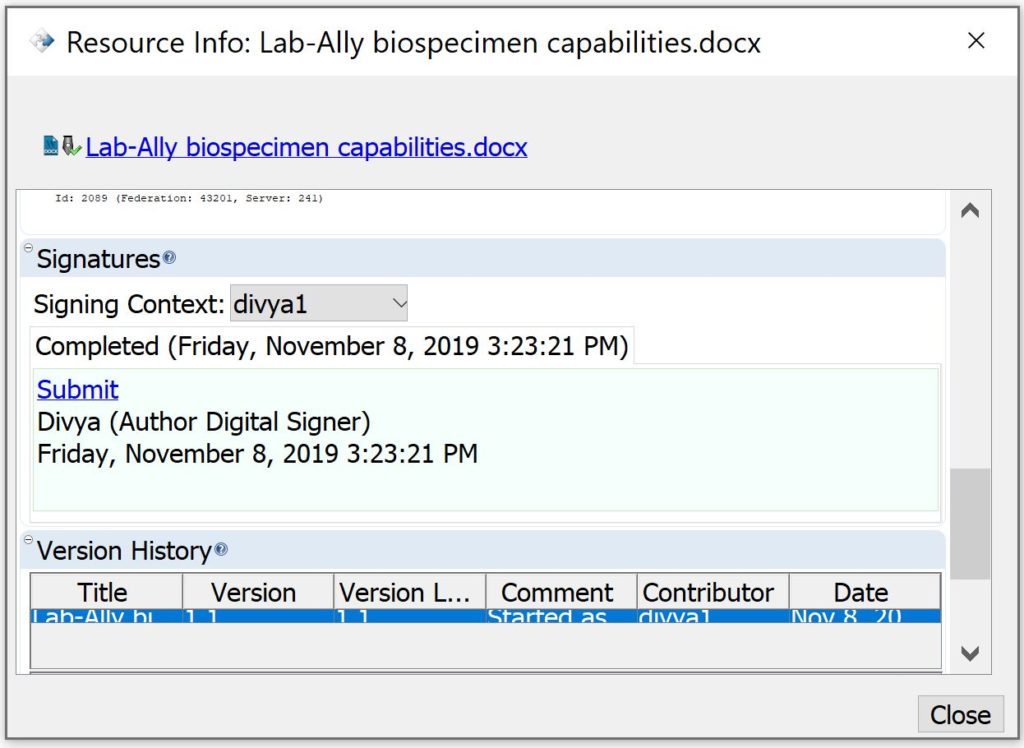
The Resources in the Document Tree display Signature icons with a clock to indicate that signing has been initiated and there are cosignatories pending.
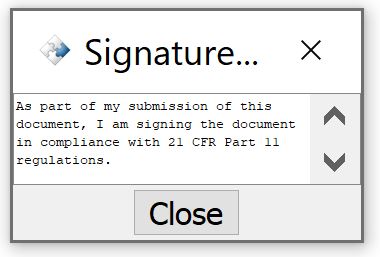
Clicking the “Submit” hyperlink will bring up the dialog below.
Sections in this Topic
< View before Signing up Cosigning >