
If you are a cosigner and there is a document waiting for your signature, you will receive an email stating that you have received a CERF Notification (if email has been configured by your System Administrator). The notification will be displayed in the Notifications Pane.
- Expand the Notification to see the embedded resource.
- Right-click on the document and select View to read the document you have been asked to sign. Note that your organization may have business policies configured so that you are required to View the document before the cosigning action is enabled.
- If you agree to sign, right-click, select Digital Signatures > Cosign Resource.
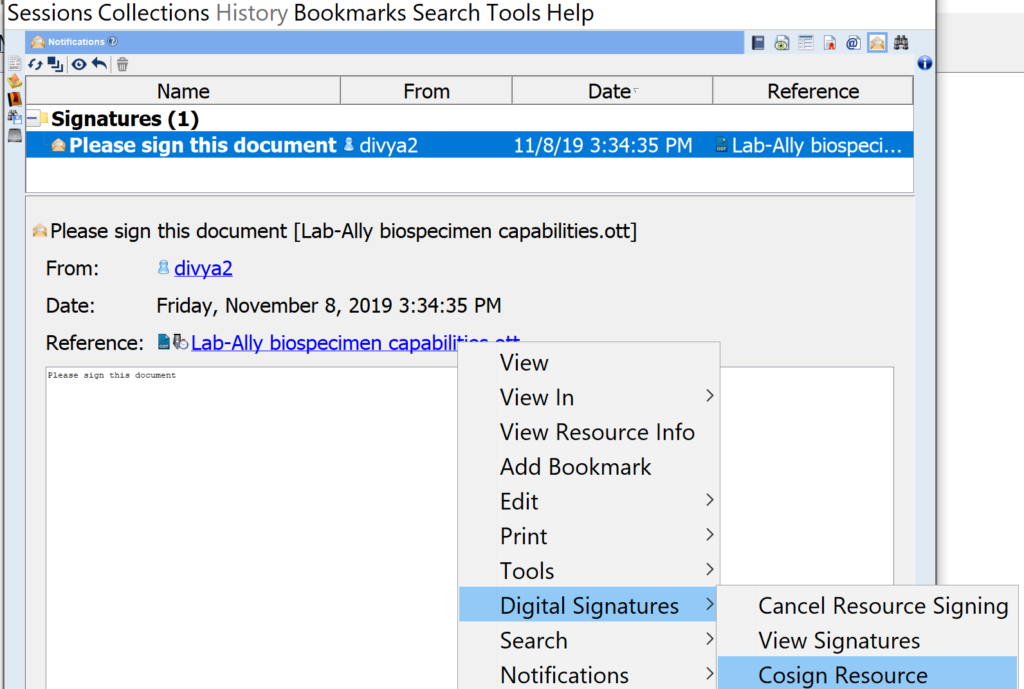
Note: If you cancel signing, the document will not be signed and the contributor will receive a Notification to this effect. As soon as a cosigner has completed signing, the Notification is automatically deleted from that person’s Notifications.
For example, with the Digital Signature Workflow of Peer Review Digital Signer plus Manager Digital Signer, the first cosigner (Peer Review Digital Signer) receives a notification that a document needs to be cosigned. The Cosigner will need to enter a Digital Signature Password, Comment, and Action (such as Accept, Witness, Approve, Reject) and click on Cosign. Note that the Actions you see will depend on your role, the workgroup configuration, and the signature workflow your company set up. For instance some people may only see “Witness” and “Reject” while other may see the entire menu.
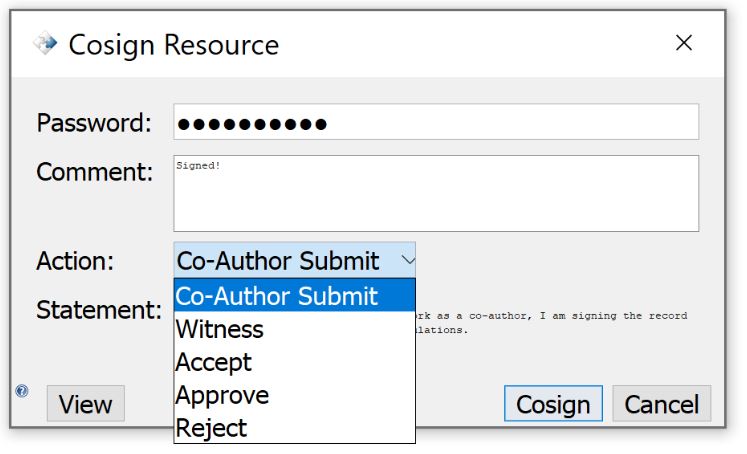
The Notification is automatically deleted and the next cosigner in the workflow (in this case, Manager Digital Signer) receives a Notification.
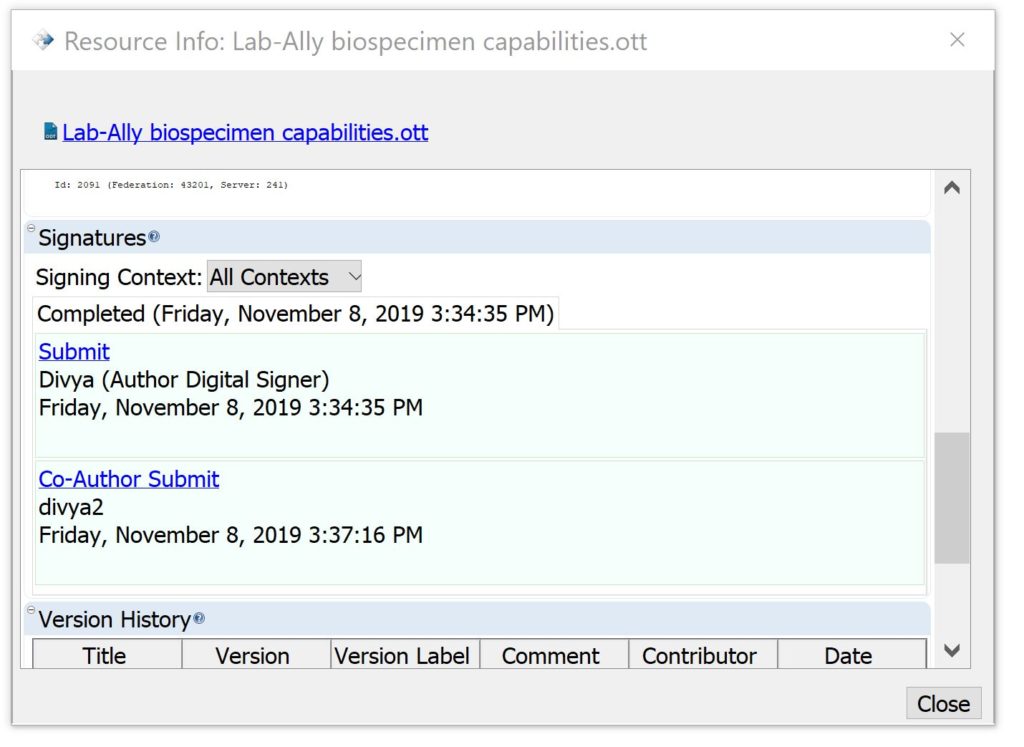
At each step until signature completion, the Signature Block will be updated. When the signatures are completed, the person who initiated signing will receive a Notification with this information. Note that you can view the signatures either by selecting the signed resource in the CERF Tree and opening the Resource Info tab where the Signature Pane is created, OR you can right-click on the signed resource and select Digital Signature > View Signatures.
The next image shows the Signature Block after signing has been completed by all parties:
Sections in this Topic
< Signing up Signer Adds New Signature Groups >