
Add Existing CERF Resources to the Notebook Page
There are several ways to add an existing CERF resource to your Notebook:
- Drag an existing CERF Resource from a CERF File Cabinet and drop it onto a Page in your Notebook (either in the Document Tree or the Notebook Viewer). Note that you must have an access role (in the workgroup that owns the resource) that allows you to copy a resource and an access role in the destination workgroup that allows you to add a resource. This launches the Paste Resource dialog. Select Paste as New Notebook Entry. Choose the outcome of the embedded resource: 1) Paste as New Resource gives the resource a new CERF ID, and it will not be connected to the original file by audit trail; 2) Paste as Version will cause this to create a new version branch in your Notebook and the added resource will be connected to the original by a version history; 3) Paste as Link is only possible if the workgroup that owns the resource is the same as the workgroup in the destination. A link of this type is a mirror copy (thus, any changes that are made to the copy in the Notebook will be reflected in the original location).* Note that drag and drop is the same as using the right-click Copy/Paste action.
- Add Content to the Notebook Page using the New Entry button. Click the New Entry button
 on the Notebook Page toolbar and select from CERF Resource from the drop-down menu. This launches the Select Resources dialog. The dialog opens displaying the “Browse” tab (circled below), which shows your currently mounted collections. You can expand a collection and select a resource or choose another available collection from the drop-down list and click OK to add the file as a Notebook Entry. Or you can select an existing CERF Resource using the Search tab. Type in a search term and click on Search. Click OK to add the resource to the Notebook page as an Entry.
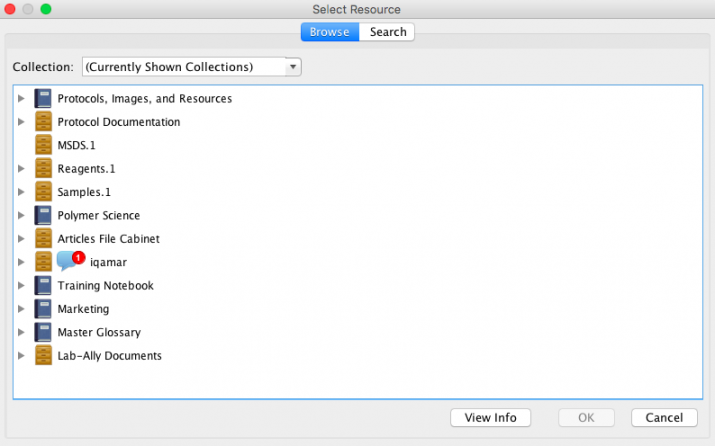
- Right-click on a Notebook Page in the CERF Tree and select Notebook > New Entry and then select the entry type “Resource” from the Choose Entry Type dialog. This launches the Select Resources dialog (shown above). Refer to the instructions in item 2 (above).
*For drag-and-drop within a Flexible Notebook: Use Ctrl Key/Option Key, otherwise CERF assumes you are trying to move the resource and this would result in cut/paste in a Flexible Notebook).
< Audio Recording up Entry from Template >