
A user can create a custom Notebook Entry for a subset of the default Notebook Entry options, accessible from the New Entry dropdown. Previously these entries were typically totally empty, but this new feature allows basic initial content to be defined at the user level, customized for that user’s workflow needs. The custom Notebook entries can be used on a single computer or shared and installed on every computer used by your organization. The entry types that can be customized are:
- Word Document Entry (.docx)
- Excel Document Entry (.xlsx)
- Plain Text Entry (.txt)
- Rich Text Entry (.rtf)
- Mind Map Entry (.mm)
Note: Custom Default Entry Templates do not follow a user from computer to computer. You will need to install the templates at each computer the user will work from.
Note: User’s who share a computer OS login will have the same Default Templates. For example, if two CERF users login to a Windows computer with the same username/password but each have their own CERF login credentials, the templates will exist for both users and cannot be separately customized.
Note: Custom Notebook Entry template files you choose to use with the “New Entry” drop down (shown below) have no affect on the templates accessible from New Entry > From Template.
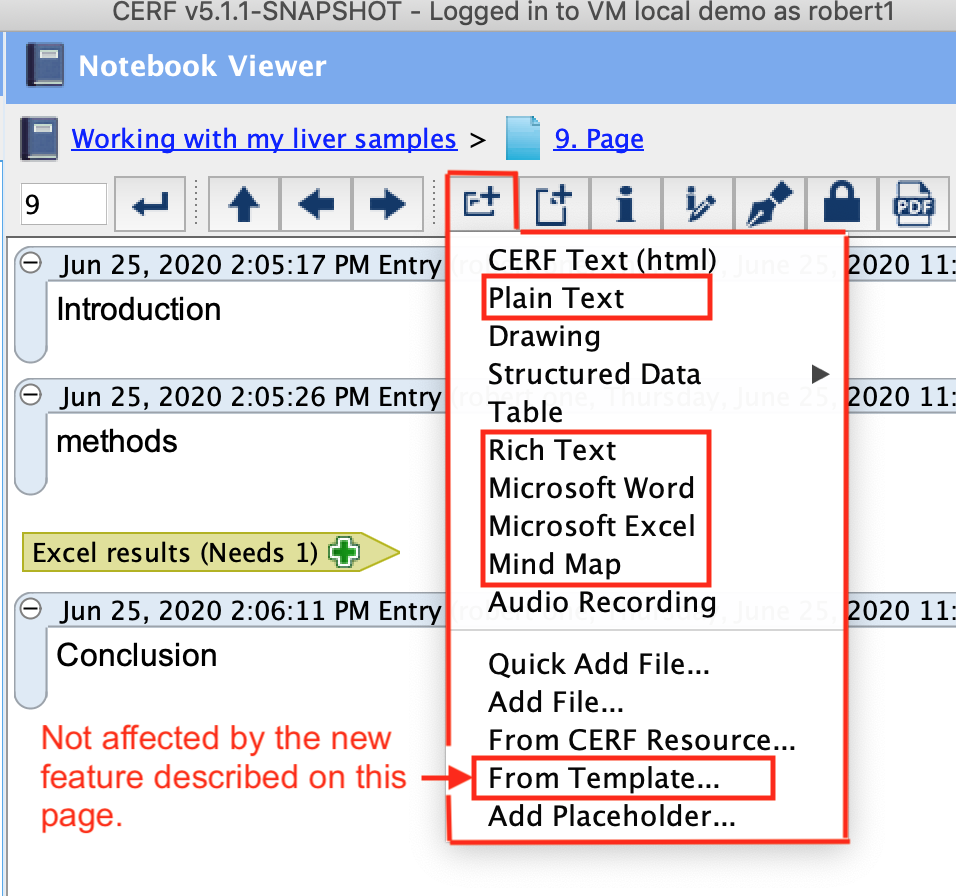
Where to locate the custom Default Notebook Entry files
Custom Notebook entry types should be installed in the hidden CERF Client data directory. The data directory is created after the first time a CERF Client application is launched, thus you will need to start the client at least once before accessing this directory. The data directory is located in one of the following locations depending upon your computer operating system:
- Windows computers
- C:\Users\{username}\.cerf
- replace {username} with the user’s login name
- for example: C:\Users\labally\.cerf
- C:\Users\{username}\.cerf
- MacOS
- /Users/{username}/.cerf
- replace {username} with the user’s login name
- for example: /Users/labally/.cerf
- /Users/{username}/.cerf
Create a directory called Templates in the data directory where the custom entry templates will be stored. For example: /Users/labally/.cerf/Templates
Create a custom file for one or more of the entry types you wish to customize. The custom files must be named exactly as follows for each entry type:
- Word: blank.docx
- Excel: blank.xlsx
- Plain Text: blank.txt
- Rich Text: blank.rtf
- Mind Map: blank.mm
Why use custom entry types
The new Notebook entries created with the default CERF installation typically use clean files with no data pre-loaded. The default entries are fine for most purposes.
However, it’s sometime useful to have some existing content in your new entries. Examples include things like company logo in the header of the New Entry > MS Word file, or perhaps your name or company name pre-loaded as a file property within your default MS Excel file so that excel files created within CERF can still be traced back to you or your company. Since you may be using these Default entries for a wide range of generic tasks we generally recommend that you don’t make these custom file templates too specialized.
How to use the custom entries
With a Notebook Page in view, click on the New Entry button and choose one of the entry types that have been customized. The new entry will open in the native application for the file type. Instead of using the totally empty file that comes with CERF, the new custom file will be used. Edit the document as usual and then click “Save” in the application (Do not use “Save As” or your changes will not be saved in CERF), and then click the “Save” button associated with the Notebook Entry in CERF.
Backup and share custom entries
If an organization has a set of preferred custom entry types or if a user wishes to share their own versions of the entry type, these can be shared and installed with any CERF user. Copy the files from the .cerf\Templates directory of the user wishing to share, to the .cerf\Templates folder on the computer you wish to share with. It is not necessary to restart the CERF client application for the changes to take effect.
If there are no files in a user’s .cerf\Templates folder, then the default blank entry types from the CERF client will be used.
< Word or Excel up Notebook Collections >