
Adding a file to CERF refers to adding new content to the CERF server. There are several ways to do this:
- Drag a file from your local drive (either from Local Files or directly from your desktop) to a Notebook Page; this launches the Edit Resource dialog (unless you set options for Quick Add) that initiates the process of registering a new Resource in CERF. Select “no” in the Edit Resource dialog to add the resource to CERF with the default Resource type and Metadata. See the section on adding resources to CERF for details about adding metadata or about setting preferences for “quick add” if you want to skip the Edit Resource dialog.
- Use Quick Paste. Copy a file from your file system and then right-click on a Notebook Page and select Edit > Quick Paste to add the file directly to the Notebook page. Quick Paste adds the file to CERF and bypasses the step for selecting resource type or editing metadata. The default metadata and resource type are used. Note that CERF automatically extracts metadata properties from MS Word and image files that are included. You can always add new metadata to the Resource later (right click on the resource and select Edit > Edit Metadata).
- Right click on a File Cabinet or Folder and select Edit > Quick Add File or Edit > Add File
Quick Add File: This will add the file to the Folder or File Cabinet. You will not have the option to change anything about the file including the metadata, edit status or name of the file.
Add File: You get the option to change the resource type, edit status, and metadata of the file.
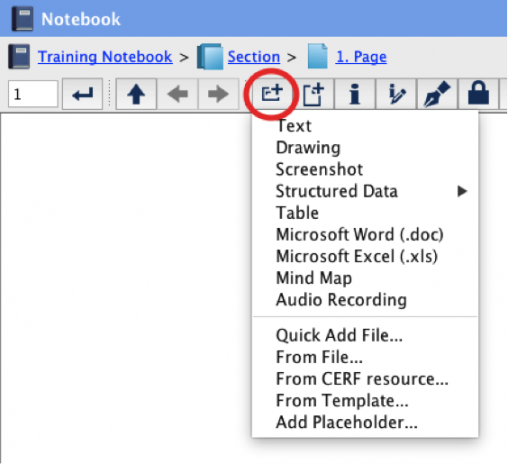
- Add Content to the Notebook Page using the New Entry button. Click the New Entry button
 on the Notebook Page toolbar and select either Quick Add File (launches the File Chooser dialog and adds the file to CERF using default metadata and resource type) or From File… (allows you to choose a different resource type and add metadata).
- Right-click on a Notebook Page in the CERF Tree and select Notebook > New Entry. This launches the Choose Entry Type dialog. Select the entry type File. This launches a File Chooser dialog. Browse for a file on your computer and select Open and click OK. This launches the Edit Resource dialog. Choose “No” to add the file to CERF with the default resource type and metadata.
< Entry from Template up Images >