
You must have the role of Annotator or higher in the Notebook to annotate an image.
To try out the annotation feature:
- Open a Notebook page (in the Notebook Viewer) that contains an image entry.
- Select the image Entry to display the Entry Toolbar.
- Click on the Annotate Image button
 . The image will be displayed in the Annotation Editor. Note the new annotation buttons to the left and the Legend pane on the right where the annotations will be recorded.
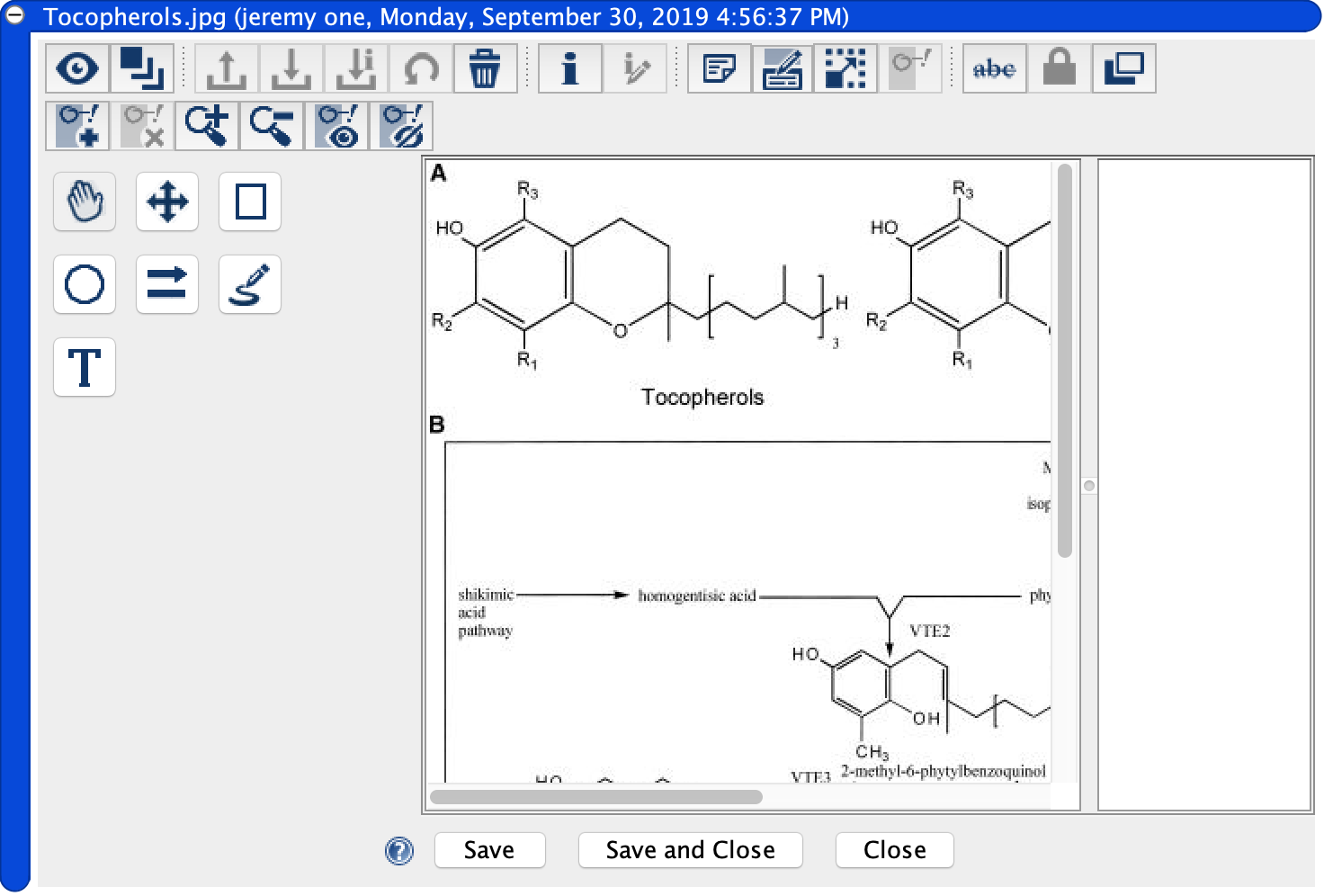
- Click on Zoom In
 or Zoom Out
  to control the magnification view for annotation purposes.
 - Click on New Set
 to start a new set of annotations. This set will be displayed to the right in the Legend. Immediately after creating a new set, you can rename it. You can also rename it later by right-clicking and selecting Edit or by clicking twice (slowly) on the new set. Note that if you do not create a new set by clicking the New Set button, a new annotation set will automatically be created when you make the first annotation.
 - Click the Rectangle button
 and note that when this is selected, you can select color
  , line style
  (solid, dashed, dotted) and line width
  for the annotation. Or you can start forming the rectangle-shaped annotation by dragging your mouse on the image and then edit the line characteristics in the Edit Annotation dialog, which is automatically launched as soon as you begin annotating. The General tab on this dialog is open by default. Change the title of this annotation if you wish.
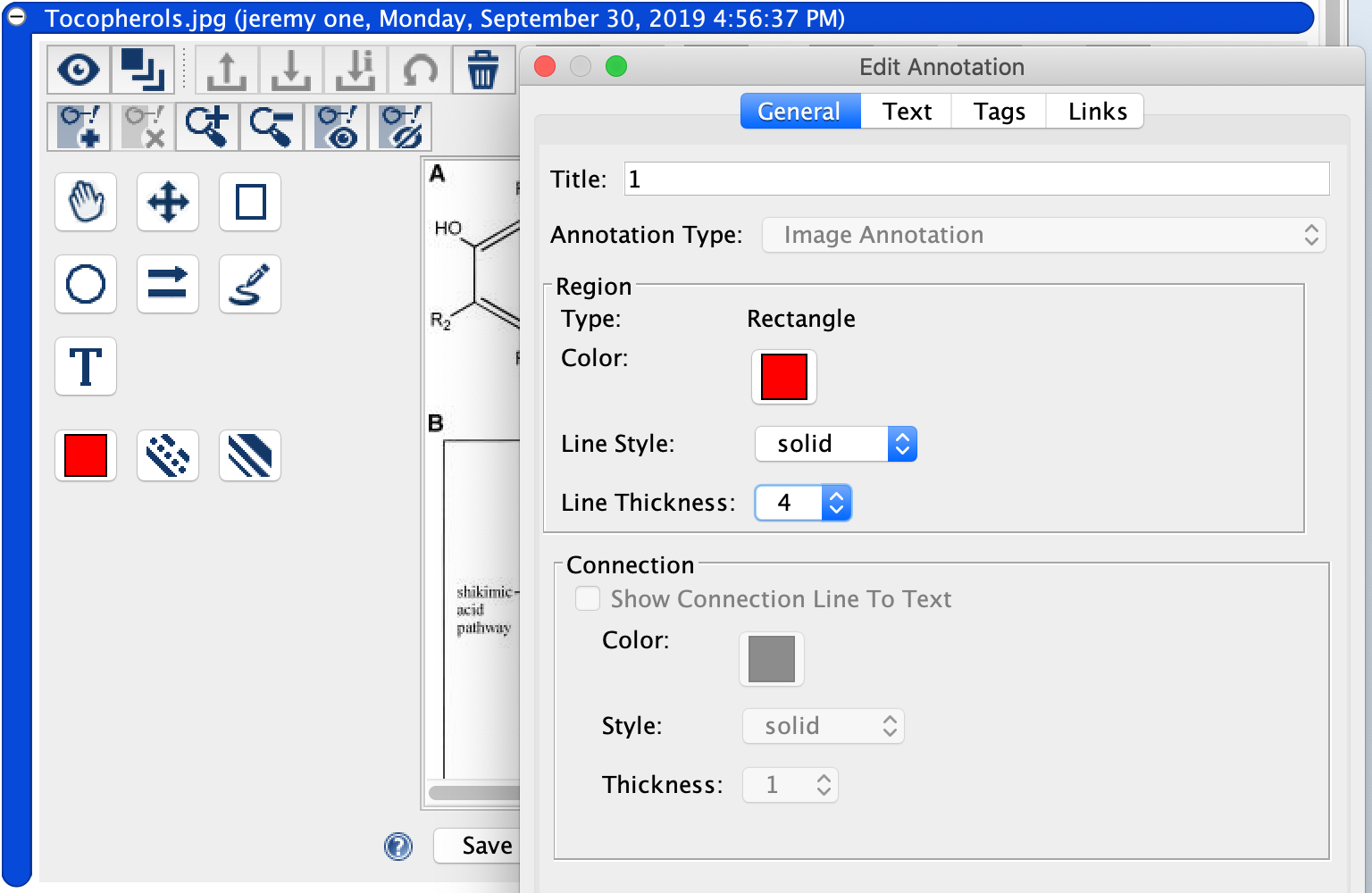
- Open the Text tab on the Edit Annotation dialog. You can choose to show text on the image or not (text can be the title of this annotation or something you write in the text box). You can also select the font characteristics in the dialog. If you want to show a line from a text box to the annotation, go back to the General Tab and select Show Connection Line to Text.
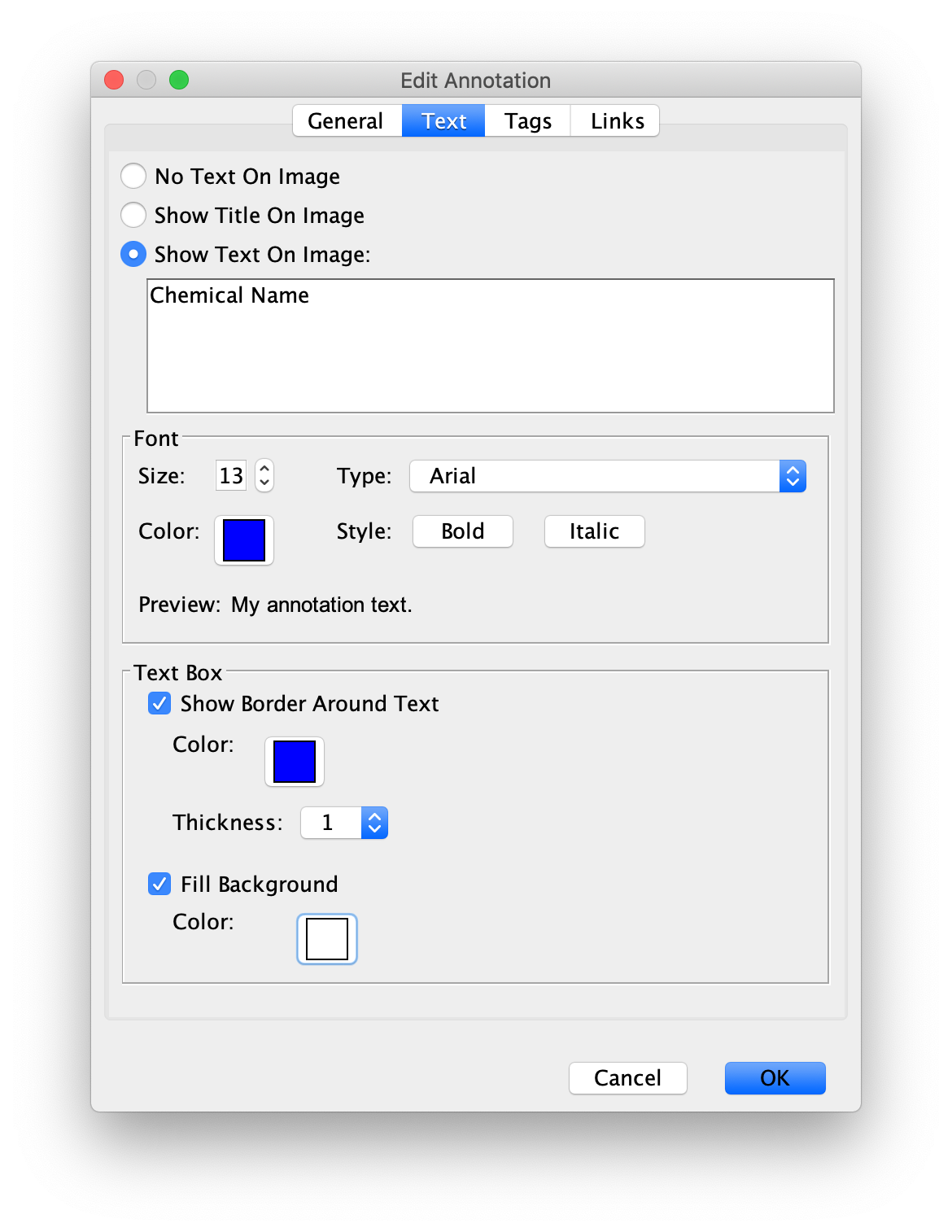
- When you have finished creating this annotation, click OK on the Edit Annotation dialog.
- You may find that the text label for the annotation needs to be moved relative to the annotation. If so, click the Move/Resize button
 and then move the text box and/or use the “handles” for resizing.
 - Click on Save and Close.
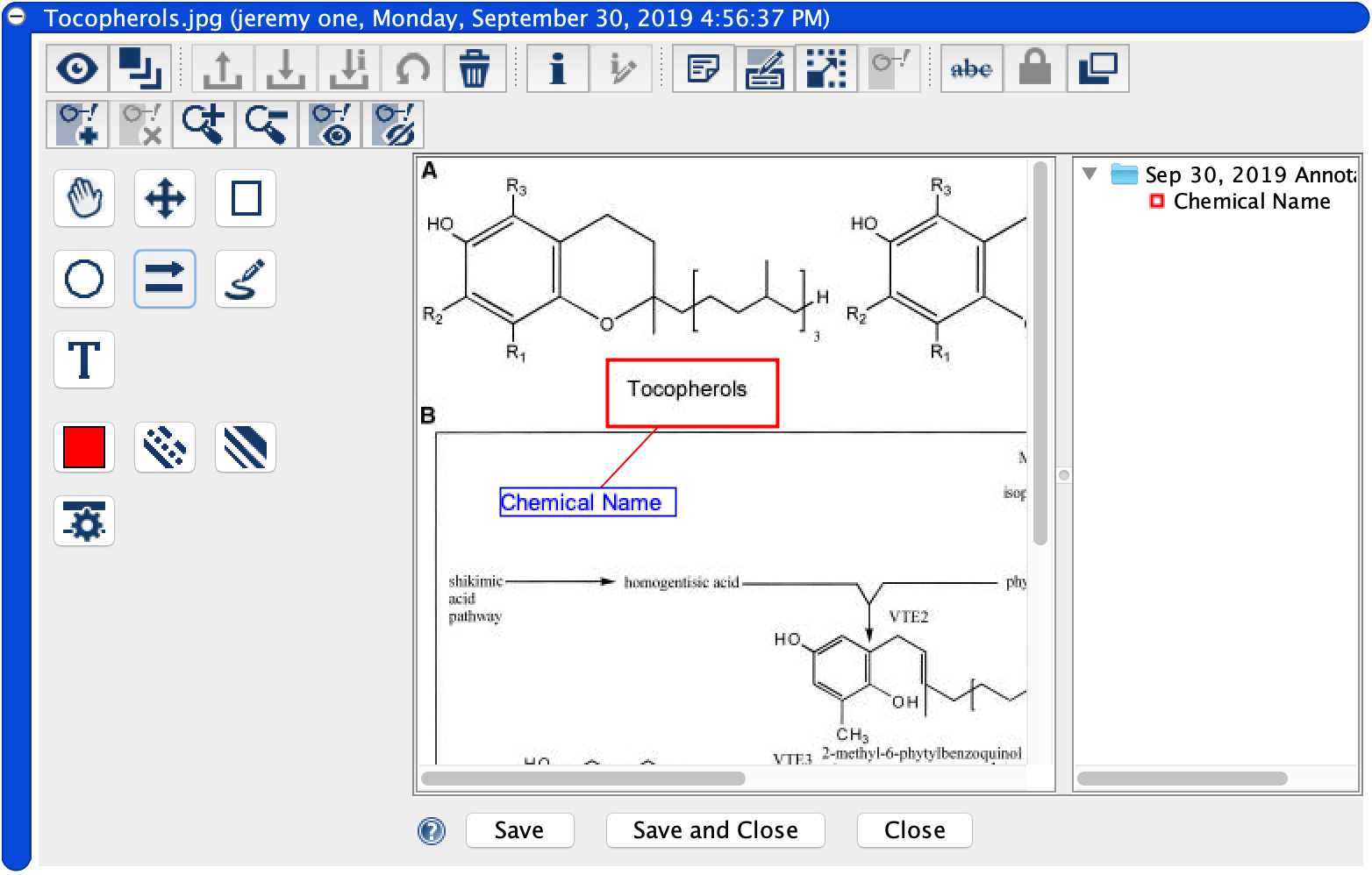
The image will now be shown at its original size and there will be a new icon on the Entry selection bar and in the CERF Tree  showing that this image has an annotation. Note that when you click Save and Close, the Annotation Editor Toolbar is no longer displayed.
An annotation or annotation set is a searchable CERF Resource that is associated with the image. Note that the image annotation title is searchable, but the image annotation label is NOT indexed for searching. Keep this in mind when selecting a title for the annotation.
You can also add controlled vocabulary tags or links to the annotated image. This is described in the Tags and Links topic.
Sections in this Topic
< Images up Image Annotation Toolbar >