
A plain text entry (.txt) file provides an alternative file type to the CERF text entry type. Selecting a plain text entry may be advantageous for the following reasons:
- Scientists who typically work in plain text formats could find this particularly useful, especially programmers.
- Plain text files, when exported from CERF, are more universally accessible to other systems. Note that the CERF text file, when exported, is actually a special type of .zip bundle called a .cerfht file that contains a HTML file, plus other resources.
- The iCERF application for iPad can easily edit .txt files, enabling cooperative editing using both iCERF and the CERF desktop application.
Create a Plain Text Entry. There are several ways to do this:
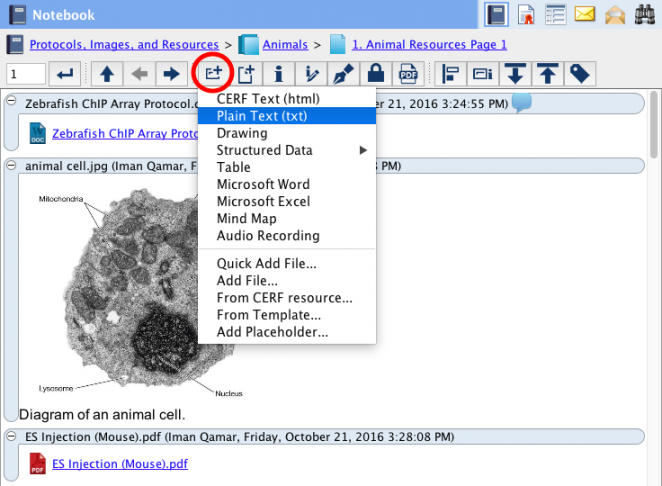
- Add Content to the Notebook Page using the New Entry button. Click the New Entry button
 on the Notebook Page toolbar. Select Plain Text (txt) from the drop-down menu. This will open a new instance of your local plain text editing application. Enter text into the new window, press save, and close your editor. In CERF, you will then give your entry a new title, if desired, and click “Save” to save your entry. From then on, you will be able to edit this entry inline.
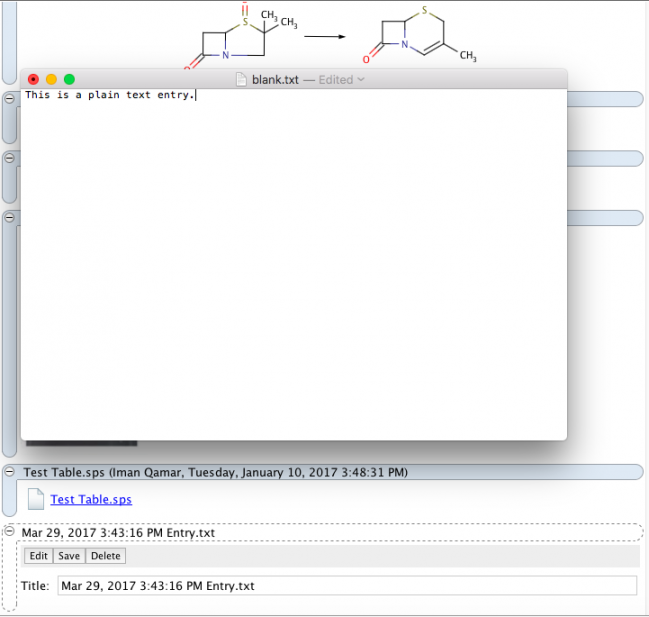
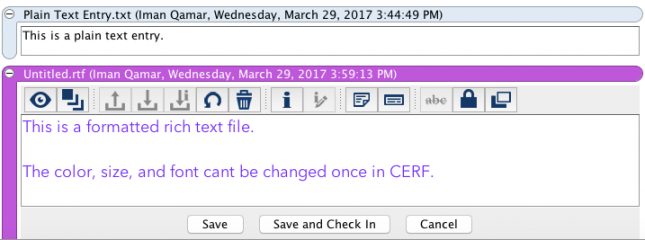
- Entries can also be created by dragging and dropping existing .txt or .rtf files from your local file system into CERF. These entries can be edited inline, just like CERF text entries. Note that because these entries utilize a plain text editor, you will not be able to do any rich text formatting (unlike a CERF Text entry). However, an existing .rtf file dragged into CERF will use the file’s original formatting, which cannot be changed by the CERF inline .txt editor.
Make Changes to a Text Entry
Select the Text Entry by clicking on the blue selection bar. This displays the Entry Toolbar. Click on the Checkout and Edit button  . This checks out the text entry from the CERF server and creates a local copy. You can now edit the content directly in CERF using the CERF inline .txt editor. Click on the Save and Checkin button at the bottom of the text editor when you are finished.
TIP: If you want to instead view or edit your .txt file (or any other file in CERF) with a specified external application, you can do so using the “View In…” or “Check Out and Edit With…” features described here.
Custom Plain Text Entry
Users have the ability to create a custom Plain Text entry to use as the default new Plain Text entry in your Notebook page. Please visit Custom Notebook Entries page for further information on how to install custom entries.
< Entry Types up CERF Text (html) >