
To insert an Action into a table cell, select the insert button from the table toolbar and choose “Action”.
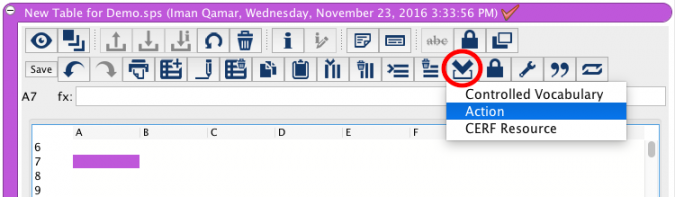
Actions allow you to create a link inside a cell that will perform a number of assorted functions on surrounding data when clicked.
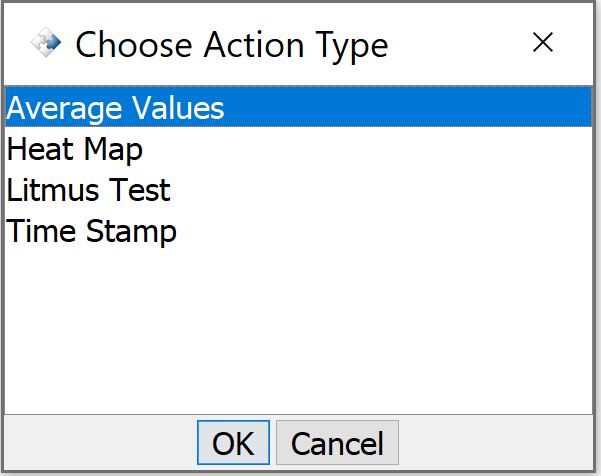
The available action types are: Average Values, Heat Map, Litmus Test, and Time Stamp.
Average Values
You can readily calculate the average value of your data using the CERF Table Tool Action “Average Values”.
To create this action:
- Select a cell to hold the command. This is what you will click to perform the action.
- Select Insert > Action > Average Values > Ok. You will be prompted to create the label for your hot-link. Enter a name (example: “Calculate Average”) and click OK.
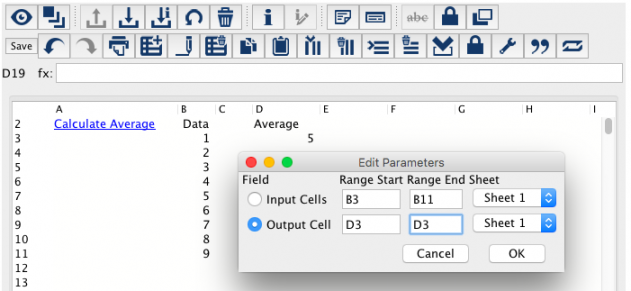
- Select the input cells, or cells to pull data from.
- After you have selected your input cells, select “Output Cell”, and highlight the cell that you want to hold the result. Click OK.
You can click on the hot-link any time you want to calculate or recalculate the average of the input cells. When clicked, all of the cells that are selected must contain data for this tool to work.
Heat Map
CERF Table Tool allows you to color code your data as a customized heat map.
To create this action:
- Select a cell to hold the command. This is what you will click to perform the action.
- Select Insert > Action > Heat Map > Ok. You will be prompted to create the label for your hot-link. Enter a name (example: “Update Heat-map”) and click OK.
- Select the input cells to heat-map. Highlight all of the cells that contain or will contain the data and hit OK.
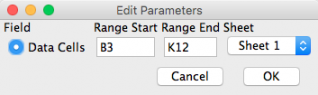
To run this action:
- Click the hot-link. (The input cells must contain data for this to run.)
- In the popup, select the minimum and maximum range for heat-map calculation, and choose your color scheme. Click OK.
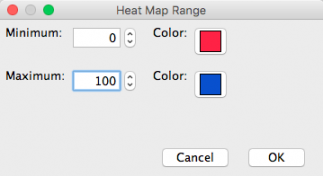
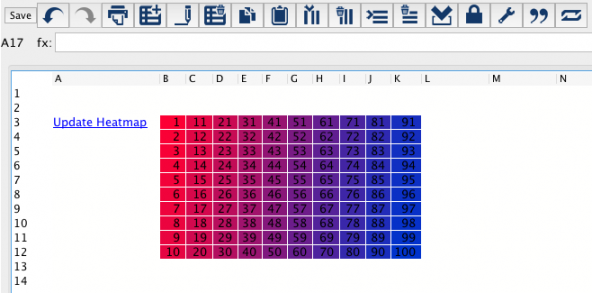
The heat map cells will then be color coded incrementally using the color spectrum and bracketed values you selected. You can rerun the action and change your values as many times as you wish.
Litmus Test
CERF Table Tool allows you to color code data from a litmus test using the insert action “Litmus Test”.
To create this action:
- Select a cell to hold the command. This is what you will click to perform the action.
- Select Insert > Action > Litmus Test > Ok. You will be prompted to create the label for your hot-link. Enter a name (example: “Update Litmus Test”) and click OK.
- Select the input cells, or cells to apply test to, and click OK.
You can click on the hot-link any time you want to update the litmus test on the input cells. When clicked, all of the cells that are selected must contain data for this tool to work.
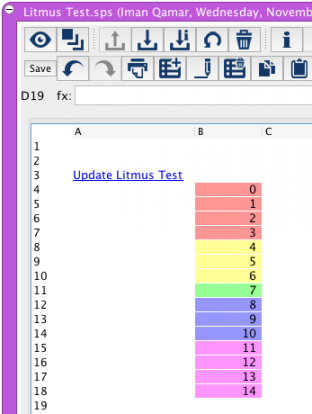
The cells will be color-coded based on their pH values. Values from 0 to 3 will be shaded pink, values from 3.001 to 6.999 will be shaded yellow, a value of 7 will be shaded green, values between 7.001 to 10.999 will be shaded blue, and values of 11 or above will be shaded violet.*
*Note: While true pH values range only to 14, any number above 11 will be shaded violet.
Time Stamp
You can use the Insert tool, to place a time stamp in a specific cell within your table. To do this, go to the desired cell and select Insert > Action > Timestamp.
You will then be prompted to enter an “action label”. Whatever you enter as the “action label” will appear as a hot-link in the selected cell. Enter your desired string variable and select OK.
CERF will then prompt you to select a range of cells in which you want the Time Stamp to appear. You may enter this by hand or use the mouse to select the desired range of cells. The range must be comprised of adjacent cells. (In this example three cells in column A and three cells in column B were selected.)
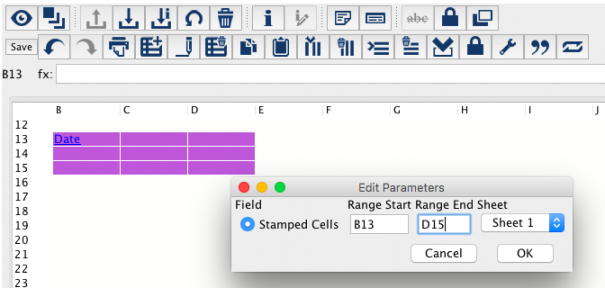
When you click “OK” the hot-link will appear labeled as you designated.
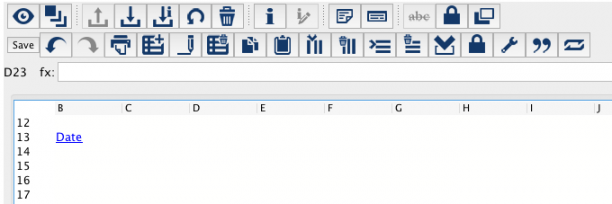
When the hot-link is clicked, the specified cells will be filled with the time and date at which it was clicked.* (The cells were expanded to show the full time and date.)
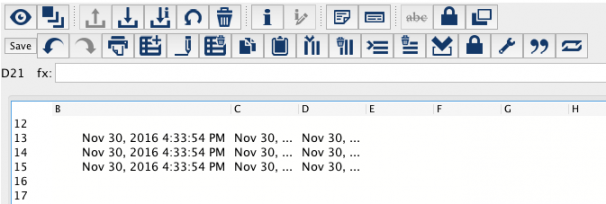
*Note: The contents of the selected cells will be overwritten by the time and date at which the hot-link was clicked. Further, the time and date can be overwritten by subsequent entries. If you select a cell you did not wish to fill with the time and date, or you accidentally overwrite the time and date, you can simply click the “Undo” button to remove your unintended actions.
< Controlled Vocabulary up CERF Resource >