
CERF 6.0 Documentation
Go to CERF 5.3 Documentation
The Page numbering display can be changed in both Rigid and Flexible Notebooks.
Right-click on the Notebook and select Notebook > Page Numbering. This launches the Set Notebook Numbering Type dialog.
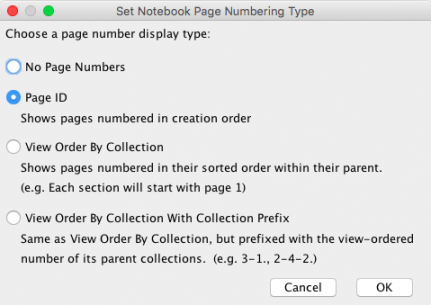
- The default is Page ID and shows the pages numbered as they were created. Select Page ID (default) to display the page numbers in creation order.
- Select View Order By Collection to number pages consecutively, starting with Page 1 in each collection.
- Select View Order By Collection with Collection Prefix to associate a page with its Section. This is important if, as shown in this example, Sections have not been given titles.
- Select No Page Numbers to display only the page titles. Note that in this case it is important to give unique titles to pages rather than keep the default page titles. These can be changed by editing metadata.
Note that the Page ID is always shown in the Page metadata. The Page ID reflects the creation order and does not change when the page numbering display is changed or when the sort order of a Notebook is changed. To view metadata, select the page and open the metadata pane in the Info panel (right-hand side of the CERF application).
If you move (i.e., cut and paste) a page to a different section within a flexible notebook, the page numbering display will change.
< Page Toolbar up View Notebook Resources >