
CERF 6.0 Documentation
Go to CERF 5.3 Documentation
When multiple views exist, you may select whether to view a document (word, excel, PDF) as a link or an inline view on a regular Notebook Page. CERF will attempt to render an inline view below a specified file size (controlled by a business policy that the system administrator may change. If an inline view can be created, select the view from the drop-down menu to change the display. For images, the “document” is a thumbnail view of the image, which can be resized, and the alternative view is a link to the file.
View Word, Excel Inline
When you add a Word or Excel document, CERF will attempt to render it inline as a PDF (this is the “preview’). To change display type manually, select the Entry by clicking on the green selection bar. Click on the Change Display Type button on the Entry toolbar and select the display type. A Business Policy determines the maximum file size that can be displayed inline; thus you may find that some files cannot be displayed inline (click the View button to open and view the file).

The next image shows the Word Document as an inline view:
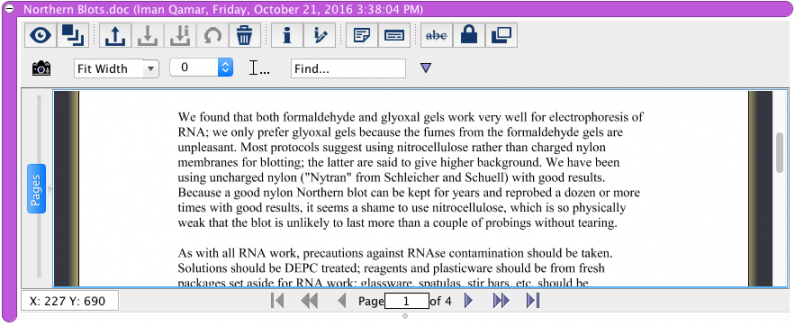
Note that when you edit a resource that is displayed inline, it opens in its native application for editing. Save it in the application and check it in. The updated copy will be displayed inline as a PDF.
View PDF and Images Inline
For a PDF, the drop-down menu will allow you to Show Link and Show Document (inline view). When you add a PDF to CERF, it will automatically be rendered inline if it is within the size range specified by the business policies. For images, the thumbnail height and width (inline view) is determined by business policy. If an image is less than the maximum size allowed for inline viewing (configured in the business policies), it will display inline automatically when you add the image to CERF. If an image is shown as a link, the Change Display Type menu will give the option to “Show Document,” which is the inline view. In order to resize an image entry, the view must be inline rather than show as link.
View Official Printed Copy Inline
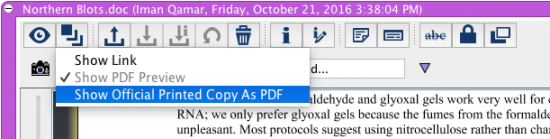
If you have added an Official Printed Copy to the resource, the drop-down menu will include the choice to Show Official Printed Copy. This allows you to see what will be shown for this entry in a printout. You can go back to Show as Link and then to Show as PDF or Document.
See Also:
- File Viewer – For a listing of file types that can be displayed inline on a Notebook Page, as well as within CERF using the File Viewer
< View Notebook Resources up Entries >