
If your research involves repetitive steps, you can create and later redeploy templates to save time and ensure consistency and reproducibility. Almost anything in CERF can be turned into a template. CERF includes a number of pre-loaded empty files that you can use as templates, and you can also create your own templates made up of folders containing selected files or Notebook pages representing common workflows, with placeholders used to show where new data will be added when it becomes available.
Standard empty file templates that come with CERF include:
- Word Document
- Excel Spreadsheet
- PDF Document
- Powerpoint Presentation
- CERF HTML Document
- PNG Image
- Photoshop Image
- Genbank Image
- Molecule (.Mol)
- Cerf Table
Templates are available in two different places in CERF: 1) From the template chooser popup that typically appears whenever you choose a new resource or opt to make a new resource from a template. 2) When creating new Notebook Entry from the New Entry drop down and selecting a new blank file or a modified, custom blank file that will be unique for that specific workstation. More in formation on this second workflow is Here.
One of the most common resources to use as the basis for a template in CERF is the CERF Notebook Page. This is because a notebook page often corresponds to a unit of work at many organizations (for example a single experiment, workflow, work day or process). To create a template from a specific Notebook Page, right-click on that Notebook Page in the Document Tree and select Tools > Create Template from the right-click menu
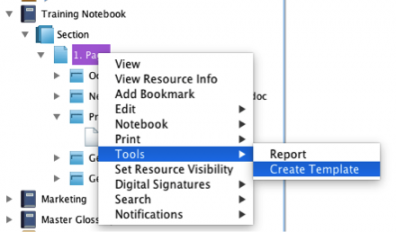
Similarly, right-click on a Notebook to create a Notebook template, on a section to create a Section Template, and on a Notebook Entry to create a Notebook Entry Template. The Create Template dialog launches, displaying the top-level Resource and any Resources it includes.
In the Create Template dialog rename the default template title (optional) to clearly identify it. We recommend that you add a version number to the title. Select a domain (optional). If the system administrator has created domains, this allows you to make this template available only to members of a selected domain. “Default” creates a domain in which you are the only member (and anyone you have added to your personal workgroup).
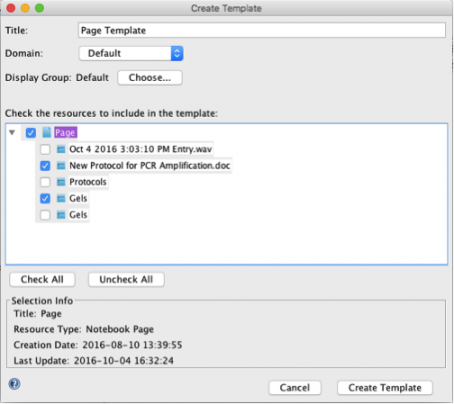
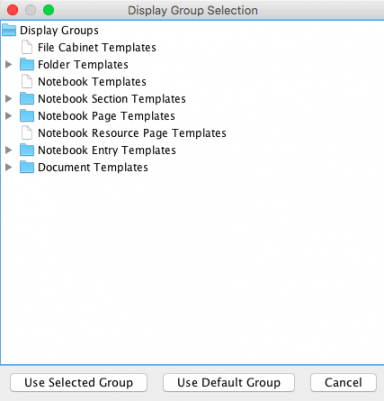
Click on Choose (in the above dialog) to select a Display Group for the template. This launches the Display Group Selection dialog.
Select a Display Group that matches the type of template you are creating. This will be important for finding the template later.
Click on Use Selected Group (at the bottom of the dialog).
In the Create Template dialog select checkboxes for the Resources you wish to keep in the template (the checkboxes can be individually selected/deselected or use the Check All/Uncheck All buttons). This is shown in the first image.
When you are finished, click on Create Template.
Note that Document Templates can be utilized in File Cabinets. The equivalent template for a Notebook is a Notebook Entry template, which contains a single resource.
If a template is made in error or is no longer in use, the System Administrator can remove it from the CERF server.
< Templates up Using a Template >