
Access Your Notifications
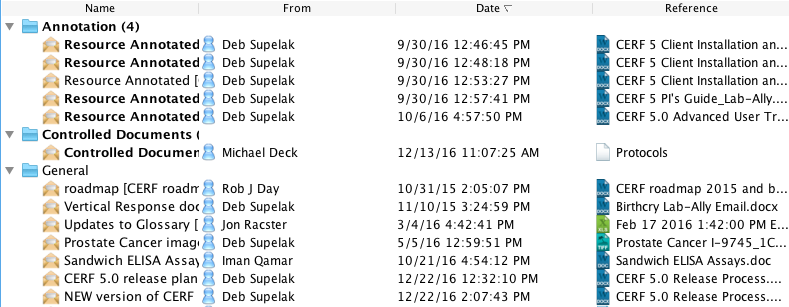
- Click the Notifications icon over the Middle panel. For any Notification, reading left to right, you will see the Notification itself, the person who sent it, the date, and then a link to the CERF Resource associated with the Notification.
- Click on the Refresh button in the Notifications toolbar
 to update the Notifications.
 - Select a notification to see any associated text displayed in the gray panel below the Notifications pane.
- Right-click on the Notification itself (left-most column) to Reply to or Delete the Notification (or use the Notifications toolbar). Right-click on the Resource associated with the Notification (right-most column) to see available actions.
Note: The action of deleting a notification only removes the notification from view. Deleted notifications are moved to an archived database that can be retrieved with the assistance of Lab-Ally Support
< Send Notification up Search >