
The content (and often the embedded metadata) of most common file types you add to CERF are indexed for Full Text search. File types that are fully indexed include: Microsoft Word, Microsoft Powerpoint, Microsoft Excel, RTF, Text, PDF, and HTML.
- To begin a search, select “Search” from the main menu bar or click the” Search” icon at the top right. Enter a term in the Full Text search text box. A term is a single target string of alphanumeric characters. A phrase is a group of terms surrounded by double quotes. If you do not use quotes, CERF will treat multiple terms with spaces between them as being separated by the “OR” operator.
In the examples below, notice how the number of results changes depending on the specifics of how the text is entered and which parameters are used. [test notebook] searches for anything that contains either the term [test] or the term [notebook]. There are 277 results in this example (circled):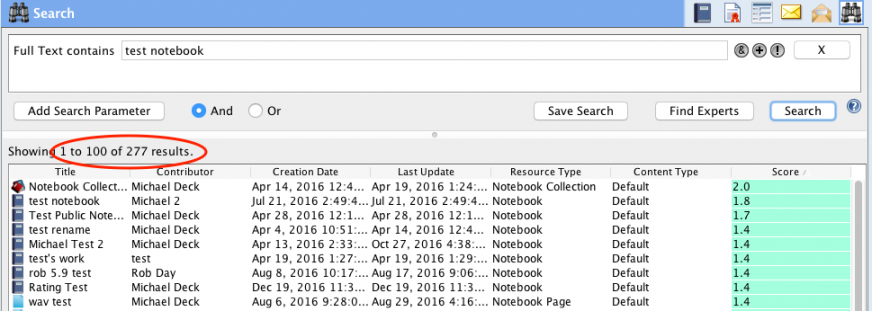
[“test notebook”] searches for the exact phrase “test notebook”. Note that the number of results falls from 277 to just 5: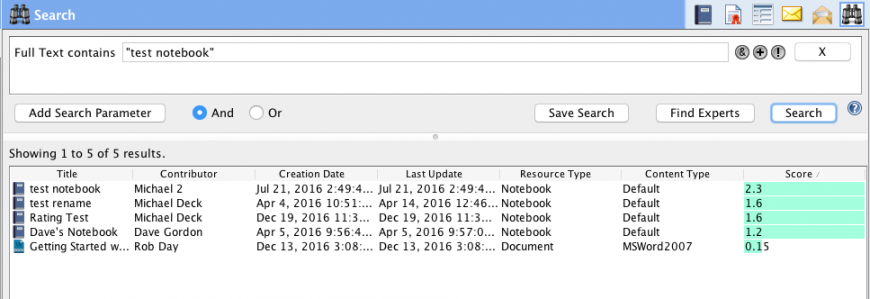
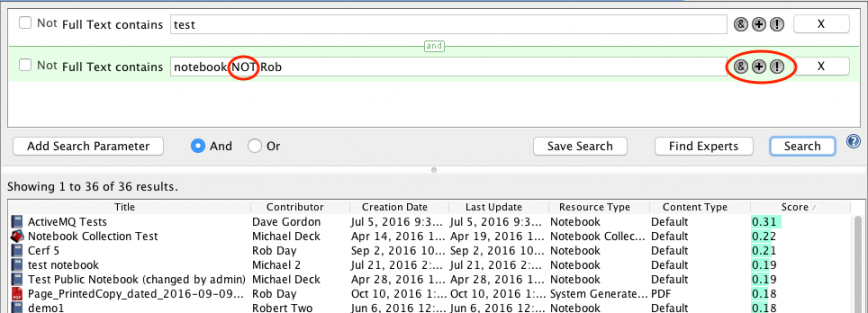
- If you plan to enter another search term into the Full Text search, click on one of the Boolean operator symbols (circled below) for AND (&), OR (+), NOT (!) to connect the search terms. The search below is looking for anything that contains a) the term “test” and b) “notebook” but not “Rob”. Note that resources that contain the terms “test” and “Rob” are not excluded because the NOT modifier only applies to the second parameter.
- The best way to narrow your search and avoid large numbers of false positives is to combine additional parameters together. If you get too many or too few results you can add additional terms connected by AND / OR / NOT operators, or add additional Full Text parameters or other parameters connected by AND / OR operators to narrow or expand your search. You can keep adding more parameters to your search and re-running it by clicking “Search” or the return key. as many times as you like. Adjusting your search “on-the-fly” will help you progressively close in on your target data.
The list of results will tend to get longer as you add terms or parameters connected by “OR”.
The list of results will tend to get shorter as you add terms or parameters connected by “AND” or “NOT”.
In the example below, we can narrow the number of search results from the 277 shown in the first example above to just 1 result by adding a single additional parameter.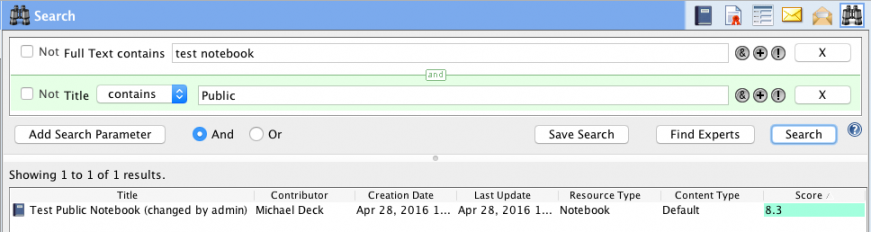
TIP: After you click the Search button or return key, records that match your query are returned (you must have access to these records in order to retrieve them). Right-click actions can be performed on items in the results. Results are returned according to score order. A proprietary “CERF search match” algorithm determines how good the match is. The exact value does not really matter but look at the RELATIVE values to see which result may be much better match than the others.
TIP: “Full Text” search looks within the Resource Title, the text of most other metadata fields, and the entire content of most common file types for the target search term or exact phrase. Use quotation marks to search for an exact phrase located somewhere inside the file content, but beware, using quotation marks may limit the ability to search effectively for some sorts of metadata fields (such as “Title”), or may require the entire metadata field to perfectly match the number of characters and spaces of a search phrase within quotation marks. For example, you may need to use the entire file name including the file extension as your target phrase when searching for an exact match for the Title of a file. Thus, a Full Text search for [“file namex”] will not find the file [file namex.doc], although searching for [“file namex.doc”] should work. Searching for [namex] (with no quotation marks) will also work, but will be more likely to include false positives in the list of results.
TIP: “String within string” searching is well supported, so the use of “wildcards” is generally not necessary, although in some situations using the symbol “?” can be be a useful single character wildcard. For example a Full Text search for [analy?e] will find results for both [analyse] and [analyze].
TIP: Full Text search is case-insensitive and can be used to search for any alphanumeric character strings, including numbers and mixtures of numbers and letters.
TIP: Special characters, hyphens, parentheses punctuation marks and other non alphanumeric characters can cause problems for the CERF search engine, so you should avoid using these in CERF search terms whenever possible. Try to avoid using them in file names and Titles of resources added to or created in CERF.
TIP: The CERF search tool displays blocks or pages of up to 100 results at a time. Click “Next” or “Previous” to move between pages of results.
TIP: CERF search is flexible. If your results seem unexpected, you should experiment with different ways to structure your search. Even subtle changes like using words on the same line versus on separate lines of a search can make a difference to your results because of the way that CERF considers many different factors such as relative word proximity, the order of the parameters, and the priority it thinks you want to give to each of the terms.
TIP: Sort search results by clicking on any of the column headings. Adjust the width or order of the columns by click-dragging. Adjust the number of search parameters you can see in your search by dragging the panel divider up or down.
TIP: To help minimize “false positive” results, CERF queries do not work well with any of the following common words unless they are part of an exact phrase search (included in quotes, eg “types of fish”). Try to avoid searches that include these common words, and try to avoid using these terms in file names and resource titles whenever possible.
“a”, “an”, “and”, “are”, “as”, “at”, “be”, “but”, “by”,”for”, “if”, “in”, “into”, “is”, “it”, “no”, “not”, “of”, “on”, “or”, “s”, “such”, “t”, “that”, “the”, “their”, “then”, “there”, “these”,”they”, “this”, “to”, “was”, “will”, “with”
< Search up Search Parameters >