
In addition to a Full Text search (or instead of a Full Text search), CERF users can search using specific parameters, or can combine any number of parameters together with AND / OR operators to form complex Boolean queries.
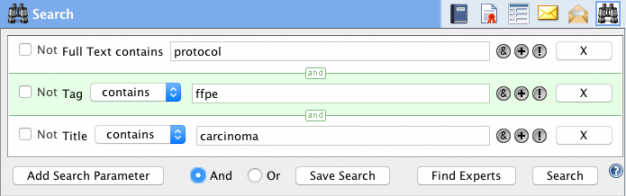
CERF includes the following list of default parameters available in the “Add Search Parameter” dropdown menu:
This parameter searches within the Resource Title, the text of most other metadata fields, and the entire content of most common file types for the target search term or exact phrase. Use quotation marks to search for an exact phrase located somewhere inside the file content, but beware, using quotation marks may limit the ability to search effectively for some metadata fields (such as “Title”), or may require the entire metadata field to perfectly match the number of characters and spaces of a search phrase within quotation marks. For example, you may need to use the entire file name with file extension as your target phrase when searching for an exact match for the Title of a file. Thus, a Full Text search for [“file namex”] will not find [file namex.doc], although searching for [“file namex.doc”] will work. Searching for [namex] (with no quotation marks) will also work, but will be more likely to include false positives in the list of results.
TIP: Full Text search is case insensitive and can be used for searching any type of alphanumeric character strings including numbers and mixtures of numbers and letters
TIP: String within string searching is well supported, so the use of wildcards is generally not necessary, although in some situations using the symbol “?” can be be a useful single character wildcard. For example a Full Text search for [analy?e] will find hits for both [analyse] and [analyze].
TIP: Special characters, hyphens, parentheses punctuation marks and other non alphanumeric characters can cause problems for the CERF search engine, so you should avoid these in CERF search terms whenever possible, and try to avoid using them in file names and Titles.
Title
This parameter searches only in the metadata field “Title”. A Title search is a good way to locate a file or other resource whose full name is known. This search parameter IS case sensitive. Exact phrase searches using [Title > is] or single word searches using [Title > contains] work best. Be careful about file extension names: For example for [file name.doc] CERF sees [name.doc] as single word and will not return hits for [Title > contains [name]], but will return hits for [Title > contains > [file] or [Title > contains > [name.doc]]. Exact phrase [Title > is] searches should work even if the title contains one or more of the common words listed at the bottom of this page. To search for more than one word that are both known to be in a title, use a separate Title search line for each word and make sure that “And” is selected as the search term connector.
TIP: For best results when searching for specific files, use [Title > is] with the full and precise file name, including the file extension, without quotation marks.
TIP: If you want to find all the places where currently active copies, links or versions of a file exist try this: Select the file in the Document Tree > right-click > View Resource Info > click the Title field to select the title and use command / control C to copy it > close the View Resource Info window > go to the search engine and initiate a [Title > is] search > paste in the exact name of the file you just copied and click Search. Now for each of the results you can right-click > Search > Locate (choose all collection types and all versions). This will help you find all copies and versions of a specific file you have access to, wherever they may be in CERF.
Contributor
This parameter shows a dropdown list of the full names (not the CERF username) of ALL active and inactive users on your server. Choose one or more names to see everything contributed to CERF by those users. The selected names appear in a list located over the dropdown. You can click the “x” icon next to each name to remove them. As with all CERF searches, keep in mind that you will only be able to see items contributed by selected users that you have explicit permission to see. If you choose a contributor that does not belong to any of the same workgroups as you, then you will not see any results.
TIP: If you notice that there is more than one user on the dropdown list with exactly the same name, ask your CERF administrator to modify the identical real names with a middle initial or other unique identifier to make it possible to distinguish between them.
TIP: The Contributor search can be especially helpful when combined with pairs of “Creation Date” or “Last Update Date” parameters. Use this strategy to quickly see a list of everything a specified user did on a certain date.
Owner
This parameter shows a dropdown list of WORKGROUPS you belong to. Choose one or more Workgroup names to limit your search to resources owned by that Workgroup. The selected Workgroups appear in a list located over the dropdown. You can click the “x” icon next to each name to remove them.
TIP: In CERF, all resources are owned by Workgroups not specific individuals. Certainly a Workgroup can correspond to a specific individual person though. For example, by default, all new users are given their own personal workgroup. If the user or the CERF admin choose not to add others to that personal workgroup, then anything created in collections owned by that personal workgroup are, for all practical purposes, owned by a single individual.
TIP: If you do not see the name of a Workgroup that you were expecting to see in the dropdown list, (e.g. the personal workgroup of a close colleague), then you probably do not belong to that workgroup. To gain access to work in that workgroup, ask the Workgroup Administrator of that group to add you. If you do not know who the Workgroup Administrator is, you can ask your CERF administrator for assistance.
Within Notebook
This parameter shows a dropdown list of Notebooks you have access to. Choose one or more Notebooks to limit your search to resources in that Notebook. The selected Notebooks appear in a list located over the dropdown. You can click the “x” icon next to each Notebook to remove them. You can add the parameter twice and choose ALL in the first line, then exclude one or more Notebooks by using the NOT modifier in the second line.
Within File Cabinet
This parameter shows a dropdown list of File Cabinets you have access to. Choose one or more File Cabinets to limit your search to resources in that File Cabinet. The selected File Cabinets appear in a list located over the dropdown. You can click the “x” icon next to each File Cabinet to remove them. You can add the parameter twice and choose ALL in the first line, then exclude one or more File Cabinets by using the NOT modifier in the second line.
TIP: The new “Within File Cabinet” and “Within Notebook” parameters make it easy to limit a search to a specific CERF collection, but can be used for other strategies too. For example, users can now exclude resources that are not in any collection by including ALL notebooks and ALL File Cabinets parameters. Conversely, by combining other types of search with NOT in a File Cabinet and NOT in a Notebook, users can exclude current versions of resources and search only within older versions (since older versions by definition are considered to NOT belong to any collection).
Creation Date
This parameter allows the user to choose a date, a date range, or multiple combined date ranges using a popup calendar.
Last Update Date
This parameter allows the user to choose a date, a date range, or multiple combined date ranges using a popup calendar.
File Extension
This parameter is useful for searching for specific file types. It does not matter if you include a “dot” in your search term i.e xls and .xls will both find excel files. This parameter IS case sensitive. You should use all lowercase characters. Note that this search will help you find both the specified file type AND any Notebook entries that contain that file type.
TIP: In addition to whatever files you usually add to CERF, there are some special file extension names used by CERF when it creates specific types of resource:
- xml – can be used to find SDIMS cards
- sps – can be used to find CERF Notebook table tool entries
- cerfht – can be used to find CERF Notebook text entries
- wav – can be used to find CERF Notebook audio entries
- svg – can be used to find CERF Notebook drawing entries
- txt – can be used to find entries created by the iCERF text editor.
CERF Resource Id
All CERF resources have a totally unique ID number, so this is the most specific type of search you can perform. If you know the exact CERF resource ID number, your search should return only a single hit. CERF Resource ID numbers can help you unambiguously distinguish between different versions and can help you precisely locate specific resources wherever they may be.
TIP: To find and copy the unique CERF Resource ID for any resource, open a Resource Info window using right-click > View Resource Info, or open the right-hand CERF info panel by clicking the blue info  button and select any Resource in the CERF Document Tree on the left. Now scroll down to the “Status” section, locate the ID field, double click the ID number to select it, and use your keyboard to copy the ID number to your clipboard (command-c on a mac or control-c windows). On some machines you can also drag the selected ID number to your desktop if your computer supports text clippings. You can use these Resource ID numbers in CERF notifications, reports, documents or emails to precisely reference specific CERF resources. Anyone who has permission to access the resource can find it easily by pasting the ID number into the CERF Resource ID search parameter field and clicking “Search”.
CERF Resource Type
This parameter shows a list of CERF resource types. Choose one or more Resource Types to limit your search. Selected types appear in a list located over the dropdown. You can click the “x” icon next to each item to remove them.
Document Edit Status
This parameter shows a list of different Edit statuses. Choose one or more to limit your search. Selected statuses appear in a list located over the dropdown. You can click the “x” icon next to each item to remove them. To restrict results to unsigned or unfinalized items choose “Editable”. Versionable items can be replaced with a new version, but there is no version history maintained in the Resource Info window. Version Controlled documents can be edited such that each edit adds a new version to the numbered version history visible in the Resource Info window. If you are not sure how versioning rules are configured on your server talk to your CERF admin or Lab-Ally support.
Activity Status
This parameter shows a list of different Activity Statuses. Choose one or more to limit your search. Selected statuses appear in a list located over the dropdown. You can click the “x” icon next to each item to remove them. This parameter can be particularly useful for the CERF admin when locating deleted Resources. Deleted files are not shown in search results by default unless you specifically use the “Deleted” status in this search parameter. Your CERF admin can reactivate deleted files if necessary.
Signature Status
This parameter shows a list of different signature statuses. Choose one or more to limit your search. Selected statuses appear in the list located over the dropdown. You can click the “x” icon next to each item to remove them. This parameter can be useful to locate Notebook entries based upon their current signature workflow status. Options are “Cancelled”, “Completed”, “Expired”, “Initiated”, “Rejected” or “Unsigned”.
Note: When searching for Signature Status, it should be noted that “Unsigned” will only show results for resources that were never initiated with a signature block. Once the signature process has started, please use the appropriate Status to search. For example, if a signature block is Cancelled you will want to search for “Cancelled” despite the notion that to the user they might think of a signature cancelled resource as being unsigned. Signature blocks are never removed and thus a cancelled signature block is no longer considered unsigned status. Contact Lab-Ally Support for clarification if needed.
Rating
Rating is a type of subjective metadata added manually to any resource or notebook page by a user with suitable access. Although the rating assigned is subjective, it can be useful for tasks such as identifying experiments that have worked poorly so that users can attempt to isolate problematic variables. Ratings are created by clicking the “tag” icon on a notebook page toolbar (or by viewing resource info of a resource) and choosing 0 – 5 stars, where 0 = a low quality or success rating and 5 stars = highest rating. When included as a search parameter, user can look for items with a specific star rating or items that have a rating that falls within a specified range.
Tag
Tags and Advanced Tags are custom metadata added manually to any resource or notebook page. Tags can be added to notebook pages by clicking the Tag icon in the page toolbar, and can also be added to any resource using the Resource Info window. Tags are a good way to sort work into bundles of related to material and have the advantage that when you add a Tag to a resource, the Tag becomes a clickable link that instantly opens a separate search window with the tag parameter and value automatically populated. This makes it easy to instantly search for related work that you have access too. Advanced Tags help you and your colleagues to build and use common and consistent sets of nested hierarchic terms (referred to as ontologies) across your entire organization, making it easier to search for what you need in ways that match your specific needs.
TIP: The list of terms available in controlled vocabulary lists can be edited by anyone who has been granted this capability by their CERF administrator. If you have been given this capability, you can edit the list of available terms by going to the main CERF menu and choosing Tools > Manage Vocabularies.
Metadata
In addition to the standard default parameters listed in the Add Search Parameter dropdown, CERF also allows you to search for many other sorts of metadata. Items accessible in this auxiliary list may refer to either metadata (or properties) of files that were embedded at the source when they were first created outside of CERF, OR CERF metadata that has been added to the resource manually using CERF. Not all resource types can be associated with all metadata categories. The usefulness of the various auxiliary search parameters will vary depending on how you create your data, and whether or not you consistently add metadata to files and resources both inside and outside of CERF. Currently, although CERF can display and search for some sorts of embedded metadata that was created externally, CERF cannot edit embedded file properties that it did not create.
TIP: To make sure that all of your most important research work is locatable by others in the future, consider assigning one or more specific staff members the job of evaluating the quality of metadata associated with each resource. You might want to then require that a metadata evaluator be included in the digital signature workflow of all work so your organization can be sure that appropriate metadata is associated with all completed and signed work.
To access the extended list of metadata choices:
- Choose “Metadata” from the dropdown list. The CERF Choose Metadata Term dialogue opens.
- Select an appropriate Metadata term and enter a search term or choose a value, then click “Search”
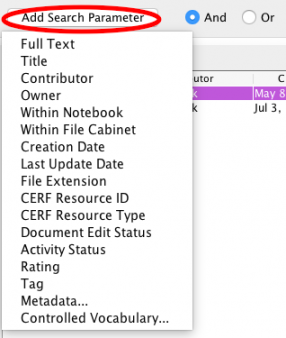
Some of the useful parameters accessible in the auxiliary list include:- Author/Creator – This is an embedded file property added to most MS Office files (and some other file types) by the application that created it outside of CERF. Typically the value entered is the full name of the person to whom that copy of MS office is registered.
- Attribute – This is a flexible metadata category that can be added to any resource using right-click > Edit Metadata > Add More Metadata > Attribute, then entering the name of an attribute and it’s value. This is especially useful if you need to add metadata to one or more resources that do not seem to fit in any existing category. When searching using this parameter, users can choose to enter the name of the attribute they created, OR its value, OR both name and value separated by an equals sign.
- Caption – This refers to the CERF captions added to notebook entries. Captions are especially useful for making searchable text descriptions that can accompany images, sound files or data files on Notebook Pages that cannot themselves be easily indexed for searching based on their content.
- Date – This is an embedded file property added added by an external application that refers to the original instantiation date of files created outside of CERF. Many different standard file types may include this embedded property, and it should not be confused with the CERF “Creation Date” (when the resource was added to CERF) or the CERF Last Update Date (when the resource was last modified in CERF).
- Keywords – Keywords are a type of standard CERF metadata that can be added to most resources using Edit > Edit Metadata or View > Resource Info > Edit Metadata.
- Longitude / Latitude – These two parameters can be used together to search for images created using GPS-equipped mobile devices at a known location, assuming the images include embedded GPS metadata in standard format. Other EXIF metadata embedded in images from your mobile device may also be searchable with existing CERF search parameters. Examples include Equipment Make, Equipment Model, Shutter Speed and others. Lab-Ally will be extending this functionality in future releases.
- Notes – This parameter searches within the content of CERF Notes that can be added to any resource. There are at least three ways to add Notes to CERF: 1) Right-click > Edit > Add Relation > Note. 2) In any Resource info window, enter some text in the text field of the top panel (Relations and Annotations) then click the Note icon. 3) Click the Note icon in the Notebook Entry toolbar. CERF Notes are like other types of metadata except that they alert users to their presence using the Relations and Annotations alert icon (looks like a blue speech bubble).
- Subject – This is an embedded file property that can be added to some types of files by some applications when they are first created outside of CERF.
TIP: Some parameters in the “auxiliary” list may appear on the list more than once because they exist in different metadata schemas. Description for example is a standard metadata filed in CERF, but is also part of the Dublin Core schema accessible under “Add More Metadata” > Dublin Core.
Feel free to explore other search parameters in the auxiliary metadata list but keep in mind the following:
- Some metadata fields can currently only be associated with certain types of resource, but not all CERF resource types are accessible to all users.
- The types of resources and metadata accessible to each user is currently controlled by the CERF admin using the Web App > access > domains.
- Some embedded metadata fields are not currently supported by CERF and are under review by Lab-Ally engineers for update or deletion.
- CERF metadata technologies are designed to be highly extensible and customizable and are likely to change in future releases to keep pace with industry standards.
- If you have suggestions for new metadata fields and search parameters please let us know
- If your organization requires customization of available metadata fields or search parameters contact us for a quote.
Controlled Vocabulary
In addition to the standard default parameters listed in the Add Search Parameter dropdown, CERF also allows you to search for resources that have been manually associated with specific terms selected from various built-in ontologies (i.e sets of nested hierarchical keywords and terms). A number of different sorts of ontologies are pre-built into CERF. Not all ontologies can be used with all resource types. One of the most useful ontologies is the list called “Semantic type” which can be associated with most types of Resource and is therefore usually present in the “Add More Metadata” dropdown.
TIP: To associate terms from built-in vocabularies with specific resources in CERF users with edit metadata permission can right-click > Edit Metadata > Add More Metadata. A Dropdown menu appears with various options. The options that appear in this list will vary depending on the type of resource. For most basic resource types like documents the list is quite short, but if the resource type has been changed to one of the specialized resource types supported by CERF then the list of options may be longer:
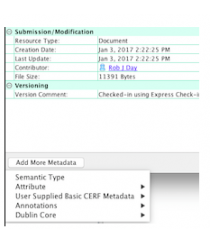
Standard Resource e.g. “document” |
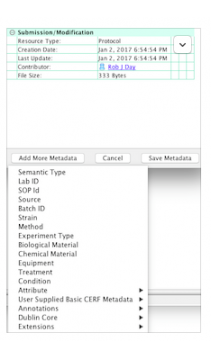
Specialized Resource Type e.g. “protocol” |
TIP: Many users prefer to use the Advanced Tag feature over the built-in CERF ontologies for associating terms with resources because this more easily allows for the creation of custom lists of terms by users with the Manage Vocabularies capability.
TIP: To help minimize false positive hits, CERF queries may not return ANY hits at all for the following terms. Currently, CERF queries may also return no hits at all if a search phrase ( i.e a group of terms in quotation marks) contains any of these terms. Try to avoid searches that include these terms and try to avoid using these terms in file and resource Titles whenever possible.
“a”, “an”, “and”, “are”, “as”, “at”, “be”, “but”, “by”,”for”, “if”, “in”, “into”, “is”, “it”, “no”, “not”, “of”, “on”, “or”, “s”, “such”, “t”, “that”, “the”, “their”, “then”, “there”, “these”,”they”, “this”, “to”, “was”, “will”, “with”
< Full Text Search up Working with Results >