
CERF 6.0 Documentation
Go to CERF 5.3 Documentation
 Local Files: displays the filesystems on your computer.
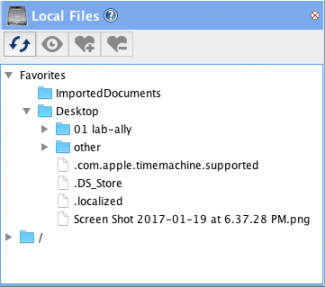
Show Local Files. Click on the Local Files icon ( to the left of the application) to display a new pane in the left panel (or use Ctrl-5). This will show available file systems on your computer’s local and shared drives from which you may select files and Folders and create Favorites. This makes it easy to locate documents from a file system you use frequently and submit them to CERF by dragging them to the Document Tree. The local files panel also lets you choose a destination for CERF resources that you would like to drag and drop to your local computer.
Hide Local Files. Click on the “Close View”  button in the upper-right corner of the Local Files pane (or use Ctrl-5).
Create Favorites. Select directories that you use frequently and then click on the Add to Favorites button. You can add to Favorites any directory that is currently accessible from your computer. This makes it easy to locate documents from a file system you use frequently and you can export items from CERF to your local filesystem using the mounted file system. Open the Local Filesystem tab, select one or more directories, and click on Add to Favorites. 
View a file. Expand a directory, select a file, and click on View  to open the file in an appropriate external application on your local computer.
Remove from Favorites. To remove from favorites, select the directory (not an individual file) and click on Remove from Favorites  Note that you can remove only the top-level directories that were added to favorites.
Submit a file to CERF. Drag a file from the Favorites into the Document Tree and drop it in a File Cabinet or Notebook to add it to CERF. This makes a copy in CERF; the original file stays on your computer.
Export a file from CERF to your computer. Select a file or a Folder in the Document Tree and drag it from the Document Tree and drop it to a destination directory in the Local Files sub-panel. This process exports a copy of the file or files on your local drive; the file(s) are still stored on the CERF server.
NOTE: A business policy controls whether your server allows drag and drop export to the local files sub-panel. For data protection and compliance, this export method is disabled by default. If you try to drag items to the local files panel and you see a popup warning, it means the feature is disabled.
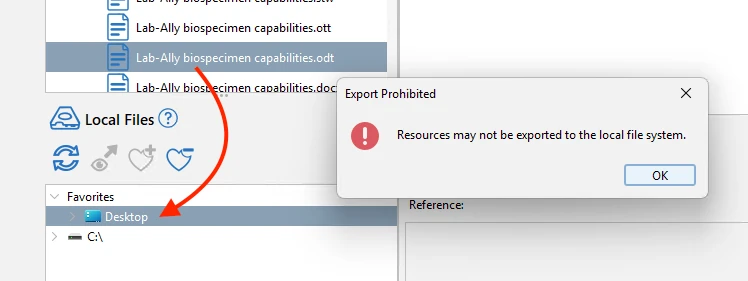
If you need to get specific files out of CERF you can ask your CERF admin to adjust the appropriate business policy (temporarily or permanently), or you can ask your CERF admin to use the admin interface and the CERF exporter app to export data from CERF on your behalf.
NOTE: You cannot export items from CERF by dragging them directly out of the main CERF window. The Local Files panel therefore can act as a convenient way to drag files quickly and easily in and out of CERF.
< Document Tree Toolbar up Checked Out Documents >