
CERF 6.0 Documentation
Go to CERF 5.3 Documentation
The File Viewer is similar to the Notebook Viewer. It allows quick exploration of the hierarchic organization of CERF File Cabinets and Folders, and can display many file types right within the CERF application. It is not necessary to view files with an external application, although that feature is supported for those who prefer it.
You can switch to File Viewer at any time using the File Viewer icon  in the middle panel selector toolbar, or use the right click menus or view icon to view a specific resource.

Like everything else in CERF, the File Viewer will only allow you to see files for which you have an appropriate access role. Users with a role of “Resource Identifier”, will not be able to view files and will not see the associated right click View commands.
File types that can be viewed within CERF include:
- Plain and Rich Text
- CERF Text (html)
- MS Office and Open Office Documents (converted to PDF)
- Images – PNG, JPEG, TIFF, BMP, SVG
- Chemistry Structures
- Simple HTML files from external sources
- GenBank Files
- AB1 trace files
- CERF table files
- SDIMS cards
- Mind Map files
- .wav sound files
- Any other type of file that has an alternate, viewable Official Print Copy file assigned to it.
The Center Panel File Viewer is the default choice when you view a file in CERF, clicking the view icon will open the file in the file viewer center panel. You can adjust the default view mode preference in the settings / options area:
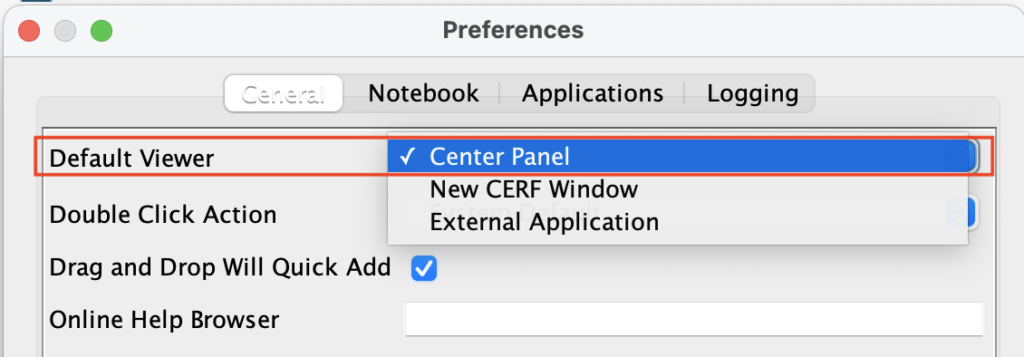
For files that are too big to load in the viewer, or for files that are not supported by the viewer, we recommend using right click > View In > System Default, or you can utilize the CERF official print copy feature to represent any file in CERF using a simpler, more easily displayed file of your choice. Files whose content cannot be displayed in the file viewer are initially shown as a file icon instead.
View Resource in File Viewer in the center panel.
Using the Left Panel toolbar View Icon
- Select the file in the left hand Document panel
- Select the view icon in the upper left panel toolbar and the file will open in the File Viewer in the center panel, or in whatever view mode you have set in your preferences.

Using the Right Click menu
Right click on any file and select View or View In > Center panel to load in in the File Viewer in the center panel.
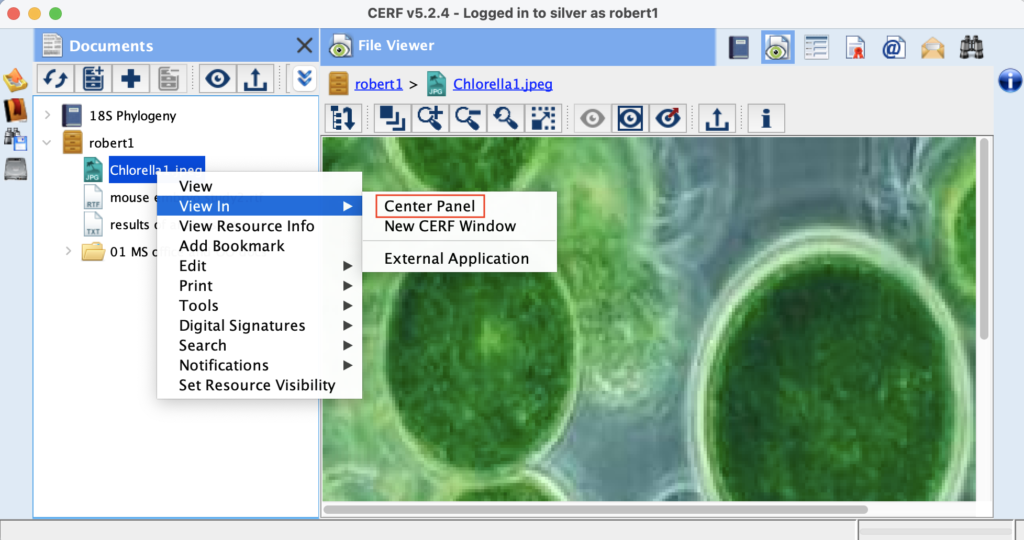
You can use the View mode icons in the center viewer panel tool bar to change to a different view mode (i.e. to move from the content of the center panel to a new window or to an external application):

Using the File Viewer pane to view the hierarchy of File Cabinets or Folders
- Double click on a file cabinet or folder to automatically pull up the file viewer in the central panel to see its contents hierarchically. The file viewer panel will automatically expand all the folders.
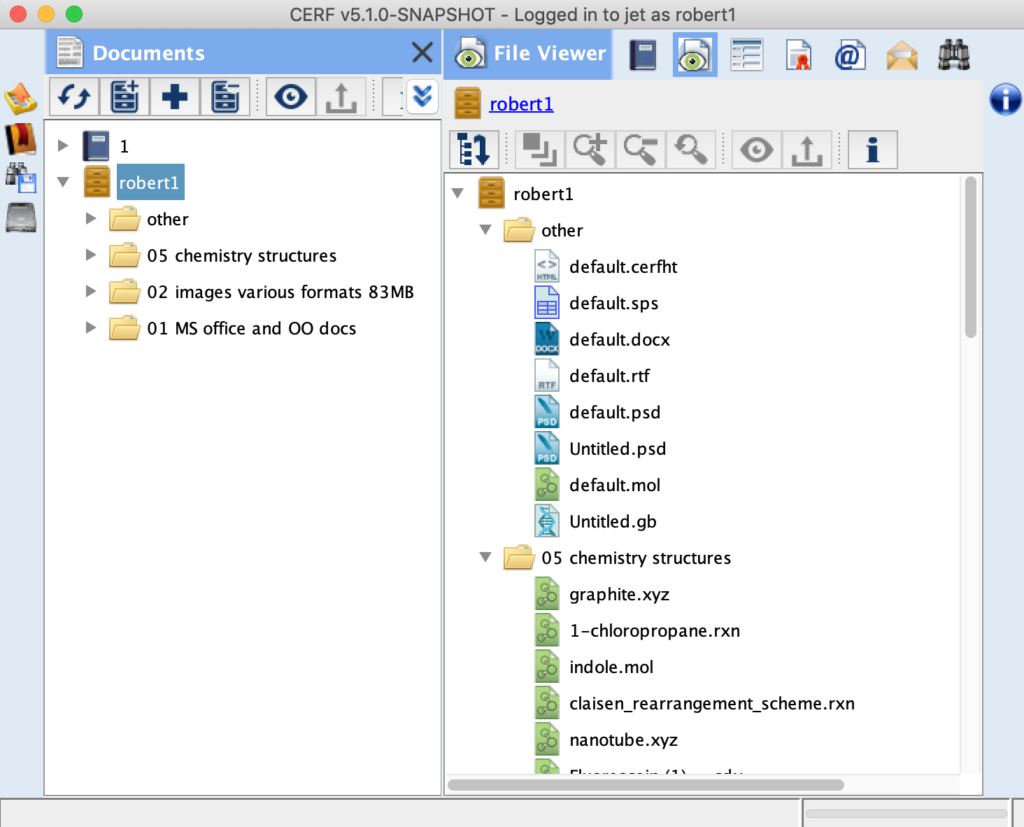
You can double click on any file within the middle file viewer pane to load it into the file viewer. Double clicking a file in the left hand document pane will check it out or view it depending on how your user preferences are set in Preferences / Options > Double Click Action.
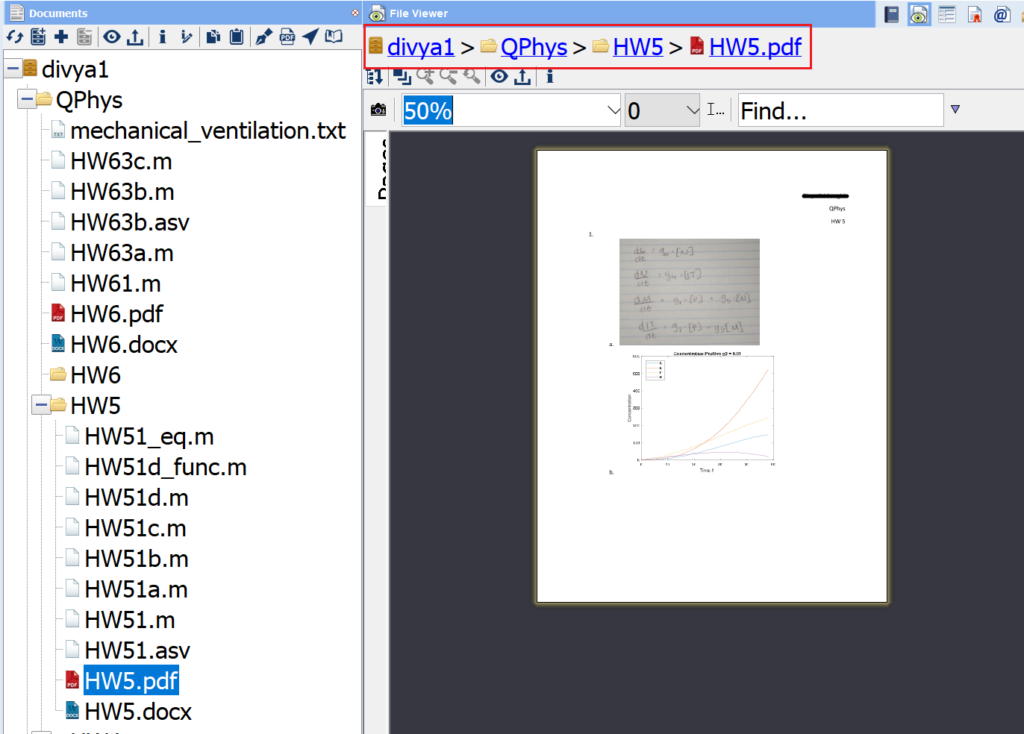
You can also use the breadcrumb trail (shown in the red box below) to navigate through the hierarchy of your collections, and even right click on items in the breadcrumb trail to access the standard right-click menus.
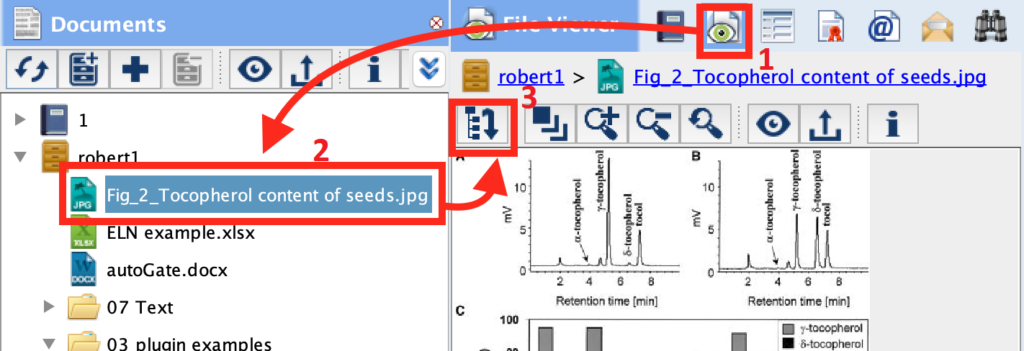
You can also click on the File Viewer icon in the middle panel selector toolbar (1), click on the file cabinet, folder or file you would like to view (2), and click the load selected resource icon (3) to load that resource in the file center viewer pane.
Viewing a file in a separate File Viewer Window
To open a file in a separate file viewer window: Right click on the file and select View In > New CERF Window. The file will open in a separate window.
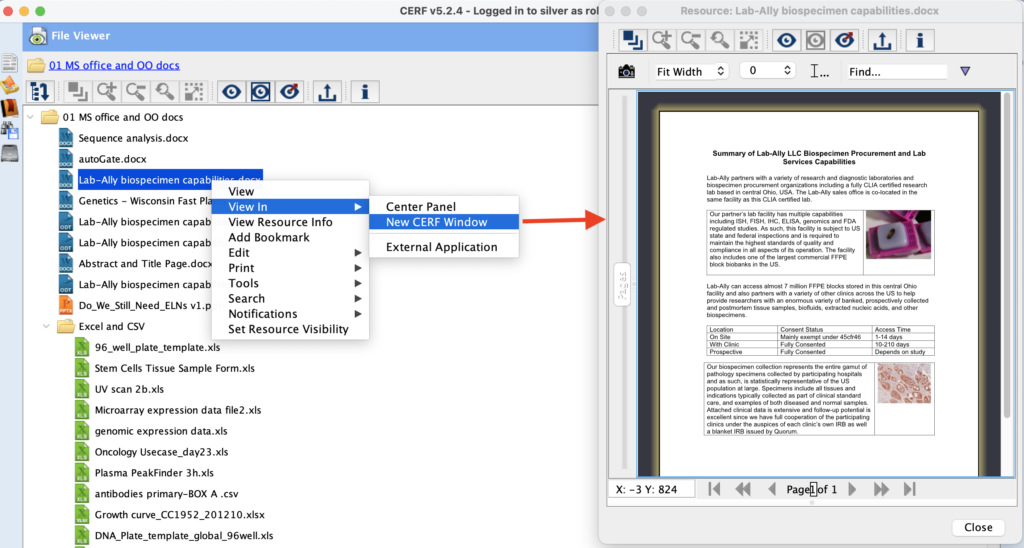
The external File Viewer window can be used to open multiple File Viewer windows so that you can view multiple documents or multiple versions of the same document at the same time. This is extremely useful for comparing similar files or when you need to read the content of one file while simultaneously editing another.
You can use the right click > View In > from anywhere in CERF that supports right click menus, including files that appear in Notebooks, search results, version histories (within a Resource Info window) or elsewhere. This makes it easy to see the content of any file or specific version of a file in a new window, regardless of its location in CERF.
When viewing images in the central File Viewer pane or in the external File Viewer windows, you can use your mouse scroll wheel or the zoom icons above the image to zoom in and out of the image.
When viewing documents in separate file viewer windows, you can click and drag on the boarders or corners of the window to instantly resize your view of the document.
NOTE: For MS Office files and PDF files, some other useful features can also be accessed in the CERF File Viewer windows. Examples include text string location within the file and image capture of selected portions.
Viewing with an external application
File > View In > External Application will open a read-only copy of the file in your system default (or previously specified) external helper app. This can be useful if you prefer to see your files exactly as they are usually displayed in your favorite external application, or if you need to see the content of a specialized file that is not supported by the CERF File Viewer.
< Notebook Viewer up File Viewer Toolbar >