
CERF 6.0 Documentation
Go to CERF 5.3 Documentation
You can send a file to CERF using your regular email.
To send and email to CERF:
- Send an email from your institutional/work email (the email address used to set up your CERF user account) to the email address configured in your business policies (ask your CERF administrator – this is displayed in the business policy CERF_MAIL_USER_NAME). Include a message (optional) and an attachment (optional). CERF will associate your user account with this “from” email address.
- The CERF server will check for emails at an interval configured in your business policies (the default value is every 5 minutes).
NOTE: If you are using Apple Mail or similar email client that automatically embeds images inline with your email message, you MUST include some text in the body of the email in order for CERF to properly process the incoming email message.
To receive emails and attachments in CERF:
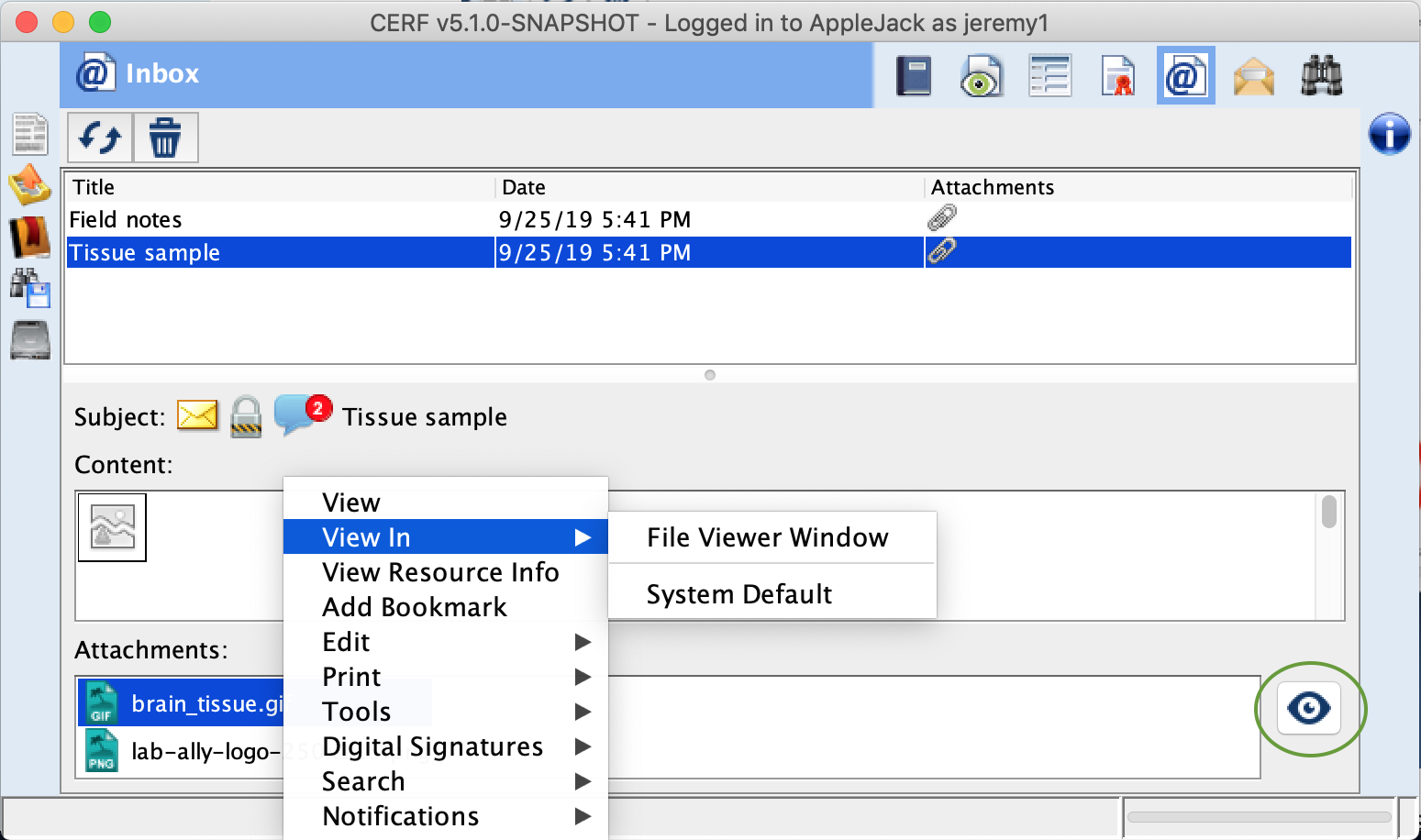
- Open your email inbox by clicking on the Email/Inbox icon
 above the middle panel.
 - Click on the Refresh button to download any new emails (again, CERF will check for email according to the interval configured in the business policies). Note that there is a Delete button next to the Refresh button. Select an email and click on Delete to clean out your inbox. Note that if you copy the content of a web page that contains images into the message of your email, CERF will not display these images inline.
- Select the email and read the message (if any) in the Content box below.
- If there is an attachment, it will be shown below when the email is selected. You can view the attachment by clicking the View button (circled), or by choosing View or View In in the standard right-click menu.
- You can drag the entire email (the envelope icon next to the Subject label) or the attachment to a File Cabinet or Notebook in the Document Tree. Any attachments in the email will appear as “Relations” in the Resource Info panel.
TIP: On some systems (e.g. AppleMail), image attachments may not appear in CERF unless you also include some text when you first compose the email. It’s a good best practice to always include some descriptive text with any file that you email to CERF anyway, so that the source and purpose of the data is clear to you and others later.
TIP: You can cc any important business email to CERF so that it becomes part of your 21CFR11 record. This makes it impossible to accidentally delete the email later, and prevents others from disputing the existence or creation date of the email.
< File Viewer Toolbar up Right Panel >