
CERF 6.0 Documentation
Go to CERF 5.3 Documentation
The right (Info) panel shows information about the resource that is currently selected in the left (Document) panel. The Info panel has several panes, some of which are dynamically created when needed.
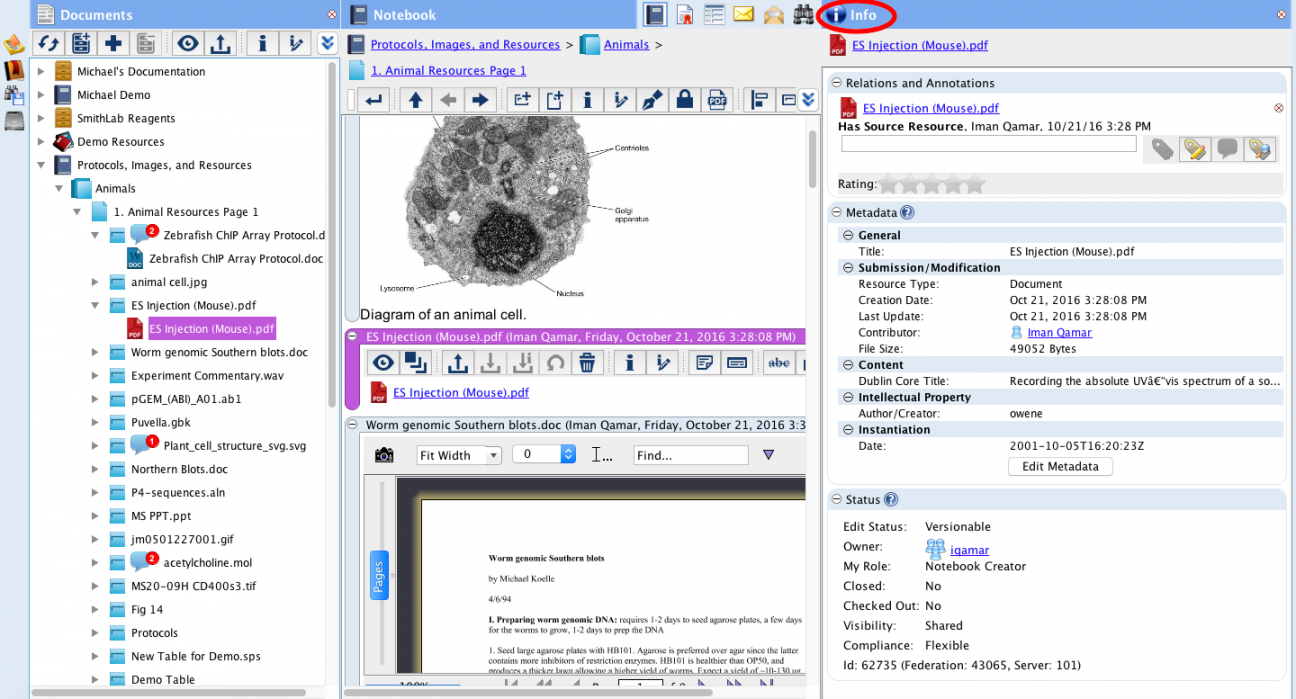
- Relations and Annotations – Displays any relations or annotations that are on the selected CERF Resource. You can view as well as create annotations here.
- Thumbnail – If a thumbnail is available and can be generated, it will be shown here.
- Content – If you have a Folder selected, this will show thumbnails of the Folder contents.
- Metadata – Shows several types of information about the selected Resource and allows you to Edit Metadata inline by clicking on the Edit button. Note that you must have the appropriate permissions. The metadata also show some of the annotation information if the selected resource has annotations.
- Status – Shows the Edit Status, Workgroup that owns the selected Resource, your role in that Workgroup and other information. Click on the owner workgroup to see who is in the Workgroup. This shows a list of workgroup members, their workgroup roles, and their digital signature roles.
- Version History – Once the selected Resource is under Version Control, a Version History is displayed with right-click actions for each Version listed. You can drag Versions from the Version history onto the current Version of a resource displayed in the Left Panel Document Tree. This will allow you to replace (i.e. restore) the current version with the older version you have selected.
- TIP: You can drag items from Resource Info in the Right Panel to other locations in CERF.
- Digital Signatures – As soon as a signature has been initiated on the selected Resource, you will see a Digital Signature block, showing the signatures and pending signatures with time and date stamps.
Hide the Right Panel: Click on the “Close View”  button in the upper-right corner or use Ctrl-0
Show the Right Panel: Click on the Info icon  on the right side of the application or use Ctrl-0
< Inbox – Email up Main Menu >