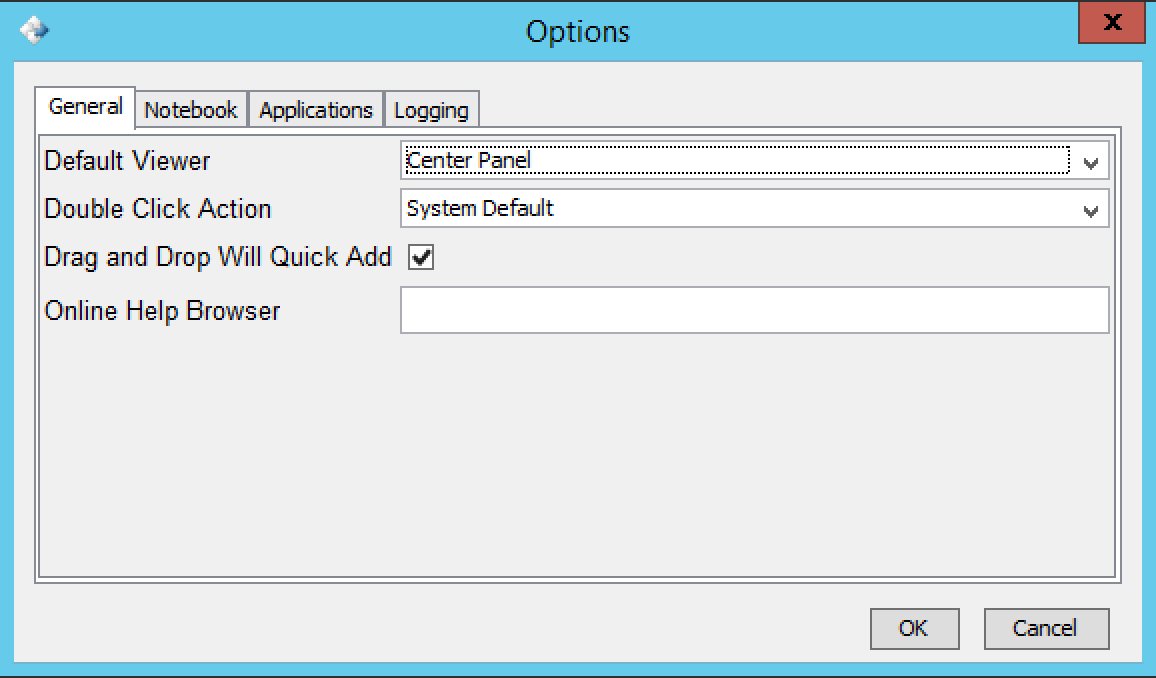
You can set the Default Viewer when the user clicks the “View” icon (Requires logout/login to take effect)
Center Panel – Will display documents in the Center Panel when a CERF viewer plugin is available for the file type or as a link instead. This is the default setting.
New CERF Window – Will display documents in a new CERF window when a CERF viewer plugin is available for the file type or as a link instead.
External Application – Will display documents in the System appropriate application (ie Microsoft Word, a text editor or image application on your computer)
NOTE: The following resource types will always be displayed in the Center Panel
Notebooks, Notebook Sections, Notebook Pages and Notebook entries (Entry content will display per setting above when selected)
File Cabinets, Folders (Documents will display per setting above when selected)
You can set the Double-Click Action.
System Default – double-clicking on a resource checks it out from the CERF server in edit mode if the resource can be edited. Double-clicking on a Notebook or Section opens the Table of Contents in the Notebook Viewer and double-clicking on a Notebook Page opens it in the Notebook Viewer.
Checkout and Edit – double-clicking on a resource checks it out from the server and opens it for editing if it can be edited. Double-clicking on a Notebook, Section, or Page does not do anything.
View – double-clicking on a resource opens it in a read-only view, and Notebooks, Sections, and Pages open in the Notebook viewer.
When you select the checkbox next to “Drag and Drop Will Quick Add,” all resource submissions will be made to CERF using the default metadata and Resource Type (e.g., the Edit Resource dialog will not be launched at the time of resource submission).
You can specify an Online Help Browser (by its complete file path; e.g., “C:\Program Files\Internet Explorer\iexplore”) to be used specifically for viewing the online help (Help > Contents). If you leave this blank, the online help will launch in your default web browser.
Click OK to enable these settings or go to another tab to change other user preferences. You can change these settings at any time.