
Note that there are Workgroup access roles as well as Signature Group roles.
A signature group includes potential cosigners. When a workgroup is created, a signature group is automatically set up that contains all members whose role allows them to cosign (i.e., any member with an role of digital cosigner, annotator, metadata editor, File Cabinet Editor, notebook editor, File Cabinet Manager, or notebook creator). Although these roles allow cosigning, only workgroup members whose roles allow them to contribute a resource (File Cabinet Editor, notebook editor, File Cabinet Manager, or notebook creator) may initiate signing. The System Administrator initially configures Signature Groups for members of a Workgroup.
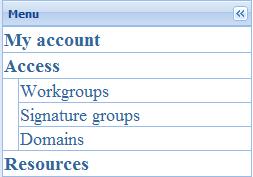
The Digital Signature Workflow sets the requirement for how many cosigners (if any) are needed and what their signing roles must be. Note that the signing role is not the same as the workgroup role. A business policy sets the default singing role, which may be edited when the user is created or edited and when the Signature Workgroups are managed. Each cosigner may have more than one signing role in a workgroup. You will be able to edit the Signature Groups for any Workgroups in which you are a Workgroup Administrator. If you are a Workgroup Admin, select Sessions > Manage Account from the main menu. Select Access > Signature Groups from the menu in the left panel.
Viewing and Editing Signature Groups
To view or edit signature groups, click on Access > Signature groups in the Menu in the left panel. This opens the Signature Group Management page. You can filter the Signature Groups by user (showing all workgroups in which this user has a role allowing them to initiate signing) or filter by workgroup (showing all users who may initiate signing in this workgroup). The next image shows a filter by workgroup:
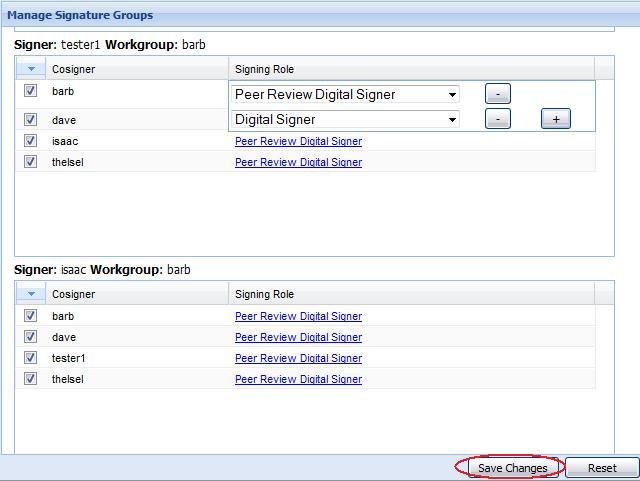
In this example, there are three potential signers for this Workgroup (two signers are shown: tester1 and isaac). The potential Cosigners (those whose workgroup role is digital cosigner or higher) for each signer are listed. Deselect the checkboxes to remove any cosigners. Each cosigner can have more than one signing role (click next to the Signing Role drop-down list and a + will be displayed next to a second drop-down list). This is shown in the image below. Be sure to click on the Save Changes button (circled) at the bottom of the page when finished.
Note that the person who initiates signing can add a new signature group in the Add Cosigner dialog. This is optional.
< Workgroups up Domains >