
iCERF for the Apple iPad, CERF Client is an easy-to-use way of accessing your CERF Notebooks and File Cabinets from your iPad, without using the Web Interface. To get started, all you will need to know is your CERF SERVER ADDRESS and Port, your CERF Login Name, and your CERF Password. If you’d like to access or download a PDF version of the full iCERF manual, click here.
- Getting Started:
Launch the iCERF application on your iPad. When the application loads, it will immediately take you to the Configuration screen. Enter your CERF username, password, CERF server address and port. Click the Log In button: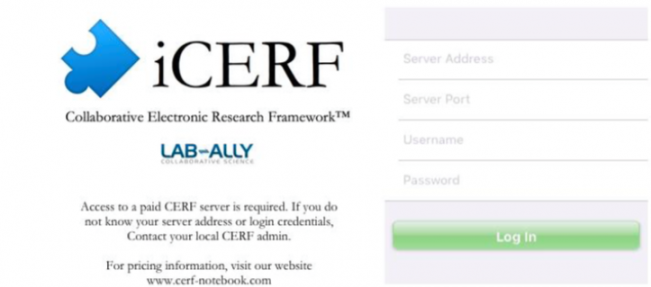
- Browsing Collections:
Once you have authenticated, you will be taken to your CERF COLLECTIONS, which will display all of your mounted File Cabinets and Notebooks: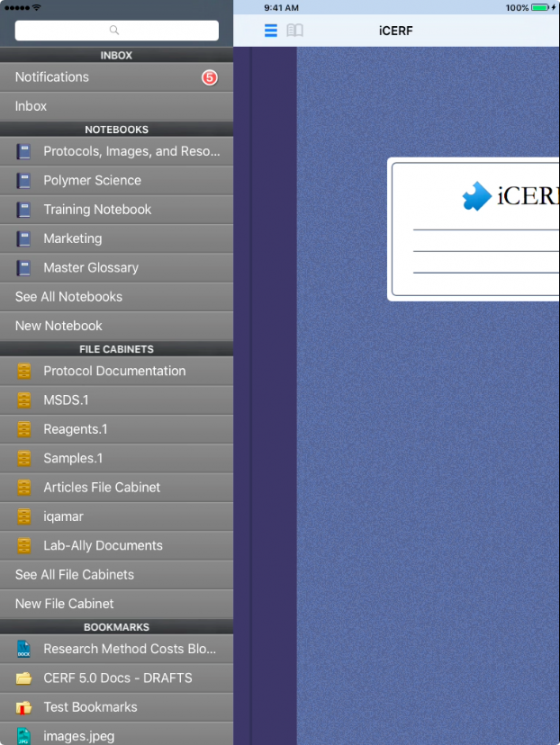
To see the contents of any collection, simply select it and the iCERF display will slide sideways, displaying the first hierarchical level of the collection. You can keep browsing, or if you select a specific file inside the collection (e.g. a Notebook Entry, or a file inside a File Cabinet), the file will be displayed, if possible: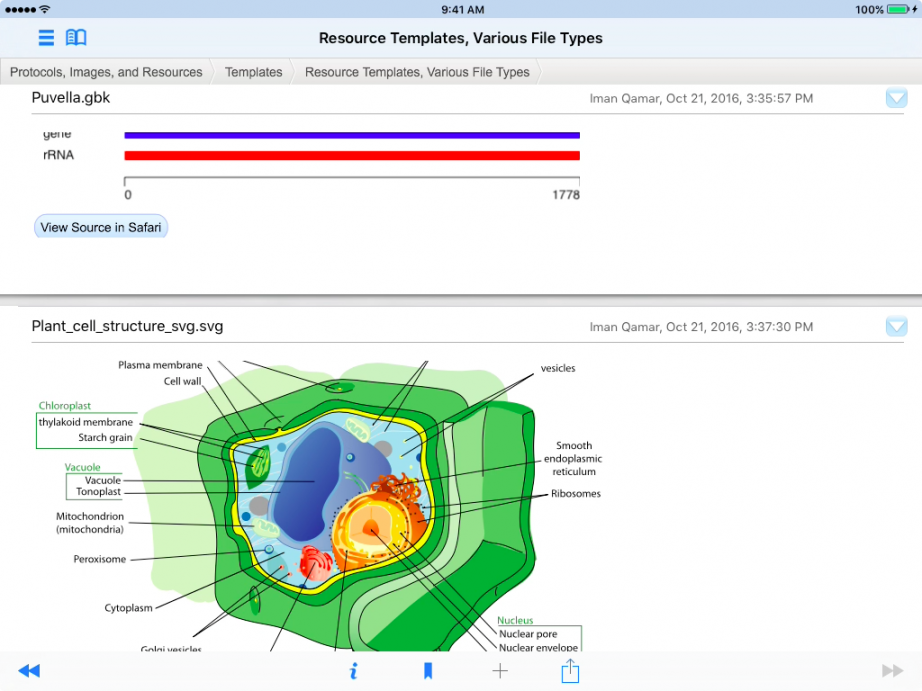
To go back to the previous level of your File Cabinet or Notebook, simply press the button in the upper left of the display.
< CERF Exporter up Glossary >